
Cut and Paste Page(s)
The IceViewer HTML5 provides options to easily cut and paste single or multiple pages.
To cut a page, select its thumbnail in either the Thumbnail Sidebar or Thumbnail View Mode , then click the Cut selected page to the clipboard icon on the Tools toolbar.
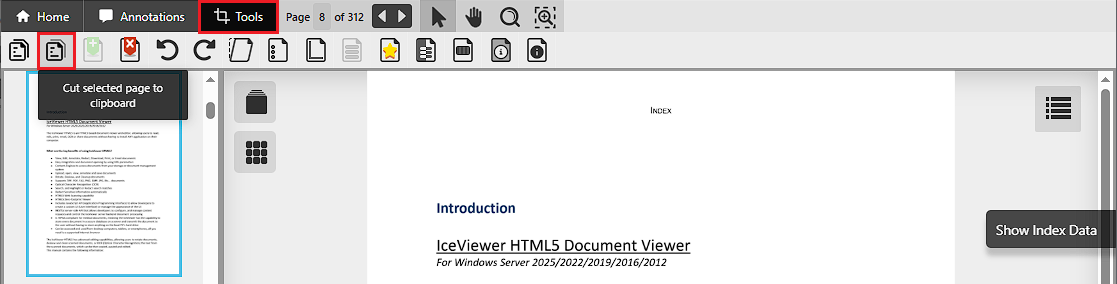
To select multiple pages, hold down the Ctrl key on the keyboard while selecting the desired pages in the Thumbnail Sidebar.
Alternatively, to cut pages, right-click the selected page and select the Cut Page option from the context menu.
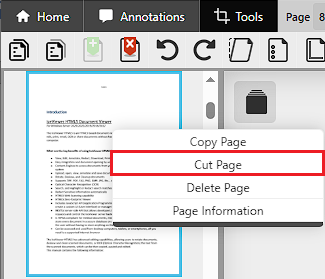
To paste the copied page(s), click the Paste page from clipboard option to insert the cut pages after a selected page.
.png)
Alternatively, right-click a thumbnail of a page in the Thumbnail Sidebar and select either the Paste Page Before or Paste Page After option from the context menu.
.png)