
Uploading Documents
One can upload documents to IceViewer HTML5 by clicking on the Upload icon on the top-left corner. The following window shows up:
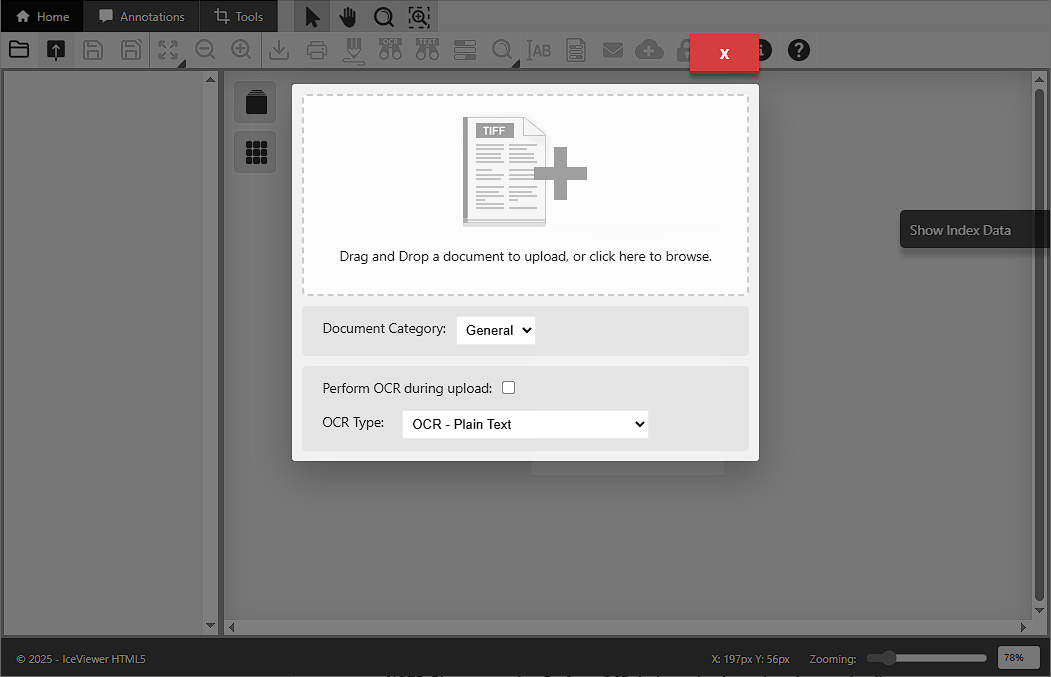
In the Document Category dropdown list, one can specify the category of the document. Document Categories can help users to organize their documents, and to set different index fields for specific documents. For more information, please refer to the Index Information section.
Perform OCR during upload will recognize the text from the document while uploading, and then save the text into the IceViewer HTML5. This feature is useful for wide searches. For more information about wide search, please refer to the Search in every Document Content section.
NOTE: Please note that Perform OCR during upload can slow down uploading.
OCR Type specifies the default OCR type. The type can be the followings:
- Plain Text (OCR) extracts the plain text from the document without any layout or styling.
- hOCR extracts the text in an HTML format, containing the layout and some styling. This option is recommended, if one would like to rebuild the document using the recognized text.
Once you selected the appropriate options, drag and drop a document to upload, or click on the dashed area to browse a document to upload. For the supported image formats, please refer to the Supported Image File Formats section.
Once the upload is done, you can open the document by clicking on the Open icon.
Print Documents with Printer Driver and Upload to IceViewer HTML5