
Search with OCR
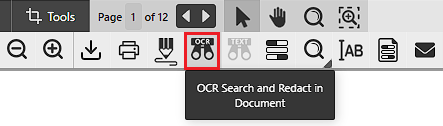
The Search with OCR option allows users to find words or phrases in the currently opened document. The Search with OCR option can be ideal to search in TIFF or Image PDF documents.
To start searching, please click on the Search with OCR option.
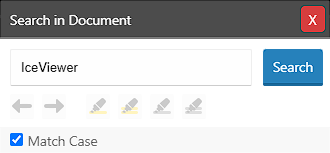
On the appearing Search in Document window, one can enter the desired text to search for. Press the Search button to initiate the search. If the Match Case option is enabled, the IceViewer HTML5 will use case-sensitive search.
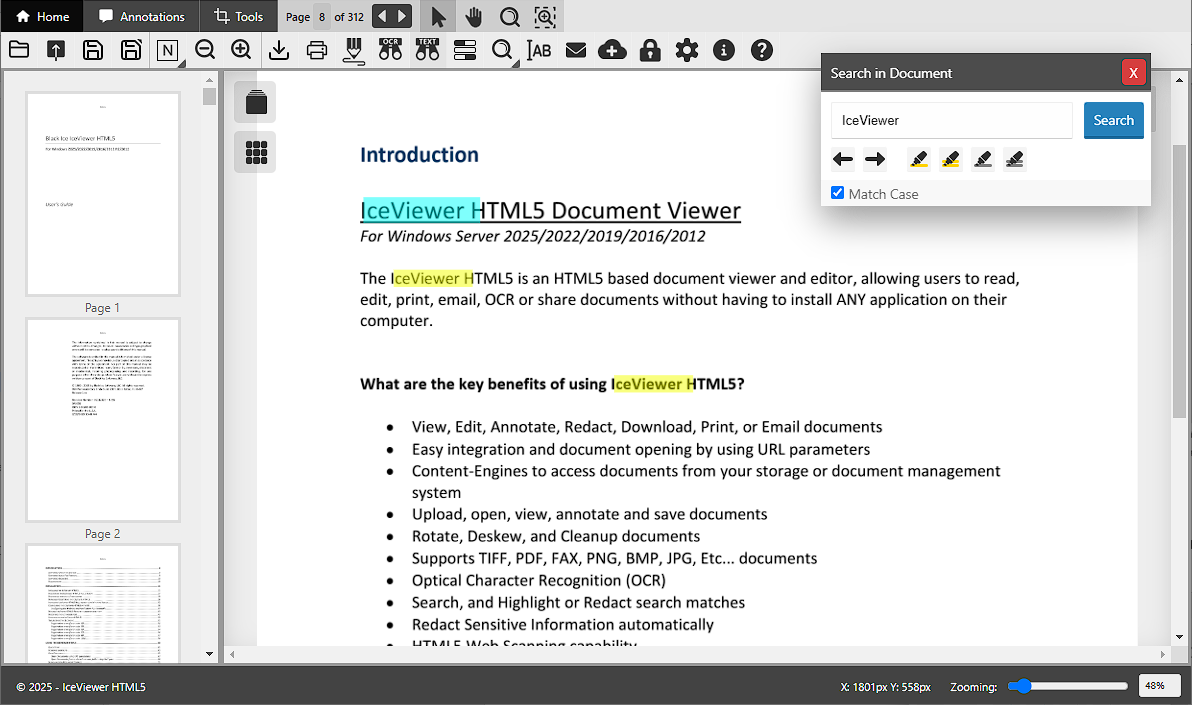
After starting the search process, users can navigate between the search results by using the Previous and Next buttons on the Search in Document window. The currently selected search result is highlighted in turquoise, while the other results are highlighted in yellow.
Using Highlight or Redact with Search
The Search with OCR feature of the IceViewer HTML5 allows users to apply highlight or redact annotations to the search results.
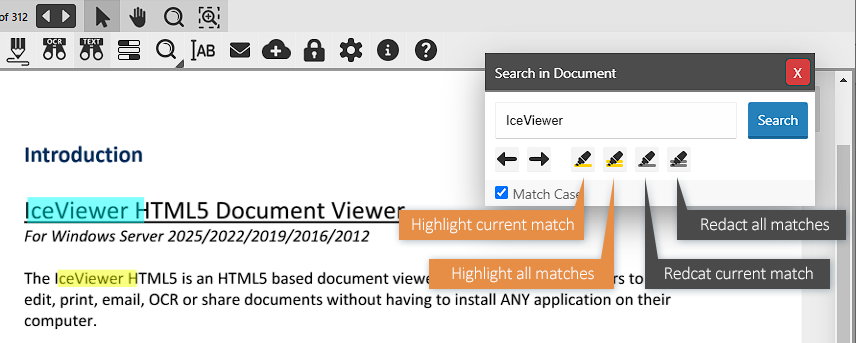
The following options are available:
- To highlight the currently selected search result only, please use the Highlight Current Match option.
- To highlight every search result, please use the Highlight All Matches option.
- To redact the currently selected search result only, please use the Redact Current Match option.
- To redact every search result, please use the Redact All Matches option.