 Buy Now
 Download
This tutorial is designed to show you how to fax multiple pages in a single fax transmission with the Impact ColorFax software.
Frequently Asked Questions:
How to fax multiple pages with Impact Color Fax
Important Notes:
You can fax multiple pages in a single fax transmission as long as all of the pages are in a single TIFF file. A TIFF file is the standard file type used for faxing. TIFF files
have a ".tif" extension - for example: myfax.tif. Click
here for detailed information on creating or preparing a TIFF file for faxing. You cannot combine individual TIFF files into a single file with the Impact ColorFax Lite software. You
can upgrade to the Impact ColorFax if this feature is necessary.
1. Open the Color Fax software.
2. Open the document you want to fax.
3. Click of the phone icon or select the "Fax" menu item and "Send
Image". The following dialog box will appear:
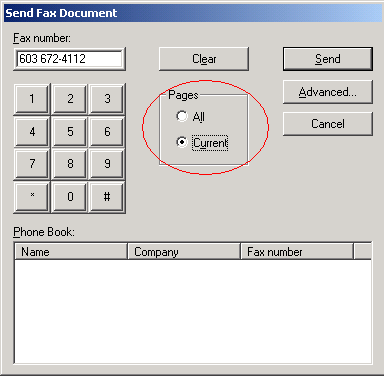
4. As you can see above there is a setting that specifies whether or not
you want to send all of the pages or just the current page. By default,
"Current" is checked. Change the setting to "All" if you wantto fax
every page.
5. Enter the fax number or select a fax recipient from the phone book and
press the "Send" button to send the fax.
Other questions? Please visit the the ColorFax Lite FAQ for answers.