|
How to Send and Receive
a Fax with Impact ColorFax
This tutorial is
designed to show you how to send and receive faxes with the ColorFax
software. Please
select a link below to learn more.
Sending
a fax:
- Open
a COM port
- Preparing
a document for faxing
- Faxing
an existing document
- Faxing
a new document
Receiving
a fax
-
Make
sure the program is running
-
Open
a COM port
Sending a fax:
Open
a COM Port
- The
first step in sending a fax is to make sure that you have a
modem installed on your computer and that you have a “COM" port
open to fax through. COM
port is short for communication port and is the pipeline used
by the modem to transmit and receive faxes. Open
up the ColorFax software and select the “Fax" menu item and
select “Open Modem Com Port…" The
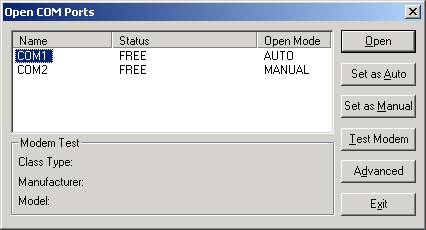
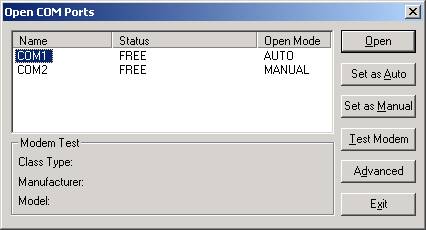
following dialog box will appear:

Here
you can see COM1 and COM2. This
means that there are two COM ports. It
is normal for a computer to have several COM ports. You
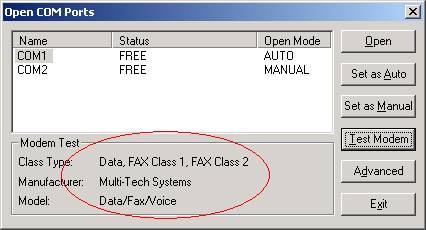
need to identify which COM port your modem is installed on. You can do this by clicking on the name of the COM port and
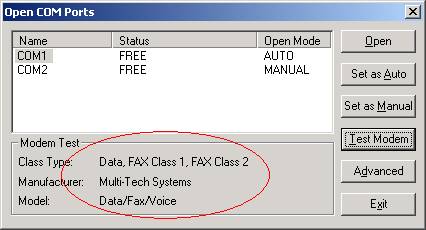
pressing the “Test Modem" button. ColorFax
will check the COM port for a modem and return the result of
the test in the Modem Test section of the dialog box. Please see the screen shot below:

Click
on the name of the COM port that has the modem attached and click “Open". The
COM port is now open and ready for faxing. Please
note: As you can see above, in the “Open Mode" field, you
can set the COM port as Auto or Manual. This
setting is very important. If
the “Set as Auto" option is selected, the COM port will be opened
up automatically every time ColorFax is started. You
simply open the program and you are ready to fax. If
the “Set as Manual" option is selected, the COM port will not
open up when ColorFax is started. You
will have to go into the menu and open it manually. You
will not be able to send a fax until the COM port is opened. For ease of use, it is recommended that the port be “Set as
Auto". Other settings
are available; however it is recommended that the manual is carefully
reviewed before any of the settings are changed. Changing
the settings may result in transmission errors or the inability
to fax.
Preparing
a document for faxing:
The
next step is to prepare a document for faxing. In
order to fax a document, it must be a TIFF file. TIFF
is short for Tag Image File Format and the worldwide standard
for faxing. You
can use an existing TIFF document or create your own. A TIFF file will have an extension of
".tif". For
example: myfax.tif. You
can create your own document by scanning in the document and
saving it as a TIFF or you can use the built in printer driver
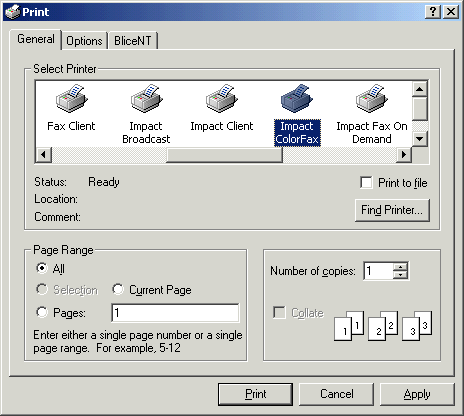
in the ColorFax application. Select the "File" menu
item and select "Print". Scroll through the
list of printers and highlight "Impact ColorFax". Please
see the screen shot below:

Faxing
an existing document:
1. First
select the “Fax" menu. At
the bottom of the menu items you will either see “Hide Fax Manager" or “Show
Fax Manager". Toggle the item so that you see “Hide Fax Manager". As
a result, you have enabled the Fax Manager. The
Fax Manager is a window that pops up when a fax is sent and gives
the real time status of the fax transmission. As
a result, you can monitor the status of the fax transmission.
2. Now
select the “File" menu item and select “Open Image…". Scroll
through the directory and click on the name of the document you
want to open and press OK.
3. The
image will be opened up and displayed in the ColorFax application.
4. Select “Fax" menu
item and select “Send Image". The
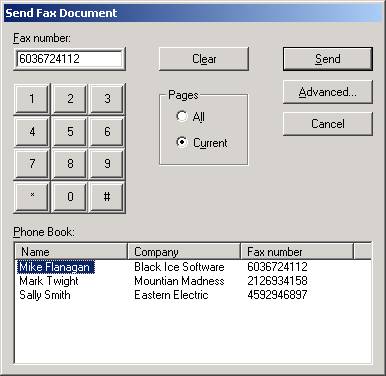
following dialog box will appear:
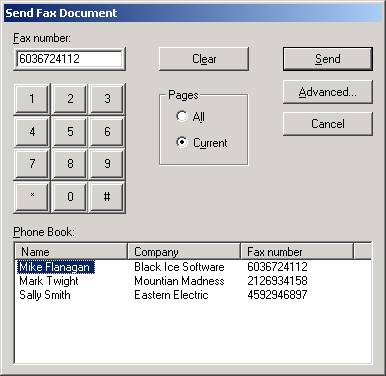
Enter the number
in manually using the keypad, the fax number field or click on
a name in the phonebook. Press
the “Send" button to start the transmission. When
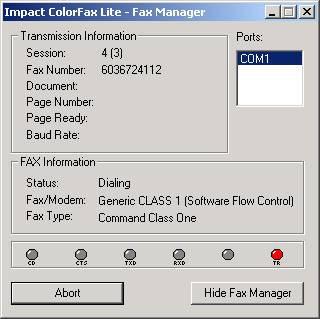
the transmission starts, the Fax Manager window will appear. If
you do not see the Fax Manager please repeat step one. Please
see the screen shot below:

The
Fax Manager window shows the fax number of the transmission and
the status of the transmission.
- To
send another fax, repeat steps 2-4.
Faxing
a new document :
1. First
select the “Fax" menu. At
the bottom of the menu items you will either see “Hide Fax Manager" or “Show
Fax Manager". Toggle the item so that you “Hide Fax Manager"
is displayed. As
a result, you have enabled the Fax Manager. The
Fax Manager is a window that pops up when a fax is sent and gives
the real time status of the fax transmission. As
a result, you can monitor the transmission.
2. Now
select the “File" menu item and select “Open Image…". Scroll
through the directory and click on the name of the document you
want to open and press OK.
3. The
image will be opened up and displayed in the ColorFax application.
4. Select “Fax" menu
item and select “Send Image". The
following dialog box will appear:
Enter the number
in manually using the keypad, the fax number field or click on
a name in the phonebook. Press
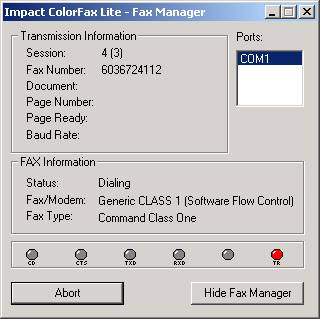
the “Send" button to start the transmission. When
the transmission starts, the Fax Manager window will appear. If
you do not see the Fax Manager please repeat step one. Please
see the screen shot below:

The
Fax Manager window shows the fax number of the transmission and
the status of the transmission.
- To
send another fax, repeat steps 2-4.
Receiving
a Fax
Impact
ColorFax will receive a fax if the parameters below are
met.
Important: Impact ColorFax must be running in order to receive a fax.
Please note:
The "Receive" menu item under the "Fax" menu is not used
and should be disregarded.
Make
sure the program is running:
- Your
computer must be turned on and Impact ColorFax has to be running
in order to receive a fax. You
can minimize the program and keep it running in the background
while you are doing other things.
Open a COM Port:
- To
receive a fax there must be a modem installed on your computer
and you have to
have an open “COM" port
to receive the fax through. COM
port is short for communication port and is the pipeline used
by the modem to transmit and receive faxes. Open
up the ColorFax software and select the “Fax" menu item and
select “Open Modem Com Port…" The
following dialog box will appear:
Here
you can see COM1 and COM2. This
means that there are two available COM ports. It
is normal for a computer to have several COM ports. You need to identify which COM port your modem is installed
on. You can do this
by clicking on the name of the COM port and pressing the “Test
Modem" button. ColorFax
will check the COM port for a modem and return the result of
the test in the Modem Test section of the dialog box. Please
see the screen shot below:

As
you can see above, there is a modem connected to COM1. If
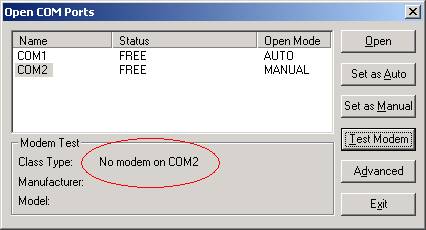
no modem is detected the following message will be returned.

Click
on the name of the COM port that has the modem attached and click “Open". The
COM port is now open and is ready to receive a fax. Please
note: As you can see above, in the “Open Mode" field, you
can set the COM port as Auto or Manual. This
setting is very important. If
the “Set as Auto" option is selected, the COM port will be opened
up automatically every time ColorFax is started. The
applications cam simply be opened and you are ready to receive a fax. If
the “Set as Manual" option is selected, the COM port will not
open up when ColorFax is started. You
will have to go into the menu and open it manually. You
will not be able to receive a fax until the COM port is opened. For
ease of use, it is recommended that the port be “Set as Auto". Other
settings are available; however it is recommended that the manual
is carefully reviewed before any of the settings are changed. Changing
the settings may result in transmission errors or the inability
to fax.
-
You
are now ready to receive faxes
|