
Zooming modes
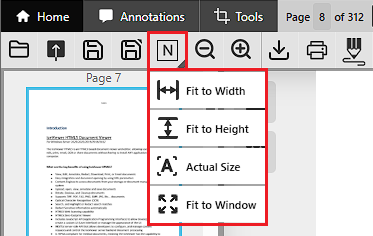
In the IceViewer HTML5, one can choose from several zooming modes. The following options are available:
- To select a view mode, please click on the View
Mode button on the Home ribbon. The IceViewer HTML5 saves
the last used view mode automatically. The following view modes are
available:
- Auto Zoom option tracks the size of the browser and automatically zooms the document to fit to the browser size.
- Fit to Width option fits the document to the width of the browser.
- Fit to Height option fits the document to the height of the browser.
- Actual Size option displays the document in its original size.
- One can zoom in or out by 20% on the document by using the
Zoom In and Zoom Out buttons on
the Home ribbon.

- One can zoom in and out on the document by using the
Zoom scroller at the bottom of the application.

- One can zoom to a specific percentage by
entering a zoom value in the bottom-right corner:

- By using the Rubberband Zoom Mode feature, one can zoom to a specific area on the document by clicking and dragging, and the IceViewer HTML5 will zoom in to the selected area.
