
Print Documents with Printer Driver and Upload to IceViewer HTML5
One can upload documents to the IceViewer HTML5 database easily by using the Black Ice virtual Printer Drivers.
To configure the Black Ice Printer Driver to upload documents to the IceViewer HTML5, go to Printer Manager > HTTPS > and Enable the Upload to HTTP/HTTPS option.
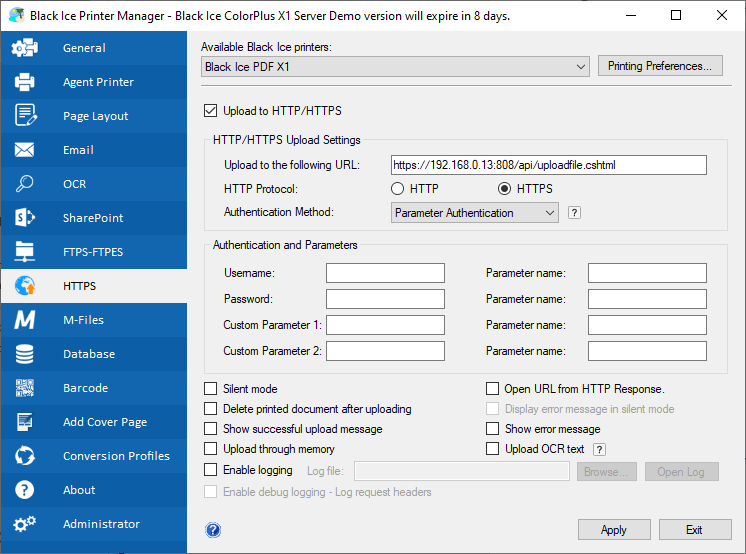
- The Upload to the following URL must be the URL of your IceViewer HTML5 website and the UploadFile API endpoint. For example: https://<<ICEVIEWER WEBSITE>>/API/UploadFile.cshtml
- The Authentication Method must be Parameter Authentication.
NOTE: One can upload documents by printing to memory, without generating any file on the local drive. Printing from EMR application to memory guarantees that the upload process to the SQL database is HIPAA compliant . To print to memory, enable the Upload through memory option.
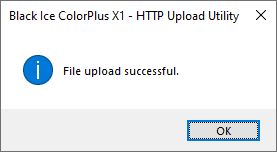
When everything is configured, print a document, and if the file has been uploaded successfully, the following window appears:
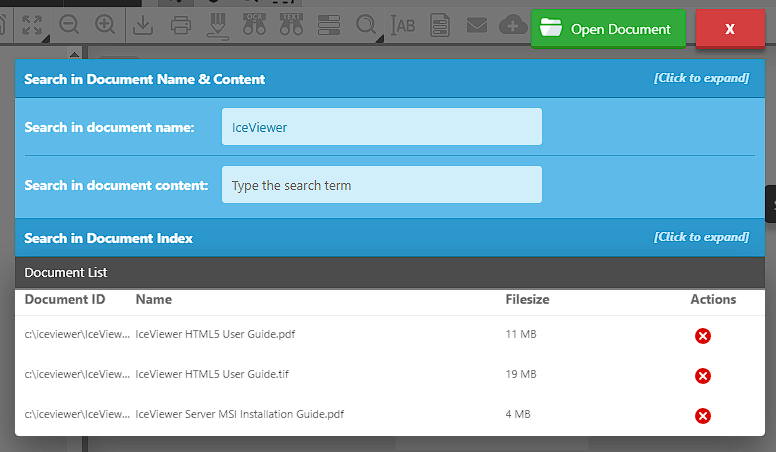
Log in to IceViewer HTML5, and see if the uploaded document appears in the documents.
The following parameters can be used as Custom Parameter 1 and Custom Parameter 2 for further customizing the uploading process. These parameters are optional.
| Parameter Name | Possible Values | Description |
| ce |
1: FileEngine (default) 2: DatabaseEngine |
Specifies the Content-Engine to use for uploading the document. |
| OCR |
-1: No OCR when uploading documents. (default) 0: OCR document when uploading. 1: hOCR document when uploading. |
Performs an OCR while uploading the document, and saves the OCR data into the database. This can be useful for faster searching in IceViewer HTML5. |
For more information about the Black Ice Printer Drivers, please refer to the following link.