
Installing the IceViewer HTML5 Scanner Application
To use the scanning option of the IceViewer HTML5, users must run the IceViewer HTML5 Scanner Application on the Client computer.
Click on the Scan tab in IceViewer HTML5.
If the scanner application is not running on the client, the IceViewer HTML5 will indicate it to the user and offer to start the application.
To start the application, please click on the Start It button.
.png)
If starting the Scanner App was not successful, the IceViewer HTML5 will assume that the Scanner App is not installed, and provide links to download and install it. Please click on the appropriate link to download the installer for 32-bit or 64-bit scanners.
.png)
Please run the downloaded installer as an administrator. The installer will guide you through the steps required to install the Black Ice IceViewer HTML5 Scanning Application.
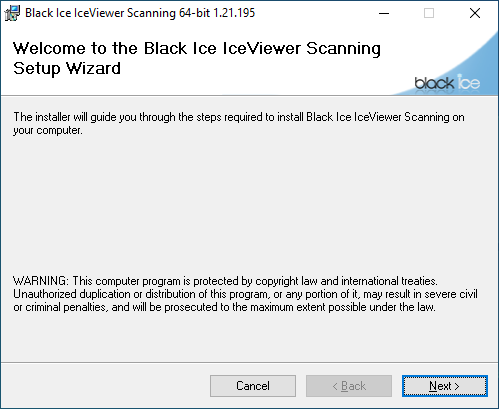
Click on the Next button to continue.
Specify the installation directory using the Browse button, or proceed with the default installation path.
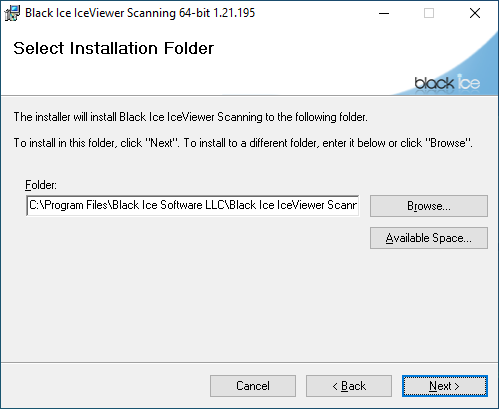
Click on the Next button to continue.
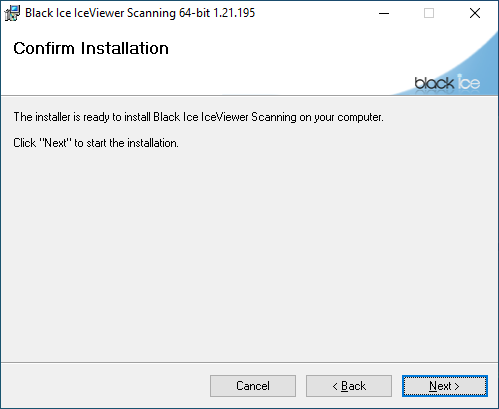
The installer is now ready to install the IceViewer HTML5 Scanner Application on the computer. Click Next to start the installation.
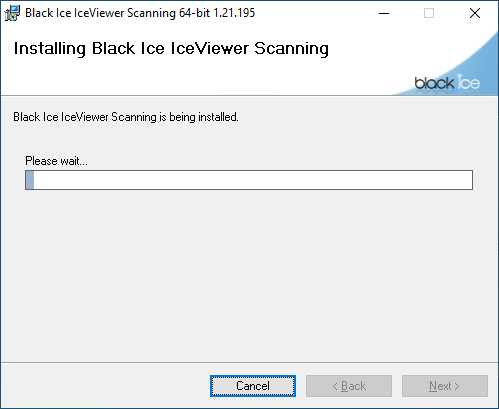
Please wait while the IceViewer HTML5 Scanning Application is being installed.
The IceViewer HTML5 Scanner Application has been successfully installed.
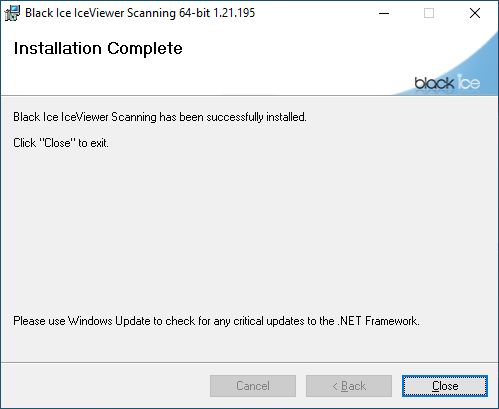
Click on the Close button to complete the installation.
To start scanning, please refresh the page in the browser, navigate to the Scan tab in the IceViewer HTML5, and click on the Start It button.
.png)
A message window will show up. To allow the browser to run the scanner application, please click on the Open button.
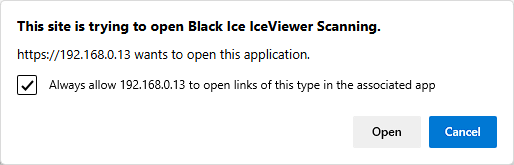
If running the application has been successful the scanning options become available.
.png)