Support Included in Document Imaging SDK/ActiveX
In addition to the printing features which are included in all Black Ice imaging products, the Document Imaging SDK/ActiveX includes unique advanced printing functionality which is available only from Black Ice Software. The Document Imaging SDK/ActiveX provides a seamless interface which allows developers to merge the Document Imaging SDK/ActiveX with any printer, whether it is a physical printer or one of the Black Ice printer drivers (licensed separately). This seamless interface provides developers with access to over 300 high level printing functions, in addition to those included in the Document Imaging SDK, without having to wrestle with the task of integrating multiple development tools.
The Advanced Printing controls provide the answer for all of the following requirements:
- Print one or more images from one or more image files as either a single or multiple print jobs.
- Print all the images from a multi-page image file in one single print job.
- Display a printer selection dialog where the user can select the printer and change settings that affect the printing process.
- Specify how an image is printed. An image can be printed based on the printer’s DPI, the image’s DPI, resized to a specific size, stretched to fit the width of the paper, or stretched to fit the height of the paper.
- Specify the position of the image on the paper.
- Specify the orientation of the image.
- Change printer specific settings like paper size, resolution, etc.
- Print more than one image on to the same page.
- Print the same image tiled multiple times to a single page.
- Have direct access to the printer’s device context to send additional GDI commands to the printer. This feature is useful when other like texts, lines, highlights, etc are also needed to be printed to the page where the image is printed.
IMAGE COMPOSER / PRINT PREVIEW
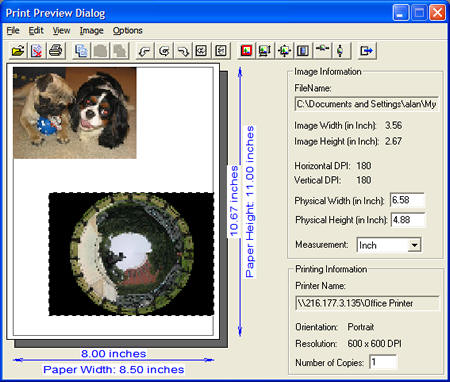
Included along with the rest of the advanced printing functionality, the Black Ice “Print Preview" is a sophisticated dialog box that can programmatically display several images based on the target printer’s settings and allow users to resize and arrange the images as they desire. Developers can easily integrate the Print Preview feature in their application, using only a few lines of code.
How it works:
There are several ways to use the Black Ice Print Preview dialog tool. The simplest way is to display the window with a single function call and let the end users manipulate the images.
The Black Ice Print Preview will display the page layout and show the paper size based on the selected printer’s settings. The target printer can be changed to any available printer. When a new printer is selected, or the printer settings have been changed, the Print Preview dialog will automatically reformat the page based on the new paper size, DPI settings and page orientation.
Any image format supported by the Document Imaging SDK can be loaded and printed. Once an image is loaded, the user can move the image to any position on the paper and/or they can resize the image(s). The dialog box will show the dimensions of the currently selected image in Pixels, Inches or Millimeters depending on the view mode selected. Center vertically, horizontally and use image’s DPI options are also available options.
Developers can use a set of flags to programmatically enable which menu items and toolbar buttons will be displayed in the Print Preview dialog. Undesired menu and toolbar options can be hidden from the end users. Also, developers can add their own menu items by specifying the name for the new menu item and a pointer to the function to be called when selected.
Once the page is formatted, the application can print the page using the Black Ice Printing functions and methods.
 Buy Now
 Download