How
to Download ColorFax Lite
Impact ColorFax can be downloaded
and installed two different ways. A
self extracting executable file can be downloaded and saved to
your computer. This
will allow you to install the software right away or at a later
time. There is also
an option to download and install ColorFax directly from the
web. This will install
ColorFax immediately.
Download
and save to your computer
Download
ColorFax to your computer and install immediately
Download ColorFax
from the Web
Downloading
and saving the ColorFax executable file to your computer
-
Click on or copy
the following link into your web browser: www.blackice.com/download.htm.
-
Click on the “Free
Software" link and fill out the short information form. Black
Ice Software will not sell or distribute the information
in any way.
-
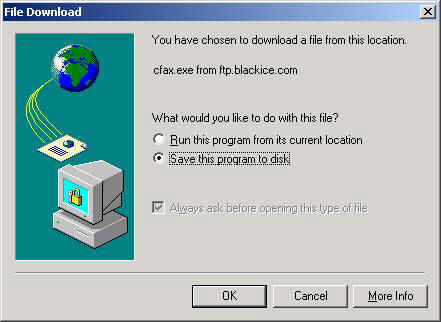
Click on the “Download
Now" link to the left of Impact ColorFax Lite. The
following dialog box will appear:
-
Click on “Save
this program to disk" to download the executable file to
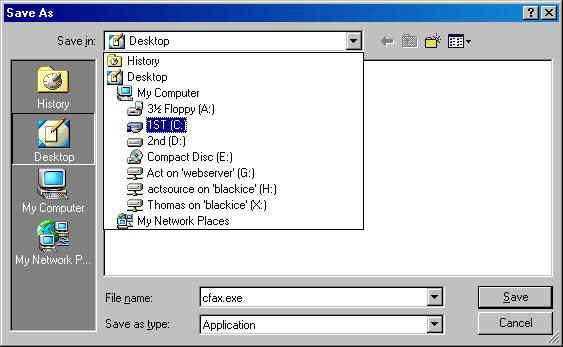
your computer. The
following dialog box will appear:
-
Select the drive
and file path where you want to download the software to. For
example: C: Downloads/cfax.exe. Cfax.exe
is the name of the executable file that starts the installation.
-
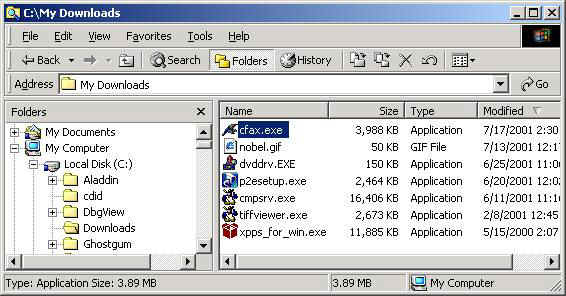
Open explorer
by right clicking the on the “Start" button and clicking “explore". The
following window will be displayed:
-
Scroll to the
directory you specified in step 9 and double click on the
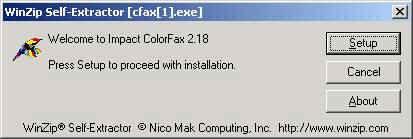
cfax.exe file. The
following installation screen will open:
-
Click “Setup" to
begin the installation or cancel to exit the program. Follow
the onscreen instructions to continue with the installation.
Downloading
ColorFax to your computer and installing
immediately
-
Click on or copy
the following link into your web browser: www.blackice.com/download.htm.
-
Click on the “Free
Software" link and fill out the short information form. Black
Ice Software will not sell or distribute the information
in any way.
-
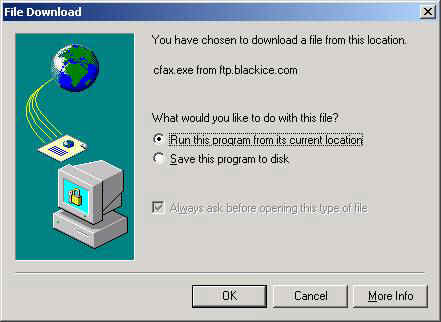
Click on the “Download
Now" link next to Impact ColorFax Lite. The
following dialog box will appear:
-
Click on “Run
this program from its current location". The
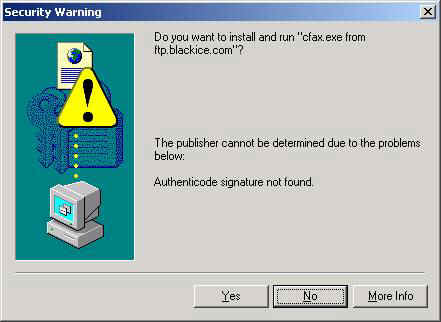
ColorFax application will be downloaded and the following
dialog box will appear:
-
Click “Yes" to
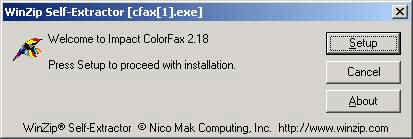
proceed or “No" to cancel the installation. If
you click yes, the following setup dialog box will appear:
-
Click “Setup" to
begin the installation or cancel to exit the program. Follow
the onscreen instructions to continue with the installation.
Downloading
and installing ColorFax directly from the Web
-
Click
on or copy the following link into your web browser: www.blackice.com/hp.htm. Click
on the link to “Install ColorFax from the Web" the
next page will bring up a short form. Fill
out the required information and click “Submit". Black
Ice Software will not sell or distribute this information
in any way.
-
A
new screen will appear with the following box in the middle
of it:
-
Click the Install button at left to install Impact
ColorFax.
-
ColorFax
will be automatically downloaded to your computer and the
installation will begin.
|