
Save As Dialog
When the Enable Save As Option is selected in Printing Preferences, the Save As dialog is displayed each time before printing the file. The Save As dialog is very similar to the regular Windows Save As dialog, except that it contains additional Black Ice options.
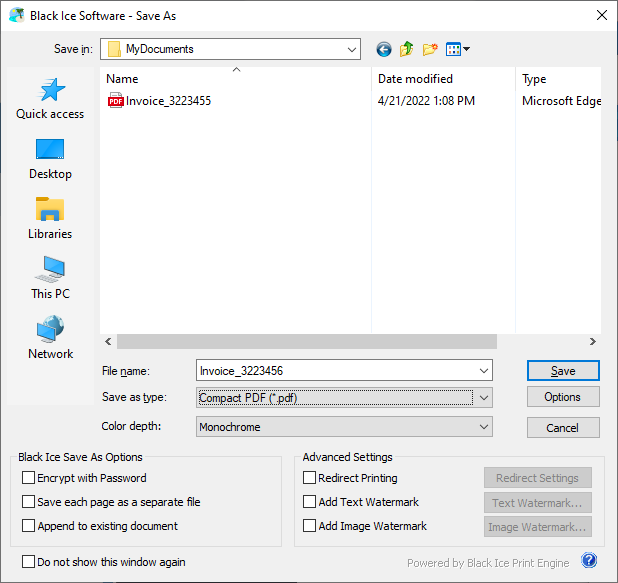
Options - For certain file formats additional settings can be specified. Available options change according to the selected file format.
| File Format | Options include |
|---|---|
| PDF (*.pdf) |
Document properties, security settings, compression and font embedding.
For more information, refer to PDF Settings. |
| PDF Image (.pdf) |
Compression settings: no compression, Flate compression, JPEG compression.
For more information, refer to PDF Settings: Compression Methods. |
| JPEG (*.jpg) |
JPEG Loss Ratio
For more information, refer to JPEG Settings. |
| JPEG LAB (*.jpg) | |
| PNG (*.png) | |
| GIF (*.gif) | |
| TIFF JPEG (*.tif) | |
| TIFF Group 4 (*.tif) |
Internet TIFF Format, Add Page Numbering Tag, Reverse Bit Order
For more information, refer to TIFF Settings . |
| TIFF Group 3, 1 Dimension (*.tif) | |
| TIFF Group 3, 1 Dimension, with Fillbits (*.tif) | |
| TIFF Group 3, 2 Dimension (*.tif) | |
| TIFF Packed (*.tif) | |
| TIFF Lempel-Ziv & Welch (*.tif) | |
| TIFF Uncompressed (*.tif) | |
| TIFF for CISCO (*.tif) | |
| TIFF for Dialogic boards (*.tif) | |
| TIFF for NMS boards (*.tif) | |
| TIFF for Gammalink boards (*.tif) | |
| HTML - editable (*.htm) |
Display Options, CSS Options, Content Output directory, Save pages to separate files, Fonts
For more information, refer to HTML Settings. |
| HTML with GIF (*.htm) | |
| HTML with PNG (*.htm) | |
| HTML with JPEG (*.htm) |
JPEG Loss Ratio
For more information, refer to JPEG Settings. |
| HTML with BMP (*.htm) | |
| XML with GIF (*.xml) | |
| XML with PNG (*.xml) | |
| XML with JPEG (*.xml) |
JPEG Loss Ratio
For more information, refer to JPEG Settings. |
| XML with BMP (*.xml) | |
| XML with PDF Image (*.xml) |
Compression settings: no compression, Flate compression, JPEG compression.
For more information, refer to PDF Settings: Compression Methods. |
| IBM MMR IOCA (*.tmp) | |
| PCX (*.pcx) | |
| INTEL DCX (*.dcx) | |
| Microsoft Bitmap (*.bmp) | |
| CALS (*.cg4) |
Color Depth - This option sets the color depth of the generated image. The value can be 1 bit, 8 bits, 8 bits grayscale and 24 bits. Certain file formats do not support all the available color depth options.
Encrypt with password - When enabled, users are able to generate encrypted PDF documents even if the Encrypt PDF Documents Using a Password option is disabled in the Print2Email > Email Sending tab. The user will be prompted with the “Encrypt with Password” window to enter a password for the printed document and select the protection type of Viewing and Editing. If no encryption is selected on the PDF Settings > Security tab, the document will be encrypted with 256-bit AES encryption (Acrobat X or later). The password must be a maximum of 32 characters. To read more about PDF encryption, please see the Security options section of the manual.
Save each page as separate file - When this option is checked, the driver saves every printed page in a separate file. If it is unchecked, all pages are generated in a single file. Note that certain file formats, for example, JPEG, do not support multiple pages. In these cases, this option is not available. When the Save each page as a separate file option is enabled, the Append to existing document option is not available.
Append to existing document - When this option is selected, the printer driver appends the output to the selected file. To successfully use the Append to existing document functionality, the output file format must have multipage capability. When the Append to existing document option is selected, the Save each page as separate file option is not available. Note that certain file formats, for example, JPEG, do not support multiple pages. In these cases, this option is not available.
Advanced Settings
Redirect Printing on Save As Dialog