Text Output
The Black Ice Printer Driver is capable of extracting the text information from the printed document.
The text extracted from the document is saved as a standard text file. The text file gets the same name as the printed document, but with the .txt extension.
When printing to a multipage file format, such as PDF or TIFF, every page will be in one single text output. When printing to a single page file format or with the Save each page as separate file option, every page will be in a separate text output file.
|
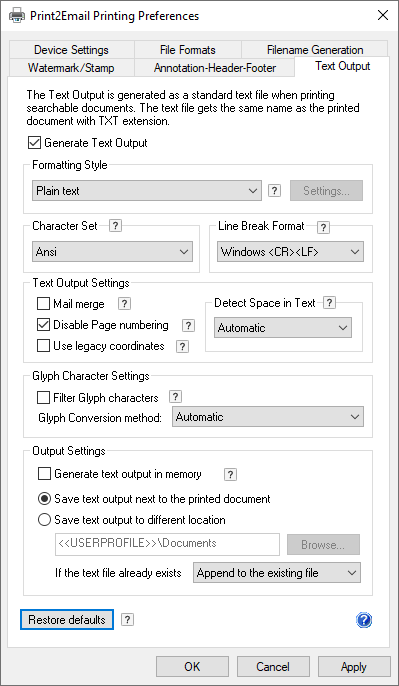
The Text Output has the following features: |
|
In order to enable Text Output in Black Ice printer driver, navigate to Control Panel > Devices and Printers > right click on the Black Ice Printer Driver > Printing Preferences > navigate to the Text Output tab, and check the Generate Text Output option.
Example of how the Text Output works:
|
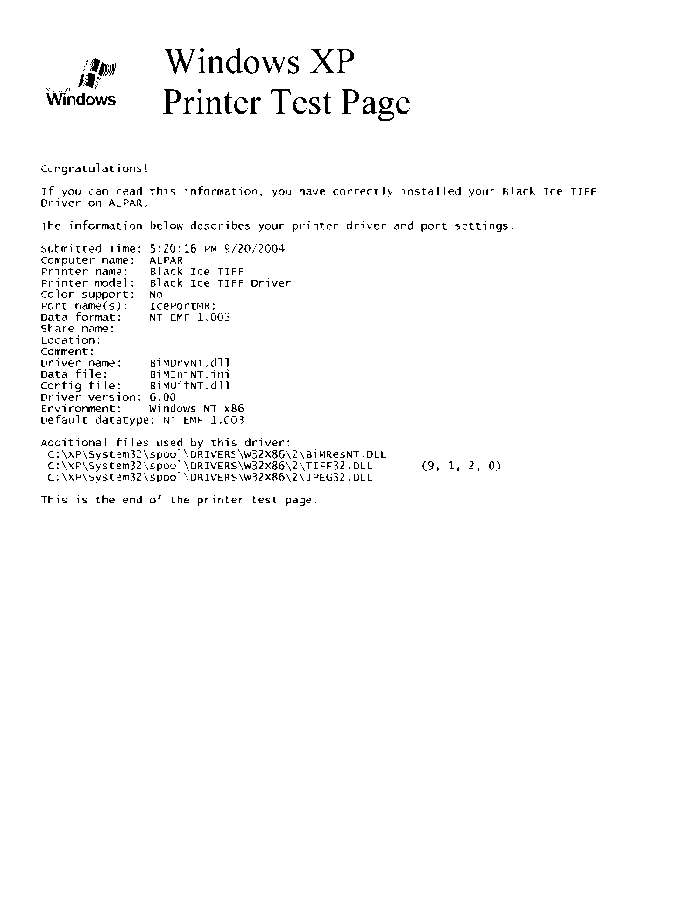
For Example, if we printing a test page, the output file will look as the following:
|
The generated text file contains the following lines: Page 1: Windows XP Printer Test Page Congratulations! If you can read this information, you have correctly installed your Black Ice TIFF Driver on TEST3. The information below describes your printer driver and port settings. Submitted Time: 5:17:00 PM 9/20/2004 Computer name: ALPAR Printer name: Black Ice TIFF Printer model: Black Ice TIFF Driver Color support: No Port name(s): IcePortMR: Data format: NT EMF 1.003 Share name: Location: Comment: Driver name: BuMDrvNT.dll Data file: BuMIniNT.ini Config file: BuMUifNT.dll Driver version: 6.00 Environment: Windows NT x86 Default datatype: NT EMF 1.003 Additional files used by this driver: C:\XP\System32\spool\DRIVERS\W32X86\3\BuMResNT.DLL C:\XP\System32\spool\DRIVERS\W32X86\3\TIFF32.DLL (9, 1, 2, 0) C:\XP\System32\spool\DRIVERS\W32X86\3\JPEG32.DLL This is the end of the printer test page. |