Buy Now
 Download
The Combine Files feature in IceViewer allows multiple documents and pages to be merged into a single file. Content can be added from various sources, pages can be rearranged, and a unified document can be created.
How to Add Files
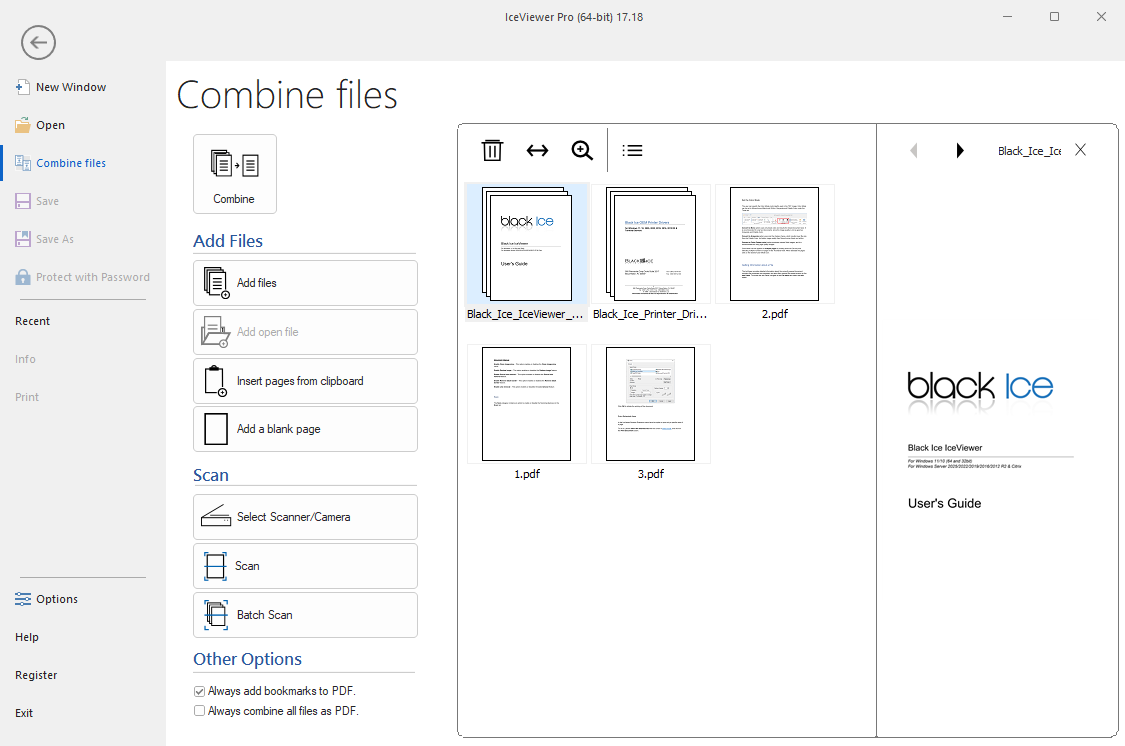
On the left side of the Combine Files view, several options are available for adding content to the combined document:
- Add files Browse the device and select one or multiple files to include in the combined document.
- Add open file If a file is currently open in IceViewer, it can be added to the combined document with a single click.
- Insert pages from clipboard Add pages copied from:
- Other documents opened in IceViewer
- Files copied via the file explorer
- Image-based content (e.g., RTF or screenshots)
- Add a blank page Inserts a new blank, letter-sized page into the document. This can be used for notes, separators, or additional content.
Organize Files
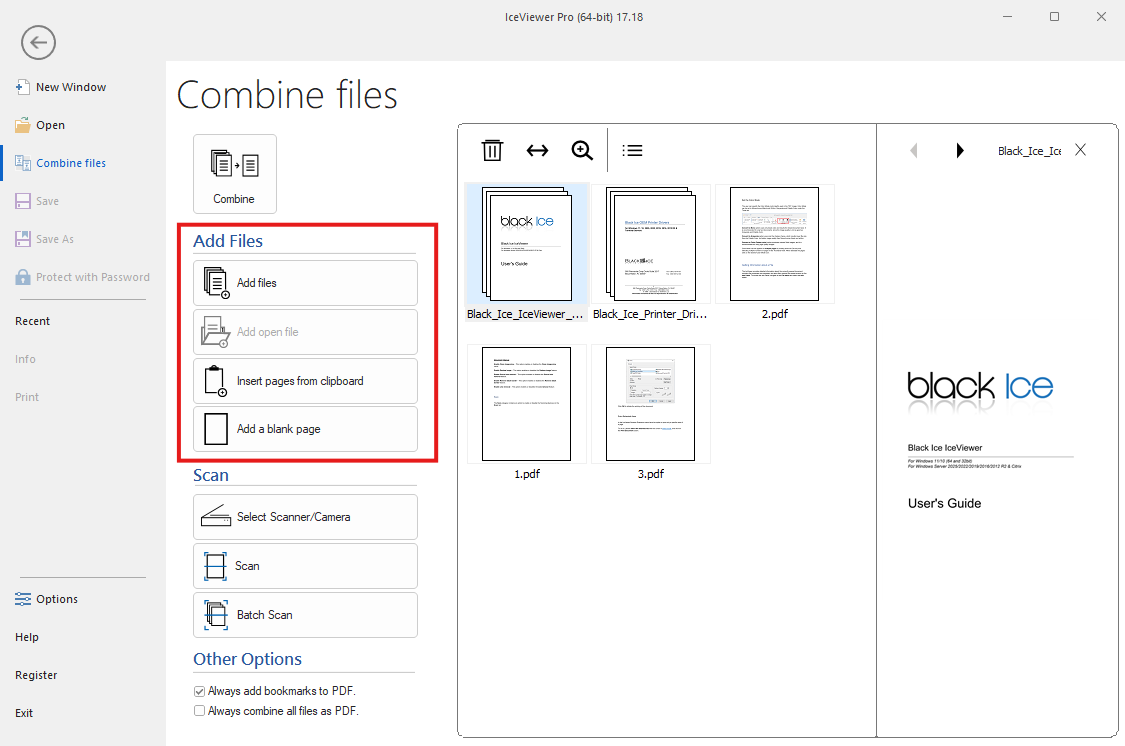
The pages in the currently created document can be managed and rearranged to achieve the desired structure:
- Reorder pages Drag and drop pages to change their order within the document.
- Move pages between positions Select one or multiple pages and move them to a different position in the document.
- Delete pages Remove unwanted pages from the document. (The last delete action can be undone using Ctrl+Z.)
- Select multiple pages Multi-selection (e.g., Ctrl or Shift + click) allows actions to be performed on several pages at once.
- Expand and collapse documents Expanding a document allows its pages to be organized individually, while collapsing groups the pages back into one component.
Preview Thumbnail
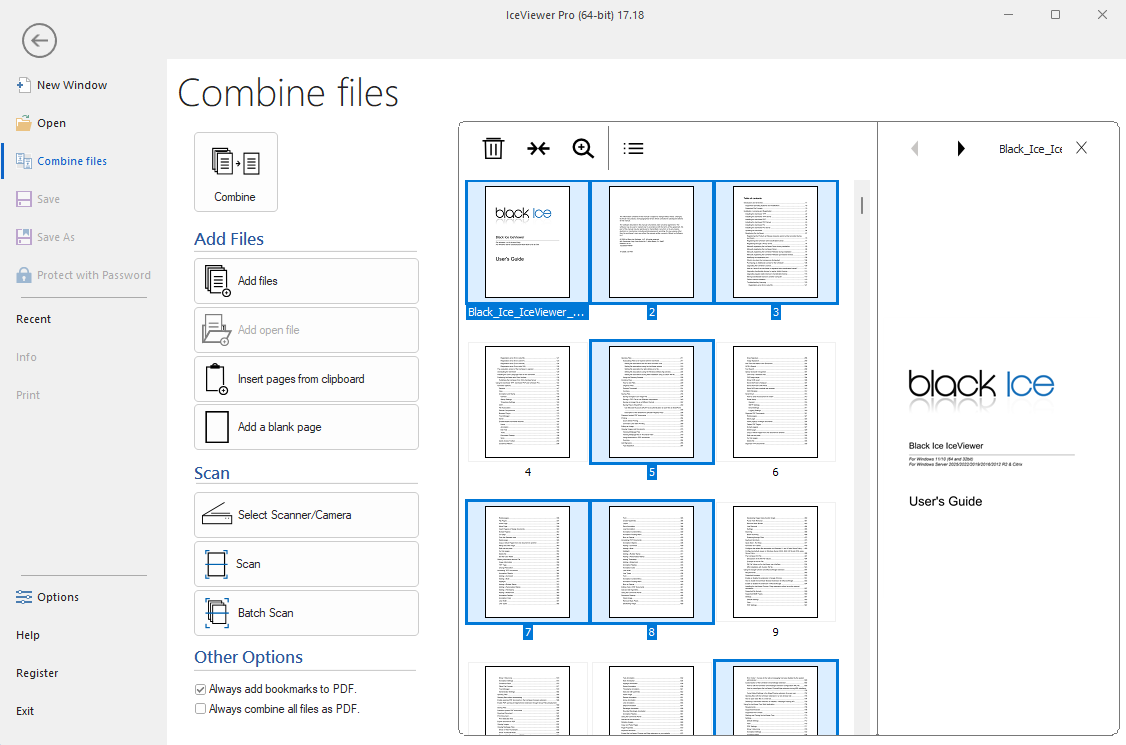
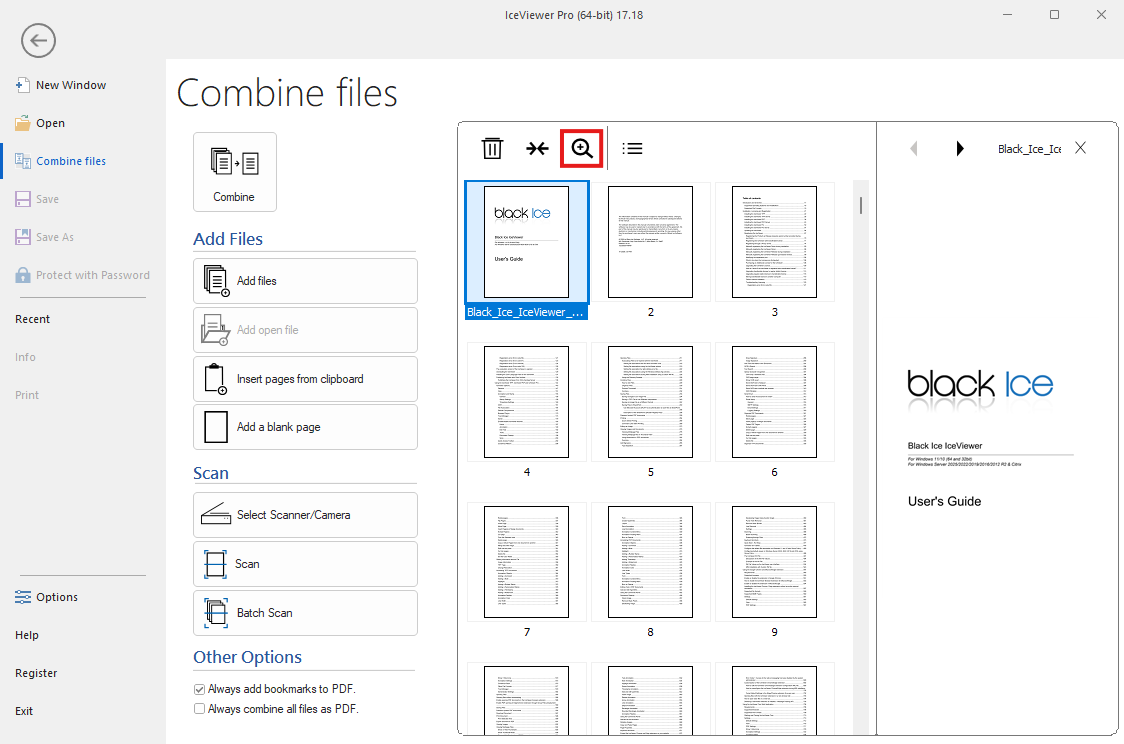
The Preview Thumbnail feature allows pages to be viewed in full size during document creation.
- Open full page view Double-clicking a page or selecting the Preview Thumbnail option displays it in full size during document creation.
- Navigate between pages The previous and next pages in the document can be viewed using the buttons on the top toolbar.
- Close full page view The full-size view can be closed using the X button.
Combine
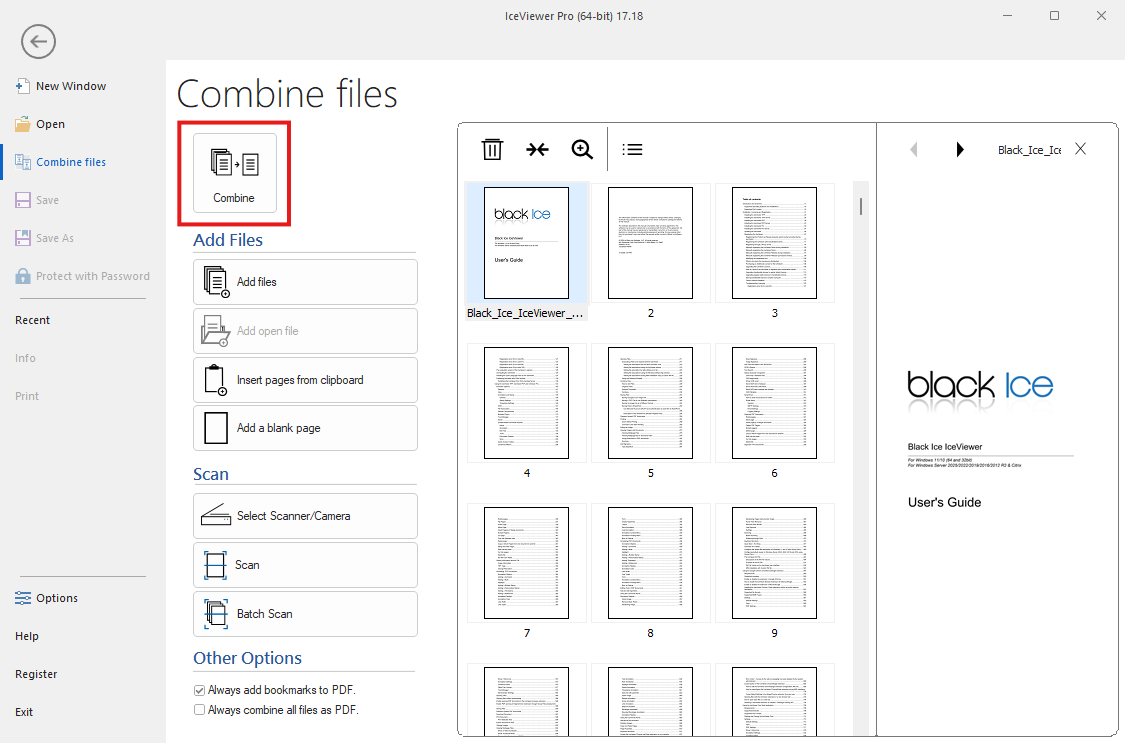
Once the document is organized, the Combine action creates a single output file from the selected pages.
The format of the combined file depends on the edition of IceViewer:
- TIFF Edition The combined file is created in TIFF format.
- PDF Edition The combined file is created in PDF format.
- PRO Edition The combined file is created in a format that preserves the most data from the original files. If both PDF and TIFF files are included, the combined file format will be PDF.
Scan
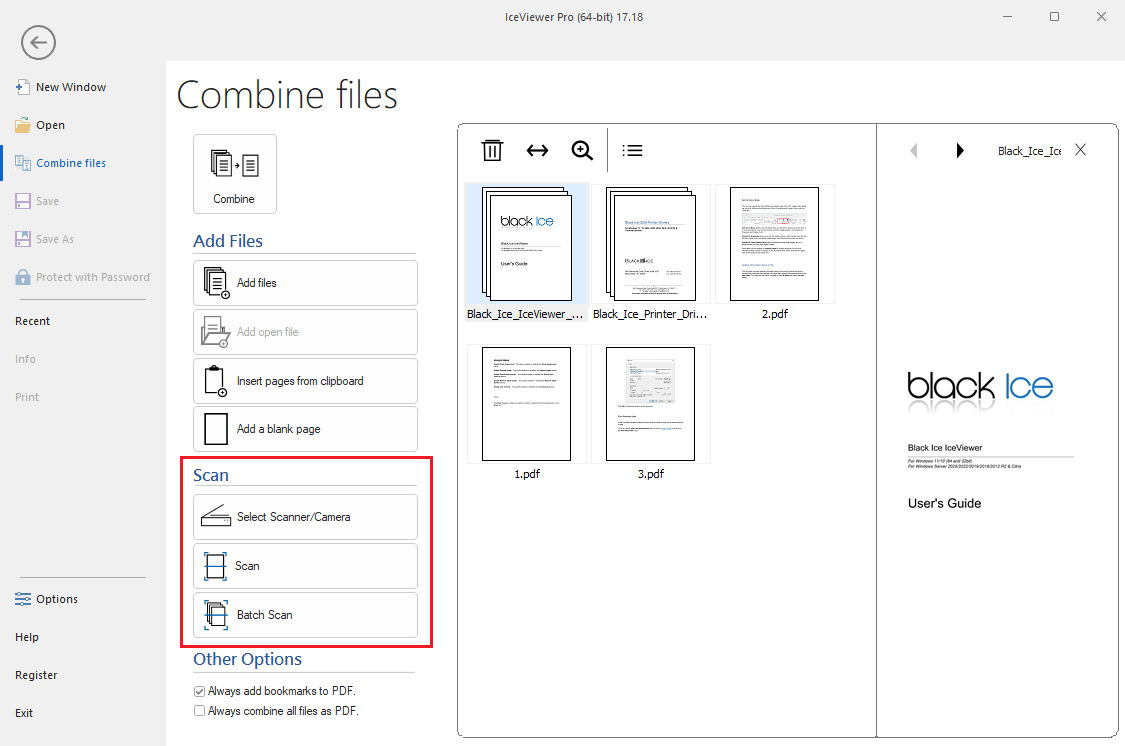
The Scan section provides options for acquiring documents directly from a connected scanner or camera into the viewer.
- Select Scanner/Camera: Opens a dialog window allowing the user to select the desired TWAIN or WIA compliant scanner or camera device connected to the system.
- Scan: Initiates a standard scanning process to acquire a single page or document from the currently selected device.
- Batch Scan: Initiates a continuous scanning process, which is ideal for scanning multiple pages in sequence.
Other Options
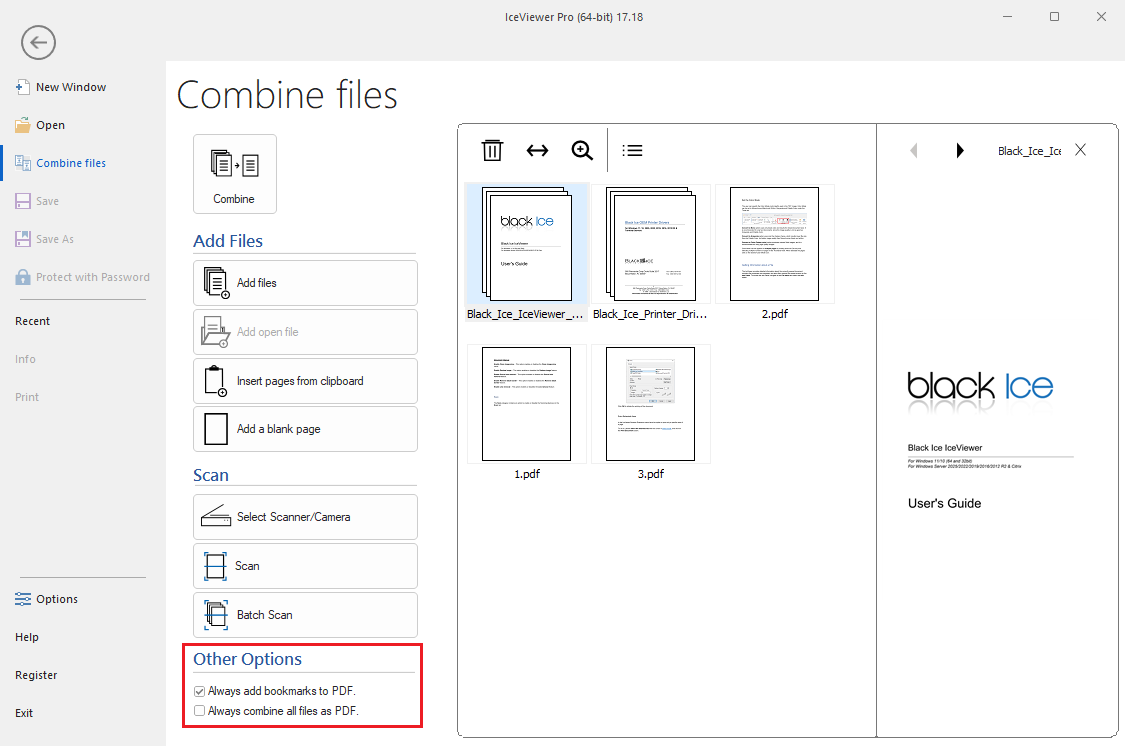
These global settings control how the software formats and saves your final documents, particularly when merging or converting multiple files.
- Always add bookmarks to PDF: When enabled, the software keeps all of the previous bookmarks. This is useful for easily navigating through multi-page scanned documents.
- Always combine all files as PDF: When enabled, all individually scanned pages from the session are automatically merged and saved together as a single, multi-page PDF document, rather than being saved as separate files.
(NOTE: Not available in IceViewer TIFF)
(NOTE: Not available in IceViewer PDF and TIFF)