
How can I adjust the PDF font embedding settings?
To adjust the PDF font embedding settings, please see the following steps:
- Close the application you print from.
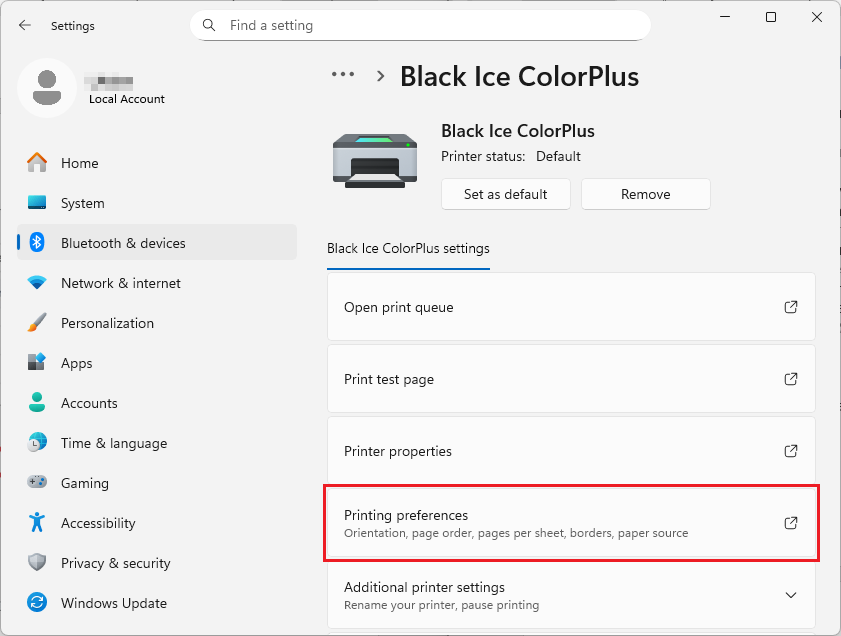
- Please open Printing Preferences:
On Windows 11, please navigate to Settings > Bluetooth & devices > Printers & scanners > click on the printer > Printing Preferences.
On Windows 10, please navigate to Control Panel > Printers and Devices > right-click on the printer > and click on Printing Preferences.
On Windows 2016 or newer server systems, please navigate to Control Panel > Printers and Devices > right-click on the printer > and click on Printing Preferences.
On Windows 2012 and older systems, please navigate to Start > Control Panel > Hardware > Devices and Printers > right-click on the printer > Printing Preferences.
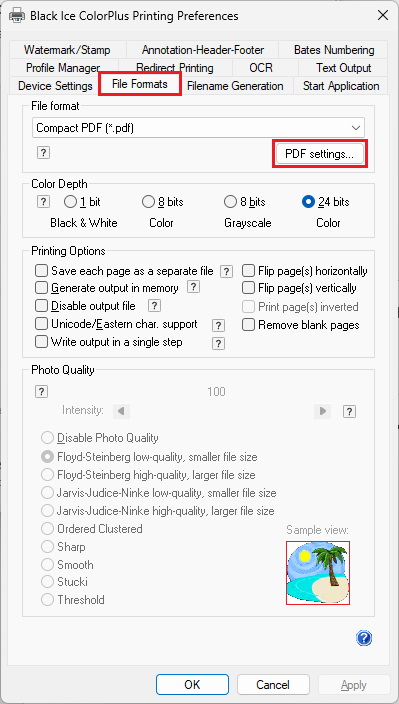
- Click on the File Formats tab, then the PDF settings… button:
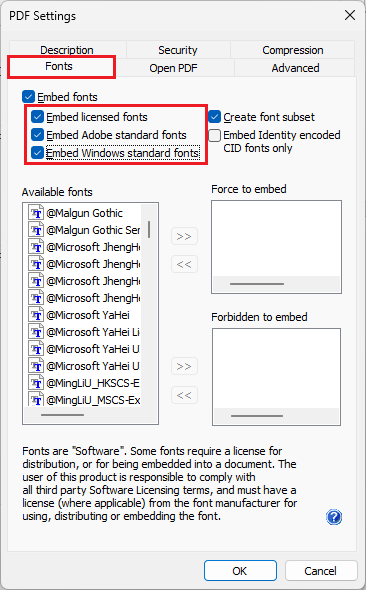
- Click on the Fonts tab, and please check all of the font embedding options:
- Click OK on the PDF Settings and Printing Preferences windows to save the settings.