
General Settings
On the General Settings window, the basic behavior of the FileFlow Server can be configured. To open the General Settings window, please navigate to FileFlow Server > click on the General Settings tab.
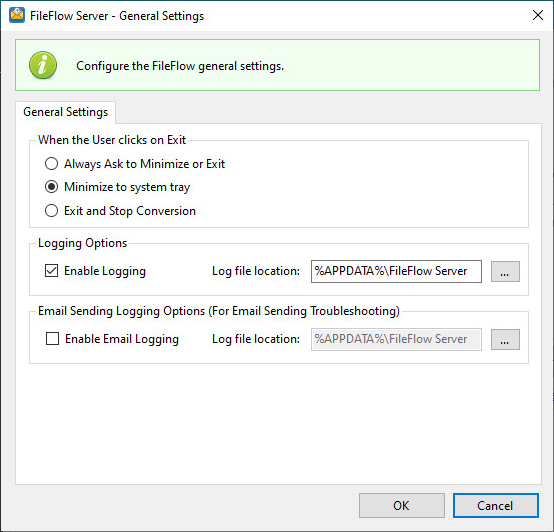
When the User clicks on Exit
Select an option to define the behavior of the FileFlow Server on exit. The following options are available:
Always Ask to Minimize or Exit - When selected and the user is about to close the FileFlow Server window, the user always will be able to choose whether to minimize the FileFlow Server to the system tray or to exit the program completely. When minimized to the system tray, the FileFlow Server continues to work in the background.
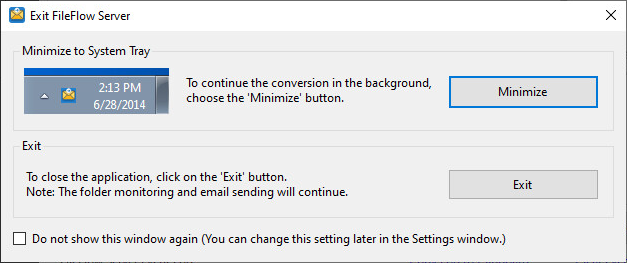
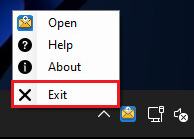
Minimize to system tray - When selected, and the user is about to close the application, the FileFlow Server will be minimized to the system tray. In this case, the user can close the FileFlow Server by right-clicking on the FileFlow Server icon on the system tray and selecting the Exit option. To reopen the FileFlow Server, click on the Open option.
Exit and Stop Conversion - When selected and the user clicks on the Exit button, the FileFlow Server will be closed.
Logging Options
If enabled, the FileFlow Server creates a detailed log file which includes every monitored document and every occurring event to let users follow and troubleshoot the occurring document conversion. To change the location of the generated log file, please click on the browse  button.
The default location of the log file is:
%APPDATA%\FileFlow Server\
Example for the log file:
10/13/23 10:14:45, ;406;Information;Settings successfully loaded.
10/13/23 10:14:45, ;407;Information;Account Settings successfully loaded: Gmail
10/13/23 10:15:51, ;434;Information;Email was sent successfully, Attachment: C:\MyDocuments\Monitored\Test document.tif
10/13/23 10:17:23, ;434;Information;Email was sent successfully, Attachment: C:\MyDocuments\Monitored\fw9.pdf
Email Sending Logging Options
If enabled, the FileFlow Server creates a detailed log about the email sending, to help users troubleshoot email sending errors. To change the location of the generated log file, please click on the browse .png) button.
button.
The default location of the email sending log file is:
%APPDATA%\FileFlow Server\
Example for the email sending log file:
10/13/23 10:21:27, Thread ID: 1: Composing Email Logic - Initiating email sending with SMTP.
10/13/23 10:21:27, Thread ID: 1: Email sending with SMTP.
10/13/23 10:21:27, Thread ID: 1: Email To address: username@domain.com
10/13/23 10:21:27, Thread ID: 1: Email Cc address: Empty.
10/13/23 10:21:27, Thread ID: 1: Email Bcc address: Empty.
10/13/23 10:21:27, Thread ID: 1: SendMail with SMTP | Starting assembling the email ...
10/13/23 10:21:27, Thread ID: 1: SendMail with SMTP | Registry key name is the following: xxxxxxxx-xxxx-xxxx-xxxx-xxxxxxxxxxxx
10/13/23 10:21:27, Thread ID: 1: SendMail with SMTP | Setting up email SMTP settings...
10/13/23 10:21:27, Thread ID: 1: SendMail with SMTP | SMTP From Address:
10/13/23 10:21:27, Thread ID: 1: SendMail with SMTP | SMTP From Name:
10/13/23 10:21:27, Thread ID: 1: SendMail with SMTP | SMTP recipient email address has been set to the following: recipient@domain.com
10/13/23 10:21:27, Thread ID: 1: SendMail with SMTP | SMTP Email Subject: Subject
10/13/23 10:21:27, Thread ID: 1: SendMail with SMTP | SMTP Attachments has been configured.
10/13/23 10:21:27, Thread ID: 1: SendMail | The SendMail method has been called.
10/13/23 10:21:27, Thread ID: 1: SendMail | Gmail OAUTH2 - Return value: 0
10/13/23 10:21:27, Thread ID: 1: SendMail | Gmail OAUTH2 - Credential Path: C:\\ProgramData\FileFlow Server\cUuBPyJuTsqyOkqeS2oZ3InQ\gmail_token.json
10/13/23 10:21:27, Thread ID: 1: SendMail | Gmail OAUTH2 - Obtained email: username@domain.com
10/13/23 10:21:27, Thread ID: 1: SendMail | Gmail OAUTH2 - Obtained username: John Smith
10/13/23 10:21:28, Thread ID: 1: Email has been sent successfully.
10/13/23 10:21:28, Thread ID: 1: EMailSendingCompleted | The EMailSendingCompleted event has been called.
10/13/23 10:21:28, Thread ID: 1: SMTP: Email has been sent to adam.loczi@blackice.com with attachment: Test_document.tif,
10/13/23 10:21:28, Thread ID: 1: SendMail with SMTP | SMTP email sending has been successfully initiated.