
Starting and Closing the Print2Email
By default, the Print2Email starts automatically when Windows launches. Users can disable the Print2Email from starting with Windows by right clicking on the Print2Email system tray item and unchecking the Start with Windows option.
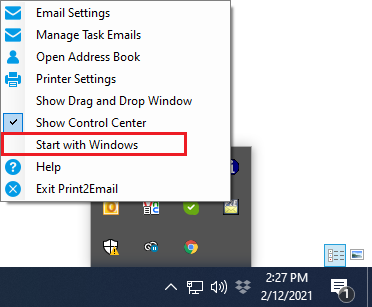
The Print2Email can also be launched manually, by choosing the Print2Email option from the Start menu or by simply printing to the Print2Email printer driver.
Closing or Minimizing the Print2Email
Please press the Exit  button to Close or the Minimize
  button to minimize the Print2Email to the system tray.
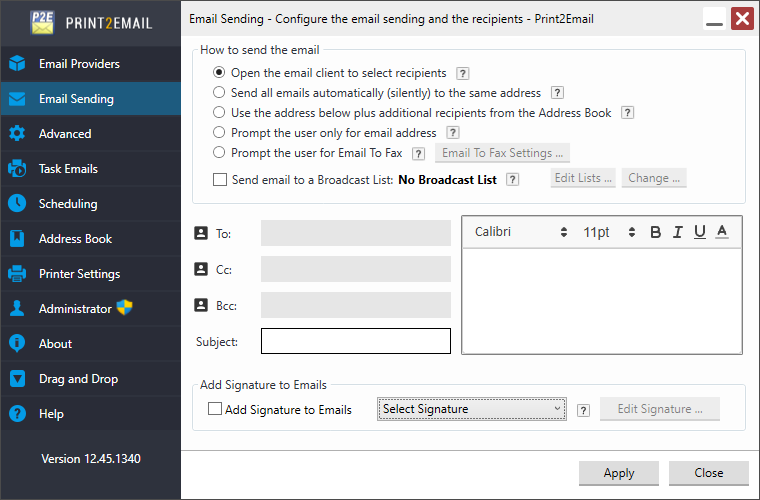
If the Drag and Drop window is enabled, the following confirmation window will appear when exiting from Print2Email:
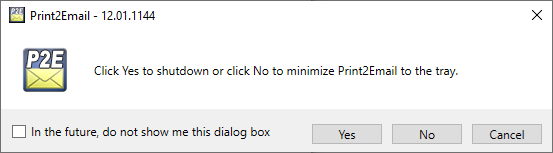
- Click “Yes” to shut down the Print2Email. If the “In the future, do not show me this dialog box” checkbox is enabled while clicking on the “Yes” button, the Print2Email will shut down without confirmation in the future.
-
Click “No” to minimize the Print2Email control center to the system tray and continue using the Drag and Drop window. If the “In the future, do not show me this dialog box” checkbox is enabled while clicking on the “No” button, the Print2Email will minimize to the system tray without confirmation in the future.
NOTE: The system tray is located on the right end of the taskbar next to the clock. The user can open up the Control Center by double-clicking on the Print2Email icon on the system tray.
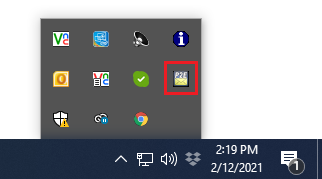
NOTE: If the Print2Email is used frequently, it is recommended to keep the Print2Email minimized to the system tray rather than closed. Keeping the window minimized, speeds up the process of launching the email form and sending out the email.