
Available Workflows
In the Print2Email Server > Workflows > A list appears with the available Workflows.
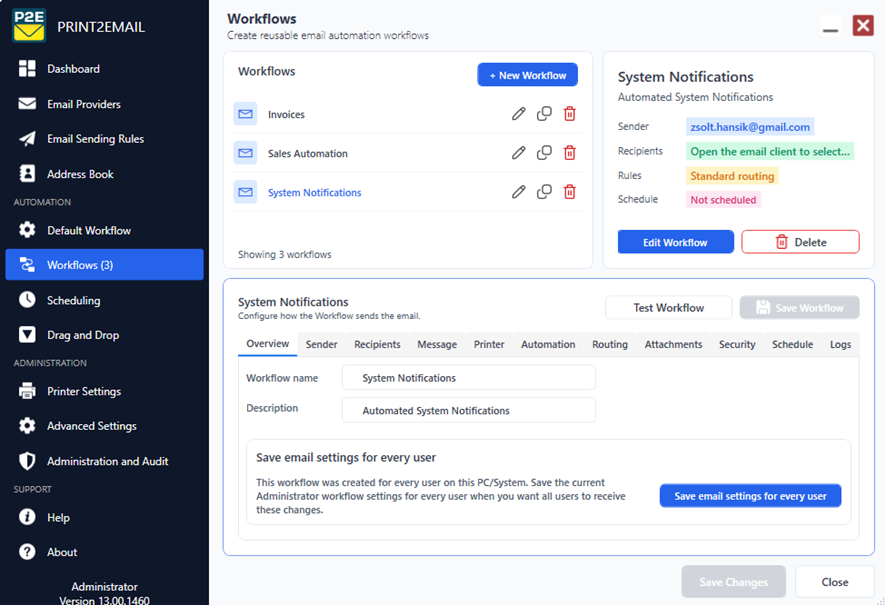
Select a Workflow to see some of the key configurations, and click on the Edit Workflow button to view the email configurations.
To create a new Workflow, click on the + New Workflow button. When creating a new workflow, the Print2Email settings will be used as a starting configuration for the new workflow.
To delete a Workflow, highlight the workflow and click on the Delete button.
To clone a Workflow, click on the Clone icon next to the workflow's name. When cloning a workflow, the new workflow will copy the settings from the original workflow that was cloned.
To save task email settings for every user, please run the Print2Email Server as an administrator, navigate to the Workflow tab, select a workflow and click on the Save email settings for every user button.