
Gmail Permission Issue Errors when using Print2Email Server
Gmail Permission issues and error messages can occur when you do not provide the necessary permissions to Print2Email Server when you sign in to the Gmail account.
To resolve the issue, please reconfigure the Gmail account by clicking on the Change Account button, then make sure that you enable all permissions when you configure the Gmail account in Print2Email Server.
.png)
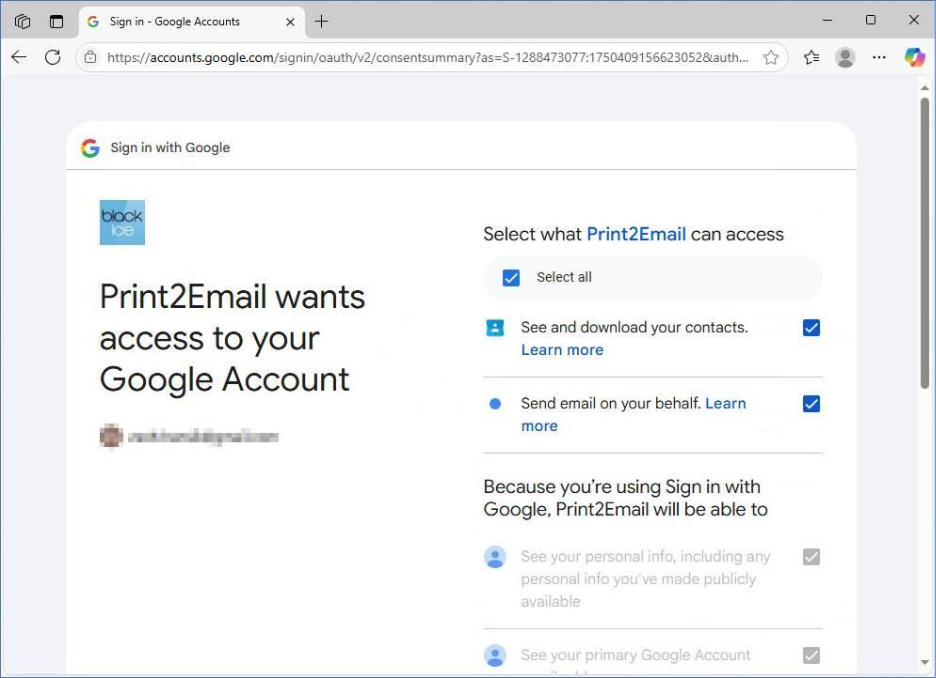
In some cases, Google does not prompt you again to review, modify, or permit access to Google Services, like contacts, when you sign in.
In this case, you will only be notified that Print2Email Server already has access to some services:
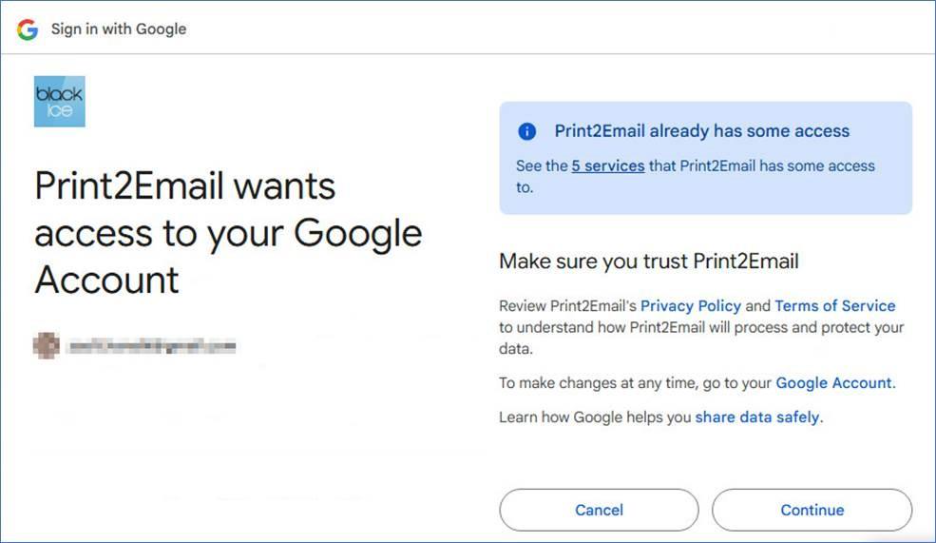
In this case, please navigate to the following URL: https://myaccount.google.com/connections
Under Third-party apps & services > Click on Print2Email Server, and then click on Delete all connections you have with Print2Email Server, then Sign In to Print2Email Server again, but please make sure to enable access to all Google Services when you are prompted.
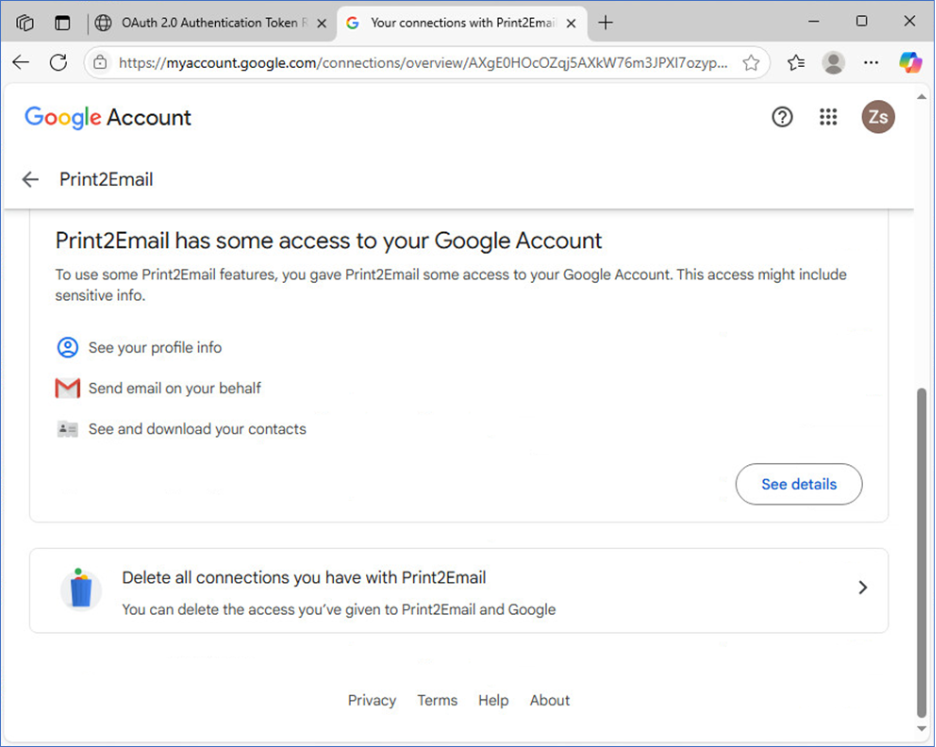
Once the Gmail account has been configured, please try to use Print2Email Server again.