
Add Cover Page
The Black Ice X1 Printer Drivers have a built-in feature to insert a cover page as the first page of the converted document. The Cover Page feature is available only for documents converted to PDF or TIFF files. The Cover Page option can be configured to automatically open the Cover Page in Black Ice IceViewer Form Filler to fill the Cover Page or add the form to the converted document without filling the form.
If users only need to add cover pages to certain documents, the Add Cover Page option can also be enabled on the "Save As" window. To read more about how to add cover pages using the "Save As" window, please see the Output Folder / Save As option section of the manual.
To enable the Add Cover Page option please navigate to the Printer Manager > Add Cover Page tab.
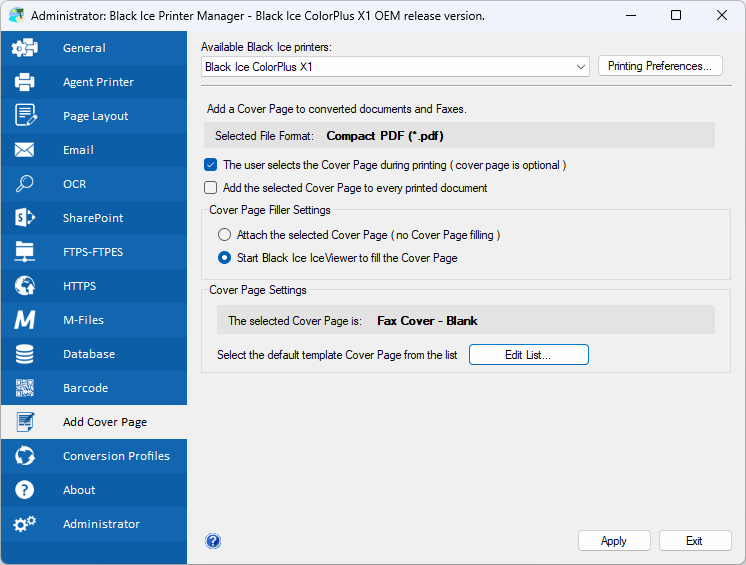
Users can decide to select the cover page during printing or add the same cover page to every printed document. The following options are available:
-
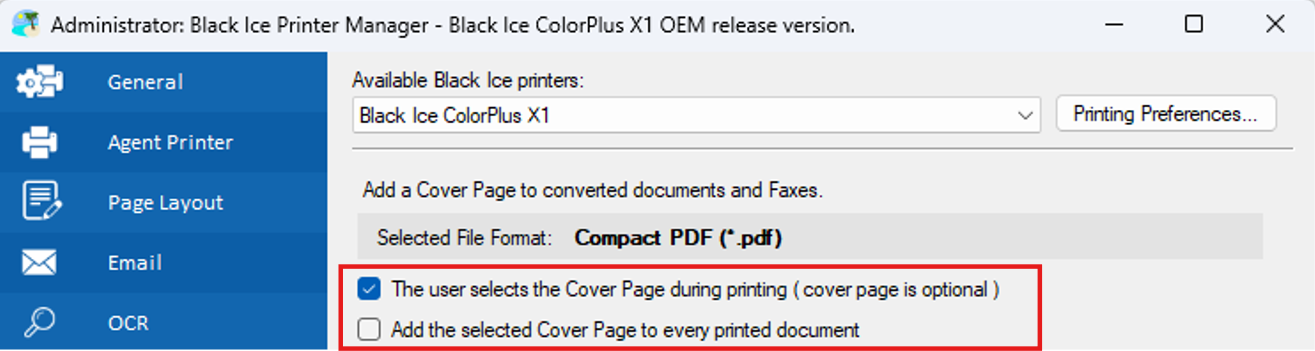
The user selects the Cover Page during printing – If enabled, users can select the cover page to be printed on the Select Cover Page window during printing. By closing the Select Cover Page window, no cover page will be added to the printed document.
-
Add the selected Cover Page to every printed document – If enabled, users can select a default cover page to be added as the first page of the printed document. The Printer Driver will not prompt the user to select a cover page during printing. The selected cover page can be seen under the Cover Page Settings section.

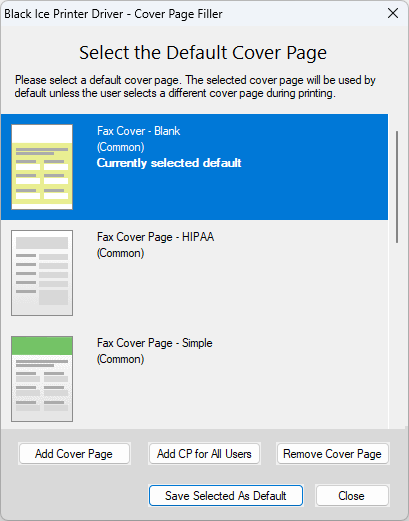
To select the default cover page, please click on the Edit List button. On the Select the Default Cover Page window, please select the desired cover page and click on the Save Selected As Default button to save the selected cover page as default.
Cover Page Filler Settings
Under the Cover Page Filler Settings section, users can configure whether or not to fill the Cover Page during printing.

- Attach the selected Cover Page (no Cover Page Filling) – If selected, the Printer Driver will attach the selected cover page as the first page of the document, but the Black Ice IceViewer Form Filler will not be started to fill out the Cover Page.
-
Start the Black Ice IceViewer to fill the Cover Page – If selected, the Black Ice IceViewer Form Filler opens during printing, where one can fill out the Cover Page.

Cover Page Settings
Under the Cover Page Settings section of the Add Cover Page tab, information can be seen on the currently selected cover page, and the user can select a default cover page and edit the list of the cover pages available.
To select a default cover page or edit the list of cover pages, please click on the Edit List button.
Select the default Cover Page
If the Add selected cover page to every printed document option is checked, users can add a cover page that will be inserted as the first page of the printed document without prompting the user to select a cover page during printing. To change the default cover page, please select a cover page from the list and click on the Save Selected As Default button.
How to edit the Cover Page list
On the Select the Default Cover Page window, users can add or remove cover pages. The following options are available:
- Add Cover Page – One can browse and add new cover pages to the list. Cover Pages added by a user is marked (Private) and it can be removed by the User without Administrator privileges.
- Remove Cover Page – To remove a cover page from the list, please select a cover page and click on the Remove Cover Page button. A Domain User or System User can not remove "Private" cover pages. "Common" cover pages can only be removed by the Administrator.
- Add CP for All Users – Administrators can browse and add "Common" cover pages to the list. Common Cover Pages added by an Administrator will be available for every user. This function is only available for Administrators.
The Add Cover Page option would work with Black Ice Printer Driver post printing features:
- Save As feature
- Launch/Start and application after printing
- Upload to FTP
- Upload to HTTP/HTTPS
- Upload to SharePoint
- Email the document
- Redirect print job to one or more physical printer(s)
- Print to memory, to be HIPAA compliant
Commonly used Cover Pages selected during installation are shared with every user and can only be removed from the list with Administrator privileges. User-specific Cover Page List can be created and added by users with the Add Cover Page button. Cover Pages added by a user can be removed without Administrator privileges.
To read more about how to remove “Common” cover pages, please refer to the How to remove commonly used Cover Pages section of the manual.