
Cover Page Filler during printing
Black Ice Printer Drivers have a built-in option to fill and insert a cover page to the beginning of the printed document (to be the first page). The Cover Page Filler is launched by the Printer Driver during the printing process to fill the cover page by a user.
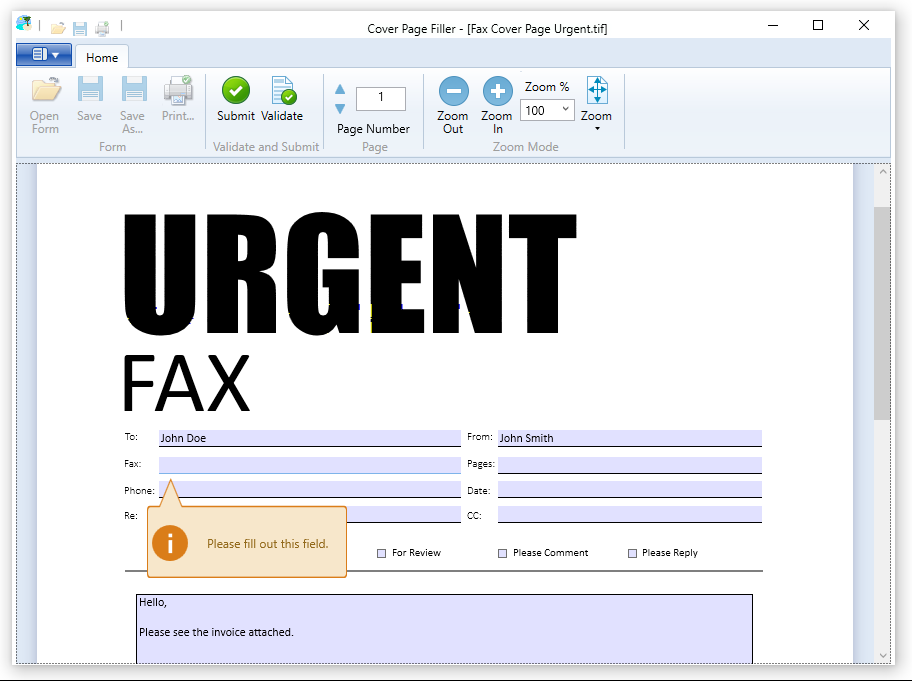
Main functions of Cover Page Filler:
Submit: if every required field is filled out, click on the Submit button to create the cover page. If pressing the Submit button before validation, Cover Page Filler validates the fields before creating the cover page.
Validate: after filling all the fields users have the option to click on the Validate button to check if the given fields are filled correctly. If a field was filled out incorrectly, its background turns red.
Page number: users can navigate between pages with the blue arrows that can be found in the Home Tab. Next the page navigation arrows, the current page number is shown. One can also navigate between pages by entering a number into the page number box.
Zoom In and Zoom Out: with the Zoom In button, the page gets zoomed in by 10% and with Zoom Out button, it zooms out by 10% if the current zoom of the image is lower than 100%, otherwise the buttons zoom in or out on the image by 25%.
Zoom: by clicking on the Zoom button, a dropdown menu appears with the two available zooming modes.
- Fit to Window: The zoom will adjust to the actually viewed page’s size making the whole page visible in the window.
- Fit to Width: The zoom will adjust to the width of the actual page. The page’s width will fit to the window’s width.