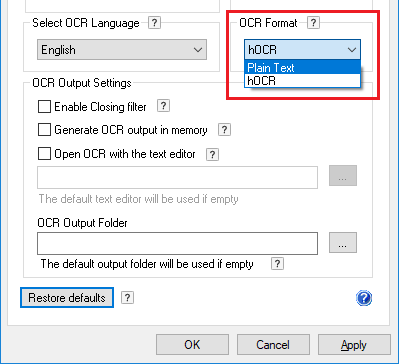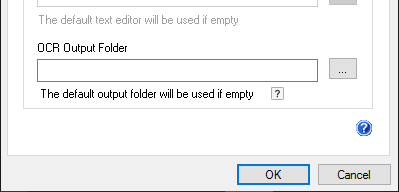
The OCR Language option defines which character sets are used during the Optical Character Recognition (OCR) process. Selecting the appropriate language or languages improves OCR accuracy, particularly for documents that contain language-specific characters, accents, or mixed-language content.
By default, only the English OCR language is available in Black Ice Printer Drivers. Additional languages must be downloaded before they can be used. To add more languages, download the OCR language pack by using one of the links below, then run the downloaded installer. For detailed installation instructions, see the Installing the OCR Language Pack for Printer Driverssection of the manual.
· Download the OCR Language Pack for Printer Driverversion 15.50 or higher
· Download the OCR Language Pack for Printer Driverversion 15.45 or older
To select OCR language(s), navigate to Printing Preferences > OCR tab, and click the Select OCR languages button to open the language selection dialog.
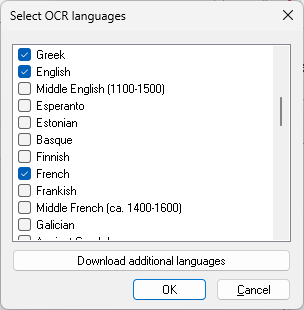
In the Select OCR languages dialog, installed OCR languages are listed and can be enabled or disabled using the corresponding checkboxes. To add more languages, click the Download Additional Languages button.
Note:When OCR is performed on documents containing special or accented characters, the Unicode/Eastern character support option must be enabled on the File Formats tab to ensure correct character recognition.