The Black Ice Printer Drivers have a built-in feature to generate a detailed log (debug) file while printing. To help us investigate the issue with the Black Ice Printer Driver, please create a debug file from the problematic documents and send it back to us.
To enable the debug logging feature, please perform the following steps:
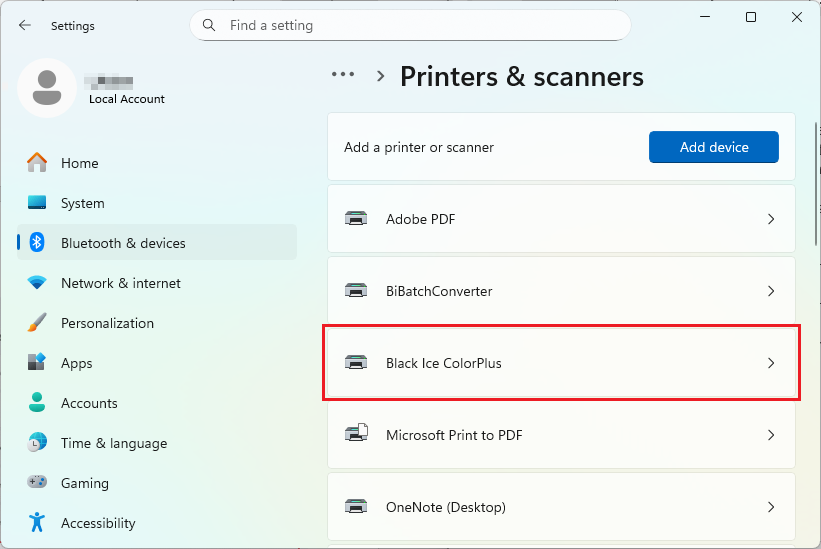
1. Go to Start > Printers & scanners.
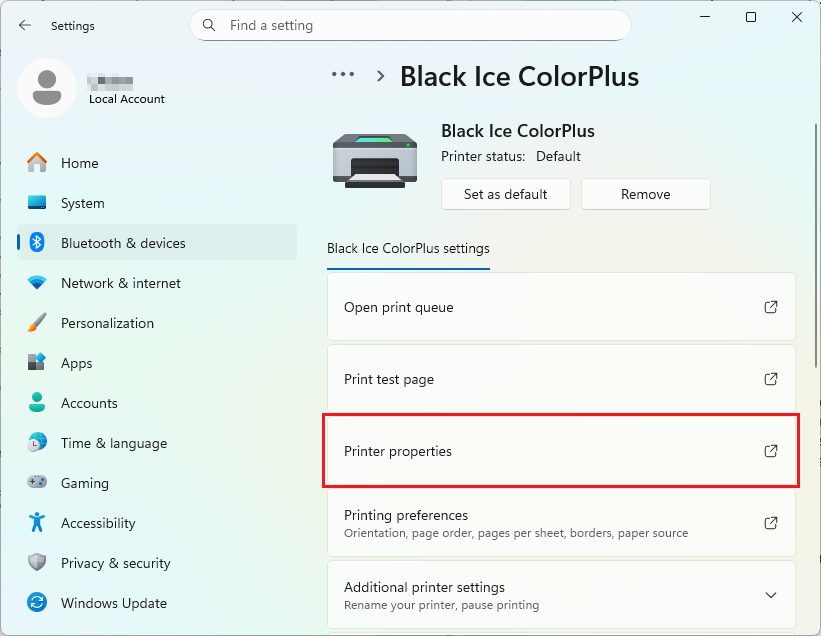
On Windows 11 Desktop systems: Click on the Black Ice Printer Driver > Click “Printing preferences”.
On Windows 10 Desktop systems: Click on the Black Ice Printer Driver > Manage > Click “Printing preferences”.
On Windows 2016 or newer server systems: Click on the Black Ice Printer Driver > Manage > Click “Printing preferences”.
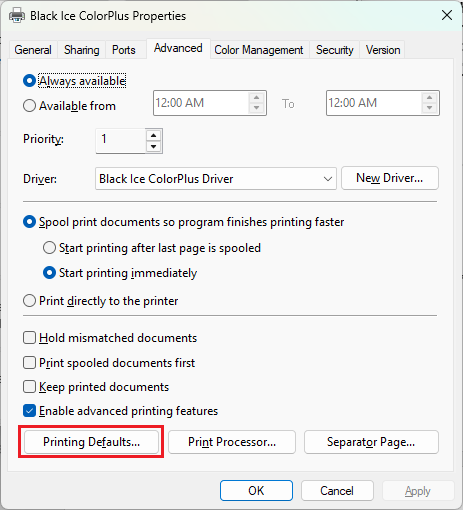
NOTE: In case of shared network printers, the debug logging feature must always be enabled and disabled on the Host computer (where the printer was originally installed) under the following location: Control Panel > Hardware and Sound > Advanced Printer Setup > Click on the host Printer > Printer Properties > Advanced Tab > Printing Defaults.
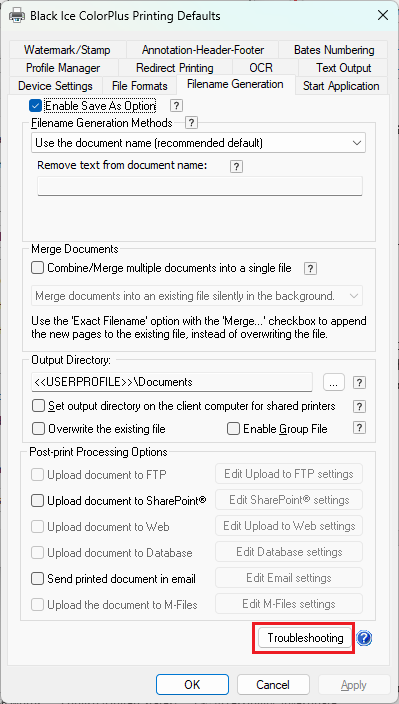
2. Click the “Troubleshooting” button on the “Filename Generation” tab.
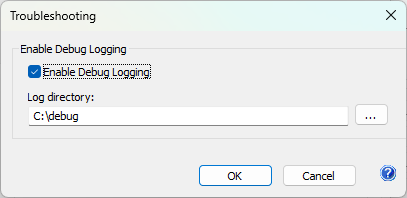
3. Make sure that the “Enable Debug Logging” option is checked, and specify the log directory. Click on the “OK” button to save the changes.
4. Reproduce the issue by printing the problematic document to the Printer Driver.
5. The Printer Driver generates an EDF file into the specified log directory. The generated EDF file contains the input source data of the print job that the Black Ice Printer Driver receives from the operating system. EDF log files can be used to determine and troubleshoot the issues occurring on the printed documents.
6. Please send us back the generated EDF.
7. Disable debug logging:
Go to Control Panel > Hardware and Sound > Advanced printer setup.
Click on the Black Ice Printer Driver > Click “Printing preferences”.
Click the “Troubleshooting” button on the “Filename Generation” tab.
Uncheck the “Enable Debug Logging” option. Click on the “OK” button to save the changes.