[Default Settings]
Paper Size=<number>
The Windows operating system has 335 paper size definitions.
The custom paper size definition starts at 336 for “WindowsPaperCode”; If one adds another custom paper size, the number must be increased; each additional custom paper size is 336, 337,... n
If a new custom paper is added, do not forget to increment the 'Number of Paper Sizes' entry.
Black Ice Software printer driver INI file contain 178 paper size definition in the INI file. Paper1, Paper2, … Paper178.
The first custom paper size definition is “Paper179” prefix. For example, if one adds one more custom paper size, the prefix must be Paper179.
|
Paper Size Prefix in the INI file |
Paper size name |
Value (WindowsPaperCode) |
|
Paper1 |
A4, 210 x 297 mm |
9 |
|
Paper2 |
Letter, 8 1/2 x 11" |
1 |
|
Paper77 |
10 x 11" |
45 |
|
Paper78 |
10 x 14" |
16 |
|
Paper79 |
11 x 17" |
17 |
|
Paper80 |
12 x 11" |
90 |
|
Paper81 |
15 x 11" |
46 |
|
Paper76 |
9 x 11" |
44 |
|
Paper52 |
A (ANSI) Sheet, 8 1/2 x 11" |
298 |
|
Paper18 |
A0, 841 x 1189 mm |
278 |
|
Paper19 |
A1, 594 x 841 mm |
279 |
|
Paper27 |
A10, 26 x 37 mm |
283 |
|
Paper20 |
A2, 420 x 594 mm |
66 |
|
Paper93 |
A3 Extra Transverse |
68 |
|
Paper92 |
A3 Extra, 322 x 445 mm |
63 |
|
Paper94 |
A3 Rotated, 420 x 297 mm |
76 |
|
Paper95 |
A3 Transverse, 297 x 420 mm |
67 |
|
Paper21 |
A3, 297 x 420 mm |
8 |
|
Paper96 |
A4 Extra, 235 x 322 mm |
53 |
|
Paper3 |
A4 Plus, 210 x 330 mm |
60 |
|
Paper97 |
A4 Rotated, 297 x 210 mm |
77 |
|
Paper98 |
A4 small, 210 x 297 mm |
10 |
|
Paper99 |
A4 Transverse, 210 x 297 mm |
55 |
|
Paper100 |
A5 Extra, 174 x 235 mm |
64 |
|
Paper101 |
A5 Rotated, 210 x 148 mm |
78 |
|
Paper102 |
A5 Transverse, 148 x 210 mm |
61 |
|
Paper22 |
A5, 148 x 210 mm |
11 |
|
Paper103 |
A6 Rotated, 148 x 105 mm |
83 |
|
Paper23 |
A6, 105 x 148 mm |
70 |
|
Paper24 |
A7, 74 x 105 mm |
280 |
|
Paper25 |
A8, 52 x 74 mm |
281 |
|
Paper26 |
A9, 37 x 52 mm |
282 |
|
Paper62 |
ARCH A Sheet, 9 x 12" |
305 |
|
Paper63 |
ARCH B Sheet, 12 x 18" |
306 |
|
Paper64 |
ARCH C Sheet, 18 x 24" |
307 |
|
Paper65 |
ARCH D Sheet, 24 x 36" |
308 |
|
Paper66 |
ARCH E Sheet, 36 x 48" |
309 |
|
Paper156 |
Avery 4150-4151, 1 1/8 x 3 1/2" |
310 |
|
Paper157 |
Avery 4153, 2 1/8 x 4" |
311 |
|
Paper158 |
Avery 9170, 1 x 2 5/8" |
312 |
|
Paper159 |
Avery 9173, 2 1/8 x 3 1/3" |
313 |
|
Paper160 |
Avery 9176, 11/16 x 3 7/16" |
314 |
|
Paper161 |
Avery 9177, 1/2 x 1 3/4" |
315 |
|
Paper162 |
Avery Dennison, 4.4 - 100 x 150 mm |
316 |
|
Paper163 |
Avery Dennison, 4.4 - 100 x 75 mm |
317 |
|
Paper53 |
B (ANSI) Sheet, 11 x 17" |
299 |
|
Paper105 |
B0 (JIS), 1030 x 1456 mm |
325 |
|
Paper28 |
B0, 1000 x 1414 mm |
284 |
|
Paper106 |
B1 (JIS), 728 x 1030 mm |
326 |
|
Paper29 |
B1, 707 x 1000 mm |
285 |
|
Paper38 |
B10, 31 x 44 mm |
293 |
|
Paper107 |
B2 (JIS), 515 x 728 mm |
327 |
|
Paper30 |
B2, 500 x 707 mm |
286 |
|
Paper108 |
B3 (JIS), 364 x 515 mm |
328 |
|
Paper31 |
B3, 353 x 500 mm |
287 |
|
Paper109 |
B4 (JIS), 257 x 364 mm |
12 |
|
Paper110 |
B4 (JIS), Rotated |
79 |
|
Paper32 |
B4, 250 x 353 mm |
42 |
|
Paper111 |
B5 (JIS), 182 x 257 mm |
13 |
|
Paper112 |
B5 (JIS), Rotated |
80 |
|
Paper113 |
B5 (JIS), Transverse, 182 x 257 mm |
62 |
|
Paper104 |
B5 Extra, 201 x 276 mm |
65 |
|
Paper33 |
B5, 176 x 250 mm |
288 |
|
Paper115 |
B6 (JIS) Rotated |
89 |
|
Paper114 |
B6 (JIS), 128 x 182 mm |
88 |
|
Paper34 |
B6 , 125 x 176 mm |
289 |
|
Paper35 |
B7, 88 x 125 mm |
290 |
|
Paper36 |
B8, 62 x 88 mm |
291 |
|
Paper37 |
B9 , 44 x 62 mm |
292 |
|
Paper164 |
Badge Size, 2 5/16 x 3 1/2" |
318 |
|
Paper6 |
Broadsheet, 17 x 22" |
276 |
|
Paper165 |
Business Card CR-80, 3 3/8 x 2 1/8" |
319 |
|
Paper54 |
C (ANSI) Sheet, 17 x 22" |
24 |
|
Paper166 |
Credit Card size, 2 1/8 x 3 3/8" |
320 |
|
|
Custom paper size |
336 |
|
Paper55 |
D (ANSI) Sheet, 22 x 34" |
25 |
|
Paper167 |
Data Collection Size, 2 5/16 x 3 1/4" |
321 |
|
Paper56 |
E (ANSI) Sheet, 34 x 44" |
26 |
|
Paper68 |
Envelope #10, 4 1/8 x 9 1/2" |
20 |
|
Paper69 |
Envelope #11, 4 1/2 x 10 3/8" |
21 |
|
Paper70 |
Envelope #12, 4 1/2 x 11" |
22 |
|
Paper71 |
Envelope #14, 5 x 11 1/2" |
23 |
|
Paper67 |
Envelope #9, 3 7/8 x 8 7/8" |
19 |
|
Paper73 |
Envelope 6 3/4, 3 5/8 x 6 1/2" |
38 |
|
Paper49 |
Envelope B4, 250 x 353 mm |
33 |
|
Paper50 |
Envelope B5, 176 x 250 mm |
34 |
|
Paper51 |
Envelope B6, 176 x 125 mm |
35 |
|
Paper39 |
Envelope C0, 917 x 1297 mm |
294 |
|
Paper40 |
Envelope C1, 648 x 917 mm |
295 |
|
Paper41 |
Envelope C2, 458 x 648 mm |
296 |
|
Paper42 |
Envelope C3, 324 x 458 mm |
29 |
|
Paper43 |
Envelope C4, 229 x 324 mm |
30 |
|
Paper44 |
Envelope C5, 162 x 229 mm |
28 |
|
Paper45 |
Envelope C6, 114 x 162 mm |
31 |
|
Paper46 |
Envelope C65, 114 x 229 mm |
32 |
|
Paper47 |
Envelope C7, 81 x 114 mm |
297 |
|
Paper48 |
Envelope DL, 110 x 220 mm |
27 |
|
Paper74 |
Envelope Invite, 220 x 220 mm |
47 |
|
Paper72 |
Envelope Monarch, 3 7/8 x 7 1/2" |
37 |
|
Paper75 |
Envelope, 110 x 230 mm |
36 |
|
Paper7 |
Executive, 7 1/4 x 10 1/2" |
7 |
|
Paper57 |
F (ANSI) Sheet, 28 x 40" |
300 |
|
Paper5 |
Fax Paper, 215.1 x 285.1 mm |
257 |
|
Paper8 |
Folio, 8 1/2 x 13" |
14 |
|
Paper58 |
G (ANSI) Sheet, 11 x 22 1/2" |
301 |
|
Paper15 |
German Legal Fanfold, 8 1/2 x 13" |
41 |
|
Paper16 |
German Standard Fanfold, 8 1/2 x 12" |
40 |
|
Paper168 |
Government Size, 2 5/8 x 3 7/8" |
322 |
|
Paper59 |
H (ANSI) Sheet, 28 x 44" |
302 |
|
Paper169 |
ID-1, 85.6 x 53.98 mm |
229 |
|
Paper170 |
ID-2, 105 x 74 mm |
323 |
|
Paper171 |
ID-3, 125 x 88 mm |
324 |
|
Paper172 |
Index card, 3 x 5" |
331 |
|
Paper173 |
Index card, 4 x 6" |
332 |
|
Paper174 |
Index card, 5 x 8" |
333 |
|
Paper60 |
J (ANSI) Sheet, 34 x 55" |
303 |
|
Paper129 |
Japan Double Postcard Rotated |
82 |
|
Paper128 |
Japan Double Postcard, 200 x 148 mm |
69 |
|
Paper116 |
Japan Envelope Chou #3 Rotated |
86 |
|
Paper117 |
Japan Envelope Chou #3, 120 x 235 mm |
73 |
|
Paper118 |
Japan Envelope Chou #4 Rotated |
87 |
|
Paper119 |
Japan Envelope Chou #4, 90 x 205 mm |
74 |
|
Paper120 |
Japan Envelope Kaku #2 Rotated |
84 |
|
Paper121 |
Japan Envelope Kaku #2, 240 x 332 mm |
71 |
|
Paper122 |
Japan Envelope Kaku #3 Rotated |
85 |
|
Paper123 |
Japan Envelope Kaku #3, 216 x 277 mm |
72 |
|
Paper124 |
Japan Envelope You #4 Rotated |
92 |
|
Paper125 |
Japan Envelope You #4, 105 x 235 mm |
91 |
|
Paper127 |
Japan Postcard Rotated |
81 |
|
Paper126 |
Japan Postcard, 100 x 148 mm |
43 |
|
Paper175 |
Japanese business card, 55 x 91 mm |
335 |
|
Paper9 |
Junior Legal, 5 x 8" |
277 |
|
Paper61 |
K (ANSI) Sheet, 40 x 62 11/16" |
304 |
|
Paper10 |
Ledger, 17 x 11" |
4 |
|
Paper82 |
Legal Extra, 9 1/2 x 15" |
51 |
|
Paper4 |
Legal, 8 1/2 x 14" |
5 |
|
Paper83 |
Letter Extra Transverse, 9 1/2 x 12" |
56 |
|
Paper84 |
Letter Extra, 9 1/2 x 12" |
50 |
|
Paper85 |
Letter Plus, 8 1/2 x 12 11/16" |
59 |
|
Paper86 |
Letter Rotated, 11 x 8 1/2" |
75 |
|
Paper87 |
Letter Small, 8 1/2 x 11" |
2 |
|
Paper88 |
Letter Transverse, 8 1/2 x 11" |
54 |
|
Paper11 |
Note, 8 1/2 x 11" |
18 |
|
Paper177 |
Optimized HTML Resolution, 256.6 x 291 mm |
330 |
|
Paper130 |
PRC 16K, 146 x 215 mm |
93 |
|
Paper131 |
PRC 16K, Rotated |
106 |
|
Paper132 |
PRC 32K(Big), 97 x 151 mm |
95 |
|
Paper133 |
PRC 32K(Big), Rotated |
108 |
|
Paper134 |
PRC 32K, 97 x 151 mm |
94 |
|
Paper135 |
PRC 32K, Rotated |
107 |
|
Paper136 |
PRC Envelope #1, 102 x 165 mm |
96 |
|
Paper137 |
PRC Envelope #1, Rotated |
109 |
|
Paper154 |
PRC Envelope #10, 324 x 458 mm |
105 |
|
Paper155 |
PRC Envelope #10, Rotated |
118 |
|
Paper138 |
PRC Envelope #2 Rotated |
110 |
|
Paper139 |
PRC Envelope #2, 102 x 176 mm |
97 |
|
Paper140 |
PRC Envelope #3 Rotated |
111 |
|
Paper141 |
PRC Envelope #3, 125 x 176 mm |
98 |
|
Paper142 |
PRC Envelope #4 Rotated |
112 |
|
Paper143 |
PRC Envelope #4, 110 x 208 mm |
99 |
|
Paper144 |
PRC Envelope #5 Rotated |
113 |
|
Paper145 |
PRC Envelope #5, 110 x 220 mm |
100 |
|
Paper146 |
PRC Envelope #6 Rotated |
114 |
|
Paper147 |
PRC Envelope #6, 120 x 230 mm |
101 |
|
Paper148 |
PRC Envelope #7 Rotated |
115 |
|
Paper149 |
PRC Envelope #7, 160 x 230 mm |
102 |
|
Paper150 |
PRC Envelope #8 Rotated |
116 |
|
Paper151 |
PRC Envelope #8, 120 x 309 mm |
103 |
|
Paper152 |
PRC Envelope #9 Rotated |
117 |
|
Paper153 |
PRC Envelope #9, 229 x 324 mm |
104 |
|
Paper17 |
Quarto, 215 x 275 mm |
15 |
|
Paper188 |
Roll Paper, 3 1/8 x 129" |
346 |
|
Paper189 |
Roll Paper, 2 1/4 x 129" |
347 |
|
Paper190 |
Roll Paper, 80 x 3276 mm |
348 |
|
Paper191 |
Roll Paper, 57 x 3276 mm |
349 |
|
Paper12 |
Statement, 5 1/2 x 8 1/2" |
6 |
|
Paper89 |
SuperA/A4, 227 x 356 mm |
57 |
|
Paper90 |
SuperB/A3, 305 x 487 mm |
58 |
|
Paper91 |
Tabloid Extra, 12 x 18" |
52 |
|
Paper13 |
Tabloid, 11 x 17" |
3 |
|
Paper176 |
US business card, 2 x 3 1/2" |
334 |
|
Paper14 |
US Standard Fanfold, 14 7/8 x 11" |
39 |
Paper Width=<number>
The length of the paper in tenths of a millimeter. Must be specified if Variable Paper size selected. Value can be between 1 and 65535.
Paper Length=<number>
The length of the paper in tents of millimeter. Must be specified if Variable Paper size selected. Value can be between 1 and 65535.
X DPI =<number>
The horizontal DPI of the image. Can be a value between 1 and 1500.
Y DPI =<number>
The vertical DPI of the image. Can be a value between 1 and 1500.
Rotation=<number>
Sets the angle of page rotation in degrees, counter-clockwise. Only multiples of 90 are supported, and can be one of the following values: 0, 90, 180, 270.
File Format=<number>
The output file format for the printer. For configuring a file format in the Printer Driver INI file, please use the desired file format Value in the Printer Driver INI file for the File Format INI file key.
For example, for the PDF file format:
File Format=36
The value can be one of the following:
|
File format |
Value |
Available for Printer |
||
|
ColorPlus |
TIFF\ Monochrome |
|
||
|
CALS (*.cg4) |
11 |
X |
X |
|
|
Enhanced Metafile (*.emf) |
18 |
X |
|
|
|
GIF (*.gif) |
25 |
X |
X |
|
|
HTML - editable (*.htm) |
37 |
X |
|
|
|
HTML with BMP (*.htm) |
29 |
X |
X |
|
|
HTML with GIF (*.htm) |
26 |
X |
X |
|
|
HTML with JPEG (*.htm) |
28 |
X |
X |
|
|
HTML with PNG (*.htm) |
27 |
X |
X |
|
|
IBM MMR IOCA (*.mca) |
19 |
X |
X |
|
|
Intel DCX (*.dcx) |
2 |
X |
X |
|
|
JPEG (*.jpg) |
16 |
X |
|
|
|
JPEG LAB (*.jpg) |
17 |
X |
|
|
|
Microsoft Bitmap (*.bmp) |
0 |
X |
X |
|
|
PCX (*.pcx) |
1 |
X |
X |
|
|
PDF (*.pdf) |
36 |
X |
|
X |
|
Compact PDF (*.pdf) |
40 |
X |
|
X |
|
PDF Image (*.pdf) |
20 |
X |
|
X |
|
PDF/A |
38 |
X |
|
X |
|
PNG (*.png) |
24 |
X |
X |
|
|
RAW CCITT (no header) Group 3, 1 Dimension (*.raw) |
12 |
X |
X |
|
|
RAW CCITT (no header) Group 3, 1 Dimension with Fillbits (*.raw) |
13 |
X |
X |
|
|
RAW CCITT (no header) Group 3, 2 Dimension (*.raw) |
14 |
X |
X |
|
|
RAW CCITT (no header) Group 4 (*.raw) |
15 |
X |
X |
|
|
TIFF for CISCO (*.tif) |
30 |
X |
X |
|
|
TIFF for Dialogic boards (*.tif) |
21 |
X |
X |
|
|
TIFF for Gammalink boards (*.tif) |
23 |
X |
X |
|
|
TIFF for NMS boards (*.tif) |
22 |
X |
X |
|
|
TIFF Group 3, 1 Dimension (*.tif) |
4 |
X |
X |
|
|
TIFF Group 3, 1 Dimension with Fillbits (*.tif) |
5 |
X |
X |
|
|
TIFF Group 3, 2 Dimension (*.tif) |
6 |
X |
X |
|
|
TIFF Group 4 (*.tif) |
7 |
X |
X |
|
|
TIFF JPEG (*.tif) |
10 |
X |
X |
|
|
TIFF Lempel-Ziv & Welch (*.tif) |
9 |
X |
X |
|
|
TIFF Packed (*.tif) |
8 |
X |
X |
|
|
TIFF Uncompressed (*.tif) |
3 |
X |
X |
|
|
XML - editable (*.xml) |
39 |
X |
|
|
|
XML with BMP (*.xml) |
34 |
X |
|
|
|
XML with GIF (*.xml) |
31 |
X |
|
|
|
XML with JPEG (*.xml) |
33 |
X |
|
|
|
XML with PDF (*.xml) |
35 |
X |
|
X |
|
XML with PNG (*.xml) |
32 |
X |
|
|
|
G4 Multi Page (*.tif) |
42 |
X |
X |
|
|
G4 Single Page (*.tif) |
43 |
X |
X |
|
|
G3 Multi Page (*.tif) |
44 |
X |
X |
|
|
G3 Single Page (*.tif) |
45 |
X |
X |
|
|
No Compress Multi Page (*.tif) |
46 |
X |
X |
|
|
No Compress Single Page (*.tif) |
47 |
X |
X |
|
The “G4 Multi Page”, “G4 Single Page”, “G3 Multi Page”, “G3 Single Page”, “No Compress Multi Page”, and “No Compress Single Page” options are hidden by default. These file formats can be enabled in the [UI FileFormats] section of the INI file.
Selecting the “G4 Multi Page”, “G3 Multi Page”, or “No Compress Multi Page” file formats automatically turns off the “Save each page as separate file” option to create a multi-page document.
Selecting the “G4 Single Page”, “G3 Single Page”, or “No Compress Single Page” file formats automatically turns on the “Save each page as separate file” option, to create single-page files.
Otherwise the “G4 Multi Page” and “G4 Single Page” formats are the same as the “TIFF Group 4” format, the “G3 Multi Page” and “G3 Single Page” formats are the same as the “TIFF Group 3, 1 Dimension” format, and the “No Compress Multi Page” and “No Compress Single Page” formats are the same as the “TIFF Uncompressed” format.
Orientation=<number>
The orientation of the paper. Set <number> to 1 for portrait or 2 for landscape.
BitsPerPixel=<number>
The values of the BitsPerPixel can be 1, 8, 8gray, or 24
Antialiasing=<number>
Sets the Antialiasing Mode the driver uses for rendering text for image output file formats. Text antialiasing is for Grayscale and Color output formats. For 1-bit black and white documents, the Auto (4) or None (0) options should be used; otherwise, jagged edges will appear on the rendered characters. The following values are available:
0: None - Turns off text antialiasing.
1: Normal - Uses the default antialiasing method. This method is not recommended for 1-bit black and white output formats.
2: ClearType - Uses Microsoft ClearType antialiasing for fonts. This method uses sub-pixel rendering, and it is meant to be used for output images that will be displayed on computer screens at 100% size. This method is not recommended for 1-bit black and white output formats.
3: Legacy - Emulates the behavior of Black Ice Printer Drivers before version 14.99. This method is not recommended for 1-bit black and white output formats.
4: Automatically selects the best antialiasing method based on output format and resolution. Antialiasing is disabled for 1 bit black and white documents. For 8 or 24-bit documents that have a resolution below 150 DPI, ClearType antialiasing is used. For 8 or 24-bit documents that have a resolution of 150 DPI or above, normal antialiasing is used. The printing application can change the antialiasing method on a per-font basis during printing, but antialiasing for 1-bit output formats is not allowed. (default value)
Create Faxable Image=<1 or 0>
Enables or disables the "Create faxable image" option in the Printer Driver on the Device Settings tab.
If enabled, the printer driver forces the fax optimized resolution selected with the "Fax Output Mode" option.
Available for Printers: ColorPlus, TIFF\Monochrome
Available values:
0: Disable the "Create faxable image" option (default)
1: Enable the "Create faxable image" option
Fax Output Mode=<Number>
Selects the fax resolution if the "Create faxable image" option is enabled.
Available for Printers: ColorPlus, TIFF\Monochrome
Available values:
0: "204x196 DPI Fine Fax" option
1: "204x196 DPI Fine Fax Compatibility" option - This resolution is 200 x 200 dpi internally for the printing application, but the image is scaled to 204 x 196 dpi. (default)
2: "204x98 DPI Standard Fax" option
3: "204x98 DPI Standard Fax Compatibility" option - This resolution is 204 x 204 dpi internally for the printing application, but the image is scaled to 204 x 98 dpi.
4: "204x196 DPI Fine Fax Downscaled" option - This resolution is 600 x 600 dpi internally for the printing application, but the image is scaled to 204 x 196 dpi.
Internet TIFF Format=<1 or 0>
Enables or disables the "Internet TIFF Format" option in the Printer Driver on the File Formats tab in "TIFF settings...".
Available for Printers: ColorPlus, TIFF\Monochrome
RFC 2301 File Format for Internet Fax (chapter 3).
Available values:
0: Disable the "Internet TIFF Format" option (default)
1: Enable the "Internet TIFF Format" option
Add Page Numbering Tag to TIFF=<1 or 0>
Enables or disables the "Add Page Numbering Tag" option in the Printer Driver on the File Formats tab in "TIFF settings..." .
If this box is checked, the driver sets the page number tag of every page in the output TIFF file.
Available for Printers: ColorPlus, TIFF\Monochrome
Available values:
0: Disable the "Add Page Numbering Tag" option (default)
1: Enable the "Add Page Numbering Tag" option
Reverse Bit Order in TIFF=<1 or 0>
Enables or disables the "Reverse Bit Order in TIFF" option in the Printer Driver on the File Formats tab in "TIFF settings..." .
If this box is checked, the driver saves TIFF images with reverse bit order and also sets the value of the FILLORDER tag in the image file to Reverse.
Available for Printers: ColorPlus, TIFF\Monochrome
Available values:
0: Disable the "Reverse Bit Order in TIFF" option (default)
1: Enable the "Reverse Bit Order in TIFF" option
Save Each Page as Separate File=<1 or 0>
Enables or disables the "Save each page as separate file" option in the Printer Driver on the File Formats tab.
When the Save each page as a separate file option is selected, the driver saves every page of a multipage document into a separate file.
Available for Printers: ColorPlus, TIFF\Monochrome, PDF
Available values:
0: Disable the "Save each page as separate file" option (default)
1: Enables the "Save each page as separate file" option
Unicode Support=<1 or 0>
Enables or disables the "Unicode/Eastern Character Support" in the Printer Driver for the OCR. This flag is only used for the OCR feature in 14.56 and in newer versions. For Text Output, please use the Encoding INI file key under [Text Output Settings].
Available for Printers: Color, ColorPlus, TIFF\Monochrome, PDF
Available values:
0: Disable the "Unicode/Eastern Character Support" (default)
1: Enable the "Unicode/Eastern Character Support"
Disable Output File=<1 or 0>
Enables or disables the "Disable output file" option in the Printer Driver on the File Formats tab.
Available for Printers: ColorPlus, TIFF\Monochrome, PDF
Available values:
0: Enables the Printer Driver output ("Disable output file" option unchecked) (default)
1: Disables the Printer Driver output ("Disable output file" option checked)
Enable Group File=<1 or 0>
Enables or disables the Group File Generation in the Printer Driver. ("Enable Group File" option in the Printing Preferences on the Filename Generation tab.)
Group files contain information about the processed print job, including the name of the generated output file(s), any errors that occurred during printing, and specifics about the print job.
Available for Printers: ColorPlus, TIFF\Monochrome, PDF
Available values:
0: Disable Group File generation ("Enable Group File" option unchecked) (default)
1: Enable Group File generation ("Enable Group File" option checked)
Write Number of Copies to Group File=<1 or 0>
When enabled, the printer driver writes the "Number of Copies" value that was set in the printing application into the Group File.
Available for Printers: ColorPlus, TIFF\Monochrome, PDF
Available values:
0: Do not write the "Number of Copies" key into the Group file
1: Write the "Number of Copies" key into the Group file (default)
Enable Messaging Interface=<1 or 0>
Enables or disables the "Disable the Messaging Interface" option in the Printer Driver on the Start Application tab.
If the option is enabled, the printer driver will broadcast messages.
Available for Printers: ColorPlus, TIFF\Monochrome, PDF
Available values:
0: Disable the Messaging Interface ("Enable the Messaging Interface" option checked)
1: Enable the Messaging Interface ("Enable the Messaging Interface" option unchecked) (default)
Enable TIFF DLL=<1 or 0>
Enable or disable the use of the TIFF32.dll.
Available for Printers: ColorPlus, TIFF\Monochrome, PDF
Available values:
0: Disable the use of the TIFF32.dll
1: Enable the use of the TIFF32.dll (default)
Enable JPEG DLL=<1 or 0>
Enable or disables the use of the JPEG32.dll.
Available for Printers: ColorPlus, TIFF\Monochrome, PDF
Available values:
0: Disable the use of the JPEG32.dll
1: Enable the use of the JPEG32.dll (default)
Overwrite Existing Files=<1 or 0>
Enables or disables the "Overwrite Existing Files" option in the Printer Driver on the Filename Generation tab.
Available for Printers: ColorPlus, TIFF\Monochrome, PDF
Available values:
0: Disable the "Overwrite Existing Files" option (default)
1: Enable the "Overwrite Existing Files" option
Rotate Landscape Image to Portrait=<1 or 0>
Enables or disables the "Rotate Landscape image to Portrait" option in the Printer Driver on the Device Settings tab.
When landscape mode is selected, this rotates the generated landscape image 90 degrees so it can be printed on a portrait page.
Available for Printers: ColorPlus, TIFF\Monochrome, PDF
Available values:
0: Disable the "Rotate Landscape image to Portrait" option (default)
1: Enable the "Rotate Landscape image to Portrait" option
Merge Multiple Documents=<1 or 0>
Enables or disables the "Combine/Merge multiple documents into a single file" option in the Printer Driver on the Filename Generation tab.
Black Ice Printer Drivers offer a user-friendly way to merge/combine multiple print jobs into a multipage PDF or TIFF file.
Available for Printers: ColorPlus, TIFF\Monochrome, PDF
Available values:
0: Disable the "Combine/Merge multiple documents into a single file" option (default)
1: Enable the "Combine/Merge multiple documents into a single file" option
Use Custom Extension=<1 or 0>
Enables or disables the "Use custom extension" option in the Printer Driver on the Filename Generation tab when using "Use the prefix and extension".
Changing the extension to another file format does not change the output file format, only the output filename. For example, entering PDF as a custom extension does not create a PDF file; only the filename ends with .PDF.
Available for Printers: ColorPlus, TIFF\Monochrome, PDF
Available values:
0: Disable the "Use custom extension" option (default)
1: Enable the "Use custom extension" option
Force Paper Size=<1 or 0>
Enables or disables the "Force Printer Size" option in the Printer Driver. When enabled, the documents will always be printed using the paper size and resolution settings specified in the INI file or in the Printing Preferences page of the Printer Driver, regardless of the Paper size and DPI settings of the application. This option is intended to be used with certain applications that ignores the user’s paper settings or if an application unable to print the target paper size. Not recommended for general use.
Available for Printers: ColorPlus, TIFF\Monochrome, PDF
Available values:
0: Disable the "Force Printer Size" option (default)
1: Enable the "Force Printer Size" option
Force Printer DPI=<1 or 0>
Enables or disables the "Force Printer DPI" option in the Printer Driver on the Device Settings tab. When enabled, the documents will always be printed using the printer's resolution, regardless of the DPI setting stored in the document.
Available for Printers: ColorPlus, TIFF\Monochrome, PDF
Available values:
0: Disable the "Force Printer DPI" option (default)
1: Enable the "Force Printer DPI" option
Ignore Application Devmode=<1 or 0>
If the value is 0 or missing, the driver will use the devmode provided by the printing application. If the value is set to 1, the settings provided by the printing application will be ignored, and the printing user's settings will be used.
Available for Printers: ColorPlus, TIFF\Monochrome, PDF
Available values:
0: Disable the "Ignore Application Devmode" option (default)
1: Enable the "Ignore Application Devmode" option
Ignore Application DPI=<1 or 0>
To enable the "Ignore Application DPI" the "Ignore Application Devmode" has to be set too. If this section is not present, or if the value is 0, the driver will use the DPI provided by the printing application. If the value is set to 1, the settings provided by the printing application will be ignored, and the printing user's settings will be used.
Available for Printers: ColorPlus, TIFF\Monochrome, PDF
Available values:
0: Disable the "Ignore Application DPI" option (default)
1: Enable the "Ignore Application DPI" option
Generate Output in Memory=<1 or 0>
Enables or disables the "Generate output in memory" option in the Printer Driver on the File Format tab. If the Generate Output in Memory is enabled, the driver will generate the output in memory only; the driver will not write an output file.
Available for Printers: ColorPlus, TIFF\Monochrome, PDF
Available values:
0: Disable the "Generate output in memory" option (default)
1: Enable the "Generate output in memory" option
Print Pages Inverted=<1 or 0>
Enables or disables the "Print page(s) inverted" option in the Printer Driver on the File Formats tab. This feature is not supported when using the PDF, HTML, XML or EMF output file format.
The Print page(s) inverted function inverts each pixel of an image from black to white or from white to black. Only available in 1 bit Color Depth mode.
Available for Printers: ColorPlus
Available values:
0: Disable the "Print page(s) inverted" option (default)
1: Enable the "Print page(s) inverted" option
Flip Pages Horizontally=<1 or 0>
Enables or disables the "Flip page(s) horizontally" option in the Printer Driver on the File Formats tab. This feature is not supported when using the HTML, XML or EMF output file format.
Checking the Flip page(s) horizontally option causes the driver to print documents horizontally flipped.
Available for Printers: ColorPlus
Available values:
0: Disable the "Flip page(s) horizontally" option (default)
1: Enable the "Flip page(s) horizontally" option
Flip Pages Vertically=<1 or 0>
Enables or disables the "Flip page(s) vertically" option in the Printer Driver on the File Formats tab. This feature is not supported when using the HTML, XML or EMF output file format.
Checking the Flip page(s) vertically option causes the driver to print documents vertically flipped.
Available for Printers: ColorPlus
Available values:
0: Disable the "Flip page(s) vertically" option (default)
1: Enable the "Flip page(s) vertically" option
Save As Option=<1 or 0>
Enables or disables the "Save As Option" option in the Printer Driver on the Filename Generation tab.
When the Enable Save As Option is selected in the Printing Preferences or Black Ice Printer Manager, the Save As dialog is displayed each time before printing the file.
Available for Printers: ColorPlus, TIFF\Monochrome, PDF
Available values:
0: Disable the "Save As Option" option (default)
1: Enable the "Save As Option" option
Brightness=<number>
The brightness value for the image. Can be a value between 1 and 199.
PaperWidthInPixels=<number>
Specify the paper width in pixels when Variable Paper Size In Pixels is set for the paper size. Can be a value between 1 and 65535.
PaperHeightInPixels=<number>
Specify the paper height in pixels when Variable Paper Size In Pixels is set for the paper size. Can be a value between 1 and 65535.
FAXheader=<number>
The size in pixels for the fax header. Can be a value between 0 and 65535.
LossRatio=<number>
The loss ratio setting for the JPEG images. Can be a value between 0 and 100. Used only by the color driver.
Dithering=<number>
Set the dithering method. The value can be:
|
Description |
<number> |
|
|
NONE (disable photo quality) |
0 |
|
|
Floyd-Steinberg low-quality |
1 |
|
|
Jarvis-Judice-Ninke low-quality |
2 |
|
|
Smooth |
3 |
|
|
Sharp |
4 |
|
|
Stucki |
5 |
|
|
Threshold |
6 |
|
|
Ordered Clustered |
7 |
|
|
Floyd-Steinberg high-quality |
8 |
|
|
Jarvis-Judice-Ninke high-quality |
9 |
|
FileNameGenerationFlags=<number>
Set the file name generation method. The value can be:
|
Description |
<number> |
|
Use this prefix and extension |
0 |
|
Prefix and extension from the registry |
1 |
|
Prefix and extension from INI file |
2 |
|
Exact filename |
3 |
|
Exact Filename from registry |
4 |
|
Exact Filename from INI |
5 |
|
Use document’s name |
6 |
|
Custom file naming |
7 |
|
Use the document name with the output directory from the INI file |
8 |
|
Use filename from page content |
9 |
NOTE: The INI file location must be configured at the INIFileName INI file flag in the Printer Driver INI file with full path.
The configured INI file for the INIFileName flag must contain the following information:
[Black Ice PDF X1]
OutputDirectory=C:\temp
NOTE: Black Ice PDF X1 must be substituted with the Printer Driver’s name.
Remove Text from Document Name=<string>
Sets a text that will be automatically removed from the document name by the driver when printing. The Printer Driver will remove the given text from the filename of the output document when printing. If the filename does not contain the given text, the filename of the output document remains the original document name. The “Use the document name” file name generation method must be used. The text is case sensitive. The maximum length is 259 characters.
Enable Merge Window=<1 or 0>
Enables or disables the “Merge Documents” window in the Printer Driver. If the “Enable Merge Window” is set to 1, the “Merge Documents” window will appear during printing. To merge documents silently in the background, set the “Merge Multiple Documents” IN file value to 1, and disable the “Merge Documents” window by setting “Enable Merge Window” to 0.
Available values:
0: Disable the Merge Documents window (default)
1: Enable the Merge Documents window
Merge Window Timeout=<number>
Specifies the Merge Window Timeout in minutes.
The merge window timeout is necessary to prevent blocking other users from printing to the printer.
Default value: 10 (10 minutes)
Maximum value: 1440 (24 hours). Printer Drivers version 17.91 and older accept a maximum value of 60 (1 hour).
FileNamePrefix=AAA
Sets the prefix for the generated file. Can be a maximum of 3 characters.
FileExtension=TIF
Sets the extension for the generated file. Can be a maximum of 3 characters.
Uppercase Extensions=<1 or 0>
Since printer driver version 15.80, the printer driver writes lowercase extensions by default. If the “Uppercase Extensions” option is set to 1, the driver will use uppercase extensions.
Available values:
0: Use lowercase extensions (default)
1: Use uppercase extensions
INIFileName=<string>
This will specify the name of the INI file if the File Generation Method is “Prefix and extension from the INI file”, “Exact Filename from INI”, or “Use the document name with the output directory from the INI file”
If the File Generation Method is “Prefix and extension from the Registry” or “Exact Filename from the registry”, this will represent the registry key.
FixedFileName=<string>
This is the name of the file to be generated by the printer driver if the File Generation Method is “Exact filename”
Custom Filename template=<string>
This is the file name template to be used for generating the output filename when the filename generation method is ‘Custom file naming’. The filename template has to be valid.
Read Directory From INI File=<1 or 0>
This option configures the Use output folder from INI file in the Printer Driver Filename Generation tab, under Custom file naming.
Possible values:
1: The Printer Driver will use the output folder from the INI file
0: The Printer Driver will ignore the INI file and use the Output Directory under the Filename Generation tab.
NOTE: The INI file location must be configured at the INIFileName INI file flag in the Printer Driver INI file with full path.
The configured INI file for the INIFileName flag must contain the following information:
[Black Ice PDF X1]
OutputDirectory=C:\temp
NOTE: Black Ice PDF X1 must be substituted with the Printer Driver’s name.
ApplicationPath=<string>
Full path and filename for the start application to be launched by the printer driver. The ApplicationPath parameter can also be configured by using a valid environment variable.
Enable Start Application=<1 or 0>
Enables or disables the "Start Application" option in the Printer Driver.
If enabled, the user can specify an application that the driver should launch.
The application can capture the printed document and parameters passed by the printer driver.
Available for Printers: ColorPlus, TIFF\Monochrome, PDF
Available values:
0: Disable the "Enable Start Application" option (default)
1: Enable the "Enable Start Application" option
Start Application Mode=<Number>
Configures when the printer driver should start the application during printing.
Available for Printers: ColorPlus, TIFF\Monochrome, PDF
Available values:
0: Start before printing - start the application at the start of the print job
1: Start after printing - start the application after the printer driver finishes the print job (default)
2: Start for messaging - start the application before printing, even earlier than the "Start before printing" option. Some parameters, like the output file name, are not available at this stage, but the application can change the output file naming options using the messaging interface.
Enable Pass Parameters=<1 or 0>
Enables or disables the passing of parameters to the application when the "Start Application" feature is enabled.
If enabled, the user can specify the parameters in the "StartApplicationParameterOrder" key.
Available for Printers: ColorPlus, TIFF\Monochrome, PDF
Available values:
0: Disable the "Enable Pass Parameters" option
1: Enable the "Enable Pass Parameters" option (default)
Start Application Window Mode=<Number>
Configures the printer driver to start the application normally, minimized, or hidden.
These are standard Windows options when starting an application, and it is up to the application how it handles them.
Available for Printers: ColorPlus, TIFF\Monochrome, PDF
Available values:
0: Start the application in a normal window (default)
1: Start the application minimized
2: Start the application hidden
Start in User Session=<1 or 0>
By disabling the "Start in User Session" option, the Application can be started directly in the spooler's Windows session instead of the user's Windows session that printed the document.
An application started in the spooler's session cannot interact with the user or display any windows.
Available for Printers: Color, ColorPlus, EMF, TIFF\Monochrome, PDF
Available values:
0: Start the application in the spooler's session
1: Start the application in the user's session (default)
UNICODE Group File=<0 or 1>
Set this value to 1 if you want to create a UNICODE group file
OutputDirectory=<string>
The output directory for the printer. The image files will be generated here.
Trim Whitespace Left=<1 or 0>
Trim Whitespace Right=<1 or 0>
Trim Whitespace Top=<1 or 0>
Trim Whitespace Bottom=<1 or 0>
The Trim Whitespace options can be used to automatically cut off the unused margins of the pages.
Available values: 0, 1
0: Do not cut off the whitespace (default)
1: Cut off the whitespace
Trim Whitespace Based on Grayscale Intensity=<1 or 0>
If the "Trim Whitespace Based on Grayscale Intensity" option is turned on, the Printer Driver decides where to cut the document based on the pixel values; otherwise, the Printer Driver uses the EMF data to decide where to cut. If the option is turned on, the "Grayscale Intensity for Trimming" option specifies the Grayscale threshold for cutting.
Available values: 0, 1
0: Cut based on the EMF data (default)
1: Cut based on pixel Grayscale values.
Grayscale Intensity for Trimming=<number>
The "Grayscale Intensity for Trimming" option specifies the Grayscale threshold for trimming the borders if the "Trim Whitespace Based on Grayscale Intensity" option is turned on.
Available values: 1 to 100, where 1 is the lightest gray (but not white) and 100 is black.
Default value: 1
Crop Page=<1 or 0>
If the "Crop Page" option is set, the driver will cut the specified amount off of each page. Please see the "Crop Mode", "Crop Left", "Crop Top", "Crop Right", and "Crop Bottom" options for more information.
Available values: 0, 1
0: Do not crop the pages. (default)
1: Crop the pages.
Crop Mode=<1 or 0>
The "Crop Mode" option specifies how the "Crop Left", "Crop Top", "Crop Right", and "Crop Bottom" options are interpreted.
Available values: 0, 1
0: The "Crop Left", "Crop Top", "Crop Right", and "Crop Bottom" values specify the width of each border to cut off (default)
1: The "Crop Left", "Crop Top", "Crop Right", and "Crop Bottom" values specify an area, i.e., coordinates relative to the top left corner of the page.
Crop Left=<number>
Crop Top=<number>
Crop Right=<number>
Crop Bottom=<number>
The "Crop Left", "Crop Top", "Crop Right", and "Crop Bottom" options specify borders or an area depending on the "Crop Mode" value.
The values are specified in hundredths of inches.
Default value: 100
Remove Blank Pages=<1 or 0>
If the "Remove Blank Pages" option is turned on, the driver automatically removes the blank pages from the printed document.
Available values: 0, 1
0: Do not remove blank pages. (default)
1: Remove blank pages.
Split Document=<1 or 0>
When printing to a multi-page file format and the “Split Document” option is turned on, the printer driver will start a new file every time the file reaches the specified number of pages. The number of pages can be specified in the “Start New File After Page key”
Available values: 0, 1
0: Do not split the document into multiple files. (default)
1: Split the document into multiple files.
Start New File After Page=100
The "Start New File After Page" key specifies the number of pages where the driver should split the document if the "Split Document" option is turned on.
When printing to a multi-page file format and the “Split Document” option is turned on, the printer driver will start a new file every time the file reaches the specified number of pages.
Default value: 100
AnnotationText=<string>
Specifies a user-definable string that will appear in the annotation text. The default value is the empty string. The annotation text can contain any ASCII characters and field definitions. Fields are marked with the << and >> character pair. The following fields are supported:
|
<<DOMAINNAME>> |
The printer driver will replace the field’s name with the name of the domain where the printing user is currently logged on to print. |
|
<<USERNAME>> |
The printer driver will replace the field’s name with the name of the printing user. |
|
<<COMPUTERNAME>> |
The printer driver will replace the field’s name with the name computer where the printing has been initiated. |
|
<<IPADDRESS>> |
The printer driver will replace the field’s name with the IP address of the computer where the printing has been initiated. |
|
<<DOCNAME>> |
The printer driver will replace the field’s name with the name of the document that is currently printed. |
|
<<PAGENUM>> |
The printer driver will replace the field’s name with the current page number. |
|
<<PRINTERNAME>> |
The printer driver will replace the field’s name printer’s name. |
|
<<ANY_ENVIRONMENT_VARIABLE>> |
If a valid environment variable name is specified, the printer driver will replace the field’s name with the value of the specified environment variable. |
The total length of the annotation string (including the length of the fields) can be 128 characters. Longer text will be cut.
Example: to specify the name of the printing user and the IP address of the printing machine, use the following line in the INI file Default Settings section:
AnnotationText=User name is: <<USERNAME>>, IP Address is: <<IPADDRESS>>.
AnnotationSeparator=<string>
Specifies a character or text that will separate the annotation text, the date, and the time. Default value is the empty string. Maximum number of characters are 128.
Enable Annotation=<1 or 0>
Enables or disables the Annotation feature in the Printer Driver.
Available for Printers: ColorPlus, TIFF\Monochrome, PDF
Available values:
0: Disable the Annotation feature (default)
1: Enable the Annotation feature
Enable Annotation Text=<1 or 0>
When enabled, adds the text specified in the "AnnotationText" key to the annotations.
Available for Printers: ColorPlus, TIFF\Monochrome, PDF
Available values:
0: Do not add text to the annotation (default)
1: Add text to the annotation
Enable Annotation Date=<1 or 0>
When enabled, adds the date to the annotations.
Available for Printers: ColorPlus, TIFF\Monochrome, PDF
Available values:
0: Do not add the date to the annotation (default)
1: Add the date to the annotation
Annotation Date Format=<Number>
Sets the date format used in annotations.
Available for Printers: ColorPlus, TIFF\Monochrome, PDF
Available values:
0: Set date format: MM/DD/YYYY (default)
1: Set date format: M/D/YY (no zero padding)
2: Set date format: YYYY/MM/DD
3: Set date format: DD/MM/YYYY (European)
4: Set date format: DD - MON - YYYY
5: Set date format: Julian Date
Enable Annotation Time=<1 or 0>
When enabled, adds the printing time to the annotations.
Available for Printers: ColorPlus, TIFF\Monochrome, PDF
Available values:
0: Do not add the time to the annotation (default)
1: Add the time to the annotation
Annotation Time Format=<Number>
Sets the time format used in annotations.
Available for Printers: ColorPlus, TIFF\Monochrome, PDF
Available values:
0: Set time format: 12 Hour (default)
1: Set time format: 24 Hour
Enable Annotation Minutes=<1 or 0>
When enabled, and "Enable Annotation Time" is also enabled, adds the minutes to the annotations.
Available for Printers: ColorPlus, TIFF\Monochrome, PDF
Available values:
0: Do not add the minutes to the annotation
1: Add the minutes to the annotation (default)
Enable Annotation Seconds=<1 or 0>
When enabled, and "Enable Annotation Time" is also enabled, adds the seconds to the annotations.
Available for Printers: ColorPlus, TIFF\Monochrome, PDF
Available values:
0: Do not add the seconds to the annotation
1: Add the seconds to the annotation (default)
Enable Annotation Time Zone=<1 or 0>
When enabled, and "Enable Annotation Time" is also enabled, adds the Time Zone to the annotations.
Available for Printers: ColorPlus, TIFF\Monochrome, PDF
Available values:
0: Do not add the Time Zone to the annotation
1: Add the Time Zone to the annotation (default)
Annotation Background=<1 or 0>
Sets the background for the annotation text.
Available for Printers: ColorPlus, TIFF\Monochrome, PDF
Available values:
0: Draw the annotation text with a transparent background (default)
1: Add a white background to the annotation text
Annotation Position=<Number>
Sets the position of the annotations.
Available for Printers: ColorPlus, TIFF\Monochrome, PDF
Available values:
0: Set position: Top Left
1: Set position: Top Right
2: Set position: Center (default)
3: Set position: Bottom Left
4: Set position: Bottom Right
Annotation Units=<Number>
Sets the units of the AnnotationXOffset and AnnotationYOffset keys.
Available for Printers: ColorPlus, TIFF\Monochrome, PDF
Available values:
0: Set Units: 0.1*mm
1: Set Units: 0.01*inch
2: Set Units: Pixel (default)
AnnotationRotation=<number>
Specifies the number of degrees the text will be rotated. Default value is 0. Value can range from -180 to 180.
AnnotationColor=<number>
Specifies the color of the annotation text as a COLORREF value. Default value is 0.
AnnotationXOffset=<number>
Specifies the horizontal distance of the annotation from the origin point. Default value is 0. A maximum 6-digit number can be defined. The origin point and the unit can be set using Annotation Flags. By default, the origin point is the center, and the unit is measured in pixels.
AnnotationYOffset=<number>
Specifies the vertical distance of the top left corner of the annotation from the origin point. Default value is 0. A maximum 6-digit number can be defined. The origin point and the unit can be set using Annotation Flags. By default, the origin point is the center, and the unit is measured in pixels.
WatermarkDirectory=<string>
Full path for the watermarks of the printer driver. The WatermarkDirectory parameter can also be configured by using a valid environment variable.
Enable Image Watermark=<1 or 0>
Enables or disables the Image Watermark feature in the Printer Driver. The Image Stamp and Image Watermark features share the same settings (configured using the WatermarkXXX keys). The difference is, the image stamp is placed on top of the page content, while the Image Watermark is placed below the page content (in the background layer).
Available for Printers: ColorPlus, TIFF\Monochrome, PDF
Available values:
0: Disable the Image Watermark feature (default)
1: Enable the Image Watermark feature
Enable Image Stamp=<1 or 0>
Enables or disables the Image Stamp feature in the Printer Driver. The Image Stamp and Image Watermark features share the same settings (configured using the WatermarkXXX keys). The difference is, the image stamp is placed on top of the page content, while the Image Watermark is placed below the page content (in the background layer).
Available for Printers: ColorPlus, TIFF\Monochrome, PDF
Available values:
0: Disable the Image Stamp feature (default)
1: Enable the Image Stamp feature
Watermark First Page Only=<1 or 0>
Place the Image Watermark or Stamp on the first page of the document only.
Available for Printers: ColorPlus, TIFF\Monochrome, PDF
Available values:
0: Place the Image Watermark/Stamp on every page (default)
1: Place the Image Watermark/Stamp on the first page only
Watermark Portrait Position=<Number>
Sets the position of the Image Watermark or Stamp for Portrait pages.
Available for Printers: ColorPlus, TIFF\Monochrome, PDF
Available values:
0: Position: Stretch to Fit
1: Position: Stretch to Width
2: Position: Center (default)
3: Position: Tile
4: Position: Bottom
5: Position: Fit to With - Bottom
6: Position: Top
7: Position: Fit to With – Top
8: Position: Top Left
9: Position: Top Right
10: Position: Bottom Left
11: Position: Bottom Right
Watermark Landscape Position=<Number>
Sets the position of the Image Watermark or Stamp for Landscape pages.
Available for Printers: ColorPlus, TIFF\Monochrome, PDF
Available values:
0: Position: Stretch to Fit
1: Position: Stretch to Width
2: Position: Center (default)
3: Position: Tile
4: Position: Bottom
5: Position: Fit to With - Bottom
6: Position: Top
7: Position: Fit to With - Top
8: Position: Top Left
9: Position: Top Right
10: Position: Bottom Left
11: Position: Bottom Right
First Watermark Portrait Position=<Number>
Sets the position of the Image Watermark or Stamp on the first page, for Portrait pages. To use this key, the "Unique Watermark On First Page" key must be set to 1.
Available for Printers: ColorPlus, TIFF\Monochrome, PDF
Available values:
0: Position: Stretch to Fit
1: Position: Stretch to Width
2: Position: Center (default)
3: Position: Tile
4: Position: Bottom
5: Position: Fit to With - Bottom
6: Position: Top
7: Position: Fit to With - Top
8: Position: Top Left
9: Position: Top Right
10: Position: Bottom Left
11: Position: Bottom Right
First Watermark Landscape Position=<Number>
Sets the position of the Image Watermark or Stamp on the first page, for Landscape pages. To use this key, the "Unique Watermark On First Page" key must be set to 1.
Available for Printers: ColorPlus, TIFF\Monochrome, PDF
Available values:
0: Position: Stretch to Fit
1: Position: Stretch to Width
2: Position: Center (default)
3: Position: Tile
4: Position: Bottom
5: Position: Fit to With - Bottom
6: Position: Top
7: Position: Fit to With - Top
8: Position: Top Left
9: Position: Top Right
10: Position: Bottom Left
11: Position: Bottom Right
Watermark Portrait Visibility=<Number>
Sets the visibility of the Image Watermark or Stamp for Portrait pages.
Available for Printers: ColorPlus, TIFF\Monochrome, PDF
Available values: Any number between 10 and 100. A lower number means the Watermark or Stamp is less visible, a higher number means the Watermark or Stamp is more visible, with 100 being 100% visible.
Default value: 60
Watermark Landscape Visibility=<Number>
Sets the visibility of the Image Watermark or Stamp for Landscape pages.
Available for Printers: ColorPlus, TIFF\Monochrome, PDF
Available values: Any number between 10 and 100. A lower number means the Watermark or Stamp is less visible, a higher number means the Watermark or Stamp is more visible, with 100 being 100% visible.
Default value: 60
First Watermark Portrait Visibility=<Number>
Sets the visibility of the Image Watermark or Stamp on the first page, for Portrait pages. To use this key, the "Unique Watermark On First Page" key must be set to 1.
Available for Printers: Color, ColorPlus, TIFF\Monochrome, PDF
Available values: Any number between 10 and 100. A lower number means the Watermark or Stamp is less visible, a higher number means the Watermark or Stamp is more visible, with 100 being 100% visible.
Default value: 60
First Watermark Landscape Visibility=<Number>
Sets the visibility of the Image Watermark or Stamp on the first page, for Landscape pages. To use this key, the "Unique Watermark On First Page" key must be set to 1.
Available for Printers: Color, ColorPlus, TIFF\Monochrome, PDF
Available values: Any number between 10 and 100. A lower number means the Watermark or Stamp is less visible, a higher number means the Watermark or Stamp is more visible, with 100 being 100% visible.
Default value: 60
Unique Watermark On First Page=<1 or 0>
Place a different Image Watermark or Stamp on the first page than on the rest of the pages.
Available for Printers: Color, ColorPlus, TIFF\Monochrome, PDF
Available values:
0: Use the same Watermark on every page (default)
1: Unique Watermark on the first page
WatermarkFilePortrait=<string>
Full path for the watermarks when printing documents to portrait orientation. The WatermarkFilePortrait parameter can also be configured by using a valid environment variable.
WatermarkFileLandscape=<string>
Full path for the watermarks when printing documents in landscape orientation. The WatermarkFileLandscape parameter can also be configured by using a valid environment variable.
FirstWatermarkFilePortrait=<string>
Full path for the watermarks printing on the first page only in portrait orientation. The FirstWatermarkFilePortrait parameter can also be configured by using a valid environment variable.
FirstWatermarkFileLandscape=<string>
Full path for the watermarks printing on the first page only in landscape orientation. The FirstWatermarkFileLandscape parameter can also be configured by using a valid environment variable.
Show Compatibility Warning=<0 or 1>
If this value is set to 1 and the Printer Driver detects an application that is incompatible with the driver, it will show a warning message with a possible workaround and abort the print job.
Set this value to 0 if you do not want to receive compatibility warnings and do not want the print job to be aborted (please note this may result in an application or printer driver crash). The default value is 1.
Disable Output Directory Access Check=<0 or 1>
0: The printer driver checks the directory access during printing, and if the directory is not accessible during printing, a warning message will appear, and then the Save As dialog will be shown. (default)
1: The printer driver will not check the directory access during printing and will not throw any warning messages or Save As dialogs during printing, even if the output folder is incorrect. This option can be useful since the access check is not completely accurate due to the technical limitations of the Windows printer driver architecture, and in some cases, when the driver is automated, the message boxes or dialogs are not allowed.
NOTE: The option does not affect the checks and messages when saving settings in the Printing Preferences dialog. This option only affects the behavior during printing.
Disable Output File Access Check=<number>
When an existing file is selected for appending a document and OK is pressed on the Save as dialog, the Printer Driver tries to open the file to check if it has sufficient access rights to append to the selected file and there is no other applications that use the file. If it cannot open the file, it will not let the user proceed. This check can be undesirable if one wants to quickly print multiple documents and merge them into a single file using a single printer, because if the check is enabled, it forces the user to wait for each print job to finish printing before appending the next document to the file. If only a single non-parallel printer is used to append documents, the print jobs are queued in the Windows Spooler, so the access check can be safely disabled, and the user does not have to wait for each print job to finish printing before clicking OK on the Save As dialog of the next print job.
Available values: 0-1
0: Check file access when OK is pressed on the Save As dialog
1: Do not check the file access when OK is pressed on the Save As dialog.
Default value: 0
Monochrome Mode=<0 or 1>
Changes how the Printer Driver reports the Monochrome/Color capability to applications when 1-bit or 8-bit grayscale color depth is selected.
Available values: 0, 1
0: Report Color capability to applications to make sure color conversion and dithering are done in the Printer Driver and not in the Application or in GDI.
1: Only report Color capability if 24-bit or 8-bit (non-grayscale) color is selected in the Printer Driver.
Default value: 0
Duplex Capability=<0 or 1>
Changes how the Printer Driver reports the double-sided printing capability to applications. The Black Ice Printers, being Virtual Printers, do not support double-sided printing; however, this option is added for certain applications that might process the generated output documents differently, depending on the option.
Available values: 0, 1
0: Do not report duplex (double-sided printing) capability (default).
1: Report duplex (double-sided printing) capability to applications. When this option is set to 1 and the “Start Application” option is also turned on, the printer will pass an additional command line parameter to the application, based on what the user selected on the Print page in MS Office or in Adobe Reader, etc. (single-sided, long edge, or short edge). The added parameter is one of the following:
-singlesided
-longedge
-shortedge
Set Filename in Print Processor=<0 or 1>
Sets how the "Print to file" option behaves on the Windows print dialog.
It also changes the behavior of some applications that try to set the output of the print processor.
Available values: 0, 1
0: The "Print to file" option on the Windows print dialog will set the output of the print processor, and the output file will contain the RAW data of the printer driver. (default for OEM printer drivers)
1: The "Print to file" option on the Windows print dialog will set the final output file of the port monitor, writing a proper PDF/TIFF/etc. file. (default for End User Licensed printer drivers)
Print Queue Workaround=<number>
The "Print Queue Workaround" option enables a workaround for a compatibility issue with the new Windows 11 Print Queue app.
If the workaround is disabled and the Print Queue app is opened, the printer may print empty pages or truncated documents.
If the workaround is enabled, the "Keep Printed Documents" option will be turned on in the Printer Properties, but the Printer Driver will delete the print jobs after they are printed.
Available values:
0: Disable the workaround.
1: Automatically enable the workaround for the affected systems (Windows 11 24H2 or newer). (default)
2: Force enable the workaround for all systems.
Write Output in a Single Step=<1 or 0>
Enables or disables the “Write Output in a Single Step” option.
If the Write Output in a Single Step option is enabled, the printer driver generates the output file in memory first, then writes the output file in one step, so applications that monitor the output folder will not open an incomplete file.
Available values:
0: Write the output file sequentially. (default)
1: Generate the output in memory first, then write the output file in a single step.
[Text Watermark Stamp Settings]
Text Stamp Enable=
Text Watermark Enable=
Text=
Position=
Font Height=
Font Width=
Font Escapement=
Font Orientation=
Font Weight=
Font Italic=
Font Underline=
Font Strikeout=
Font Charset=
Font Outprecisions=
Font Clipprecisions=
Font Quality=
Font PinchAndFamily=
Font Facename=
Color=
Background Mode=
Offset X=
Offset Y=
Offset Units=
Rotation=
Visibility=
First Page Only=
Text Stamp Enable=<number>
This value enables or disables Text Stamp printing. The Text Watermark and Text Stamp cannot be enabled at the same time. The Text Watermark and Text Stamp features share the same settings. The INI file keys in the [Text Watermark Stamp Settings] section can be used to change the settings of both the Text Watermark and Text Stamp features.
Available values:
0: Disables Text Stamp printing
1: Enables Text Stamp printing
Default value: 0 (Disables Text Stamp printing)
Text Watermark Enable=<number>
This value enables or disables Text Watermark printing. The Text Watermark and Text Stamp cannot be enabled at the same time. The Text Watermark and Text Stamp features share the same settings. The INI file keys in the [Text Watermark Stamp Settings] section can be used to change the settings of both the Text Watermark and Text Stamp features.
Available values:
0: Disables Text Watermark printing
1: Enables Text Watermark printing
Default value: 0 (Disables Text Watermark printing)
Text=<string>
This value specifies the Text Stamp or Text Watermark text.
Position=<number>
This value specifies the position of the Text Stamp or Text Watermark.
Available values:
0: top left
1: top right
2: center
3: bottom left
4: bottom right
Default value: 0 (top left)
Font Height=0
Font Width=0
Font Escapement=0
Font Orientation=0
Font Weight=0
Font Italic=0
Font Underline=0
Font Strikeout=0
Font Charset=0
Font Outprecisions=0
Font Clipprecisions=0
Font Quality=0
Font PinchAndFamily=0
Font Facename=
These values specify the font information of the Text Stamp or Text Watermark.
For the description of the font properties, please see the following Microsoft page: https://docs.microsoft.com/en-us/windows/desktop/api/wingdi/ns-wingdi-taglogfontw
Color=
Default value: 0 (black)
Specifies the color of the Text Stamp or Text Watermark as a COLORREF value.
For more information please see the following Microsoft page: https://docs.microsoft.com/en-us/windows/desktop/gdi/colorref
Background Mode=
Available values: 0, 1.
0: The Text Stamp or Text Watermark is printed with a white background. (default)
1: The Text Stamp or Text Watermark is printed with no background.
Offset X=<number>
Specifies the horizontal offset of the Text Stamp or Text Watermark. The units are specified in the “Offset Units” key
Default value: 0
Offset Y=<number>
Specifies the vertical offset of the Text Stamp or Text Watermark. The units are specified in the “Offset Units” key
Default value: 0
Offset Units=<number>
Specifies the unit of the “Offset X” and “Offset Y” keys.
0: 0.1 mm
1: 0.01 inch
2: pixel (default value)
Rotation=<number>
Specifies the rotation of the Text Stamp or Text Watermark in degrees. (counterclockwise)
Default value: 0
Visibility=<number>
Specifies the opacity of the Text Stamp or Text Watermark between 10 and 100. An opacity value of 10 means the Text Stamp or Text Watermark is faintly visible, a value of 100 means the Text Stamp or Text Watermark is completely visible.
Default value: 100
First Page Only=<0 or 1>
Deprecated – Use the “Add to Pages” key instead.
Specifies whether to add the Text Watermark or Text Stamp to only the first page of the document, or to every page.
Available values: 0, 1.
0: Add the text to every page. (default)
1: Add the text to the first page only.
Add to Pages=<string>
Specifies the pages the Text Stamp/Watermark appears on. The string should contain the pages and page ranges separated by commas the same way it is entered on the user interface. E.g.: “1-3,5,6”. An empty string means the Text Stamp/Watermark appears on all pages.
Default value: empty (All pages)
[Text Watermark Stamp <number>]
Name=
Layer=
Text=
Add to Pages=
Position=
Font Height=
Font Width=
Font Escapement=
Font Orientation=
Font Weight=
Font Italic=
Font Underline=
Font Strikeout=
Font Charset=
Font Outprecisions=
Font Clipprecisions=
Font Quality=
Font PinchAndFamily=
Font Facename=
Color=
Background Mode=
Offset X=
Offset Y=
Rotation=
Visibility=
Offset Units=
First Page Only=
Using the [Text Watermark Stamp <number>] sections, multiple Text Stamps/Watermarks can be specified. The specified Stamps/Watermarks will appear in the list on the Printing Preferences and on the Save As dialog.
The numbering of the sections starts with 1.
E.g.: the [Text Watermark Stamp 1] section contains the settings of the first stamp. On the user interface, the stamps appear in alphabetical order based on the Name key.
For the description of the keys in the [Text Watermark Stamp <number>] section, see the description of the [Text Watermark Stamp Settings] section. Additionally, the following keys must be specified:
Name=<string>
The name of the Watermark/Stamp as it appears on the user interface.
Layer=<number>
Specifies the layer the text appears on the printed page.
Available values:
0: The text appears on top of the page content as a Stamp. (default)
1: The text appears behind the page content as a Watermark.
[UI Tabs Settings]
Display File Format Tab=<0 or 1>
Display Filename Generation Tab=<0 or 1>
Display Start Application Tab=<0 or 1>
Display Watermark Tab=<0 or 1>
Display Annotation Tab=<0 or 1>
Display Profile Manager Tab=<0 or 1>
Display Bates Tab=<0 or 1>
Display Redirect Printing Tab=<0 or 1>
Display Barcode Tab=<0 or 1>
Display OCR Tab=<0 or 1>
Display Text Output Tab=<0 or 1>
Display FTP =<0 or 1>
Display Email =<0 or 1>
Display SharePoint =<0 or 1>
Display Tooltips=<0 or 1>
Display N-Up=<0 or 1>
Display Cover Page Filler=<0 or 1>
Display HTTP=<0 or 1>
Display Database=<0 or 1>
Using these values, you can display or hide individual tabs on the printer driver User Interface. The default values are 1; the values can be 0 or 1:
|
Hide the tab |
0 |
|
Display the tab |
1 |
The “Device settings” tab cannot be hidden and will always be displayed.
Display Cover Page Filler=<0 or 1>
Shows or hides the “Cover Page Filler” feature on the Printer Driver’s user interface.
Available values: 0, 1
0: Hide the Cover Page Filler
1: Show the Cover Page Filler
Default value: 1
Display HTTP=<0 or 1>
Shows or hides the “Upload document to Web” feature on the Printer Driver’s user interface.
Available values: 0, 1
0: Hide the “Upload document to Web” option
1: Show the “Upload document to Web” option
Default value: 1
Display Database=<0 or 1>
Shows or hides the “Upload document to Database” feature on the Printer Driver’s user interface.
Available values: 0, 1
0: Hide the “Upload document to Database” option
1: Show the “Upload document to Database” option
Default value: 1
Display FTP =<0 or 1>
When set to 0, the printer driver will hide the FTP options from the Printing Preferences dialog.
0: Disable the FTP options
1: Enable the FTP options (default)
Display Email =<0 or 1>
When set to 0, the printer driver will hide the Email sending options from the Printing Preferences dialog.
0: Disable the Email sending options
1: Enable the Email sending options (default)
Display SharePoint =<0 or 1>
When set to 0, the printer driver will hide the SharePoint options from the Printing Preferences dialog.
0: Disable the SharePoint options
1: Enable the SharePoint options (default)
Display Tooltips =<0 or 1>
This option hides or shows the tooltip icons and descriptions on the Printer Driver user interface.
0: Hide the Tooltips on the user interface
1: Show the Tooltips on the user interface (default)
Display N-Up=<0 or 1>
Shows or hides “Pages Per Sheet (N-Up)” settings on the Printer Driver’s user interface.
Available values: 0, 1
0: Hide the N-Up settings
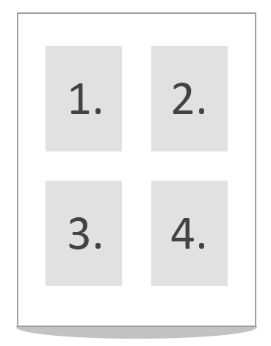
1: Show the N-Up settings
Default value: 1
StartApplicationParameterOrder=<string>
Specifies which parameters are passed to the application launched by the printer, and in what order. Each character (number or letter) represents a parameter; see the values in the list below.
Values of each parameter:
|
None: |
0 |
|
Document Name: |
1 |
|
Group Filename: |
2 |
|
Printer Name: |
3 |
|
Number of Pages: |
4 |
|
Multipage: |
5 |
|
Orientation: |
6 |
|
Custom Parameter: |
7 |
|
Output Filename: |
8 |
|
User Name: |
9 |
|
Computer Name: |
A |
|
Timestamp: |
B |
|
First Bates Number: |
C |
|
Last Bates Number: |
D |
|
Number of Copies: |
E |
Specify the parameter order by specifying which parameter you would like to have in which position, without spaces between. For example, the value 123456789ABCD means pass all parameters (the first parameter is the document name, etc.).
The default parameter list is 1234568000000 (Document Name, Group Filename, Printer Name, Number of Pages, Multipage, Orientation, and Output Filename are passed.)
To specify the parameter list in reverse order, enter StartApplicationParameterOrder=DCBA987654321 in the INI file.
To pass the printer name and the group file name only, enter StartApplicationParameterOrder=3200000000000 into the INI file specifying 0 for the unused parameters.
In order to pass only the group file name as a parameter, enter the following line in the INI file: StartApplicationParameterOrder=2000000000000
CustomStartApplicationParameter=<string>
Custom parameter for the application launched by the printer.
Start Application Timeout=<number>
Start Application Timeout=5000
If the start before print option is enabled, the printer driver will wait for the specified time for the application to be launched by Windows before every print job. The “Start Application Timeout” does not wait until the application starts processing messages. The value is specified in milliseconds, and it is read at the beginning of each print job, so changes take effect immediately, without restoring the default printer settings. The default value is 5 seconds.
Messaging Timeout=<number>
Messaging Timeout=10000
If the “Start for Messaging” option is enabled, the printer driver will wait for the specified time for the application to start listening or processing the first messages. The value is specified in milliseconds, and it is read at the beginning of each print job, so changes take effect immediately, without restoring the default printer settings. The default value is 10 seconds. The -1 value is infinite waiting. The Messaging Timeout affects only when the “Start for Messaging” option is enabled.
This key sets the timeout value for each Message Capture read or write operation. This timeout value affects the Change Devmode message; the rest of the messages are asynchronous. If the value is set to 10 seconds, the application has 10 seconds to receive and reply to the Change Devmode message. This timeout value affects all message capture applications that use the messaging interface. This timeout value is used if the Messaging Interface is enabled, whether the Start Application is enabled or not. The default value is 10 seconds.
Messaging Timeout 2=<number>
Messaging Timeout 2=10000
This key sets the timeout value for each Message Capture read or write operation. This timeout value affects the Change Devmode message; the rest of the messages are asynchronous. If the value is set to 10 seconds, the application has 10 seconds to receive and reply to the Change Devmode message. This timeout value affects all message capture applications that use the messaging interface. This timeout value is used if the Messaging Interface is enabled, whether the Strat Application is enabled or not. The default value is 10 seconds.
StartDoc Delay=<number>
StartDoc Delay=0
For compatibility with applications started by the driver. This value sets the waiting time before the printer driver raises the StartDoc event. It is specified in milliseconds, and it is read at the beginning of each print job.
EndPage Delay=<number>
EndPage Delay=0
This value sets the waiting time before the printer driver raises the EndPage event. It is specified in milliseconds, and it is read at the beginning of each print job.
EndDoc Delay=<number>
EndDoc Delay=0
This value sets the waiting time before the printer driver raises the EndDoc event. It is specified in milliseconds, and it is read at the beginning of each print job.
PDF Flags:
Enter the following into the INI file:
PDFFlags=
Value can be any of the following:
|
#define BLF_PDF_FILTER_NO_COMPRESSION |
0x0020 |
|
#define BLF_PDF_FILTER_FLATE_DECODE |
0x0200 |
|
#define BLF_PDF_FILTER_RUNLENGTH_DECODE |
0x0400 |
|
#define BLF_PDF_FILTER_CCITT_FAX_DECODE |
0x0800 |
|
#define BLF_PDF_FILTER_DCT_JPEG_DECODE |
0x1000 |
Important! Make sure that the color depth matches the compression, such as BLF_PDF_FILTER_DCT_JPEG_DECODE can be used only for 24-bit images, BLF_PDF_FILTER_CCITT_FAX_DECODE can be used only for 1-bit images.
Print Selected Pages Only=<1 or 0>
When enabled, only the pages specified in the “Selected Pages” key are printed.
Available values:
0: Print all pages (default)
1: Print only the pages specified in the “Selected Pages” key
Selected Pages=<string>
Specifies the pages to print when the “Print Selected Pages Only” key is set to 1.
Type page numbers and/or page ranges separated by commas counting from the start of the document.
For example: 1,2,5-12
[UI FileFormats]
The keys of the [UI FileFormats] section allow one to hide particular file formats from the printer driver’s user interface.
Available values:
0: hide the file format
1: show the file format (default)
PDF (*.pdf)=<1 or 0>
Compact PDF (*.pdf)=<1 or 0>
PDF/A (*.pdf)= <1 or 0>
PDF Image (*.pdf)=<1 or 0>
JPEG (*.jpg)=<1 or 0>
JPEG LAB (*.jpg)=<1 or 0>
PNG (*.png)=<1 or 0>
GIF (*.gif)=<1 or 0>
TIFF JPEG (*.tif)=<1 or 0>
TIFF Group 4 (*.tif)=<1 or 0>
TIFF Group 3, 1 Dimension (*.tif)=<1 or 0>
TIFF Group 3, 1 Dimension, with Fillbits (*.tif)=<1 or 0>
TIFF Group 3, 2 Dimension (*.tif)=<1 or 0>
TIFF Packed (*.tif)=<1 or 0>
TIFF Lempel-Ziv & Welch (*.tif)=<1 or 0>
TIFF Uncompressed (*.tif)=<1 or 0>
TIFF for CISCO (*.tif)=<1 or 0>
TIFF for Dialogic boards (*.tif)=<1 or 0>
TIFF for NMS boards (*.tif)=<1 or 0>
TIFF for Gammalink boards (*.tif)=<1 or 0>
HTML - editable (*.htm)=<1 or 0>
HTML with GIF (*.htm)=<1 or 0>
HTML with PNG (*.htm)=<1 or 0>
HTML with JPEG (*.htm)=<1 or 0>
HTML with BMP (*.htm)=<1 or 0>
XML - editable (*.xml)=<1 or 0>
XML with GIF (*.xml)=<1 or 0>
XML with PNG (*.xml)=<1 or 0>
XML with JPEG (*.xml)=<1 or 0>
XML with BMP (*.xml)=<1 or 0>
XML with PDF Image (*.xml)=<1 or 0>
Microsoft Bitmap (*.bmp)=<1 or 0>
PCX (*.pcx)=<1 or 0>
INTEL DCX (*.dcx)=<1 or 0>
Enhanced Metafile (*.emf)=<1 or 0>
IBM MMR IOCA (*.mca)=<1 or 0>
CALS (*.cg4)=<1 or 0>
Raw CCITT (no header) Group 3, 1 Dimension (*.raw)=<1 or 0>
Raw CCITT (no header) Group 3, 1 Dimension, with Fillbits (*.raw)=<1 or 0>
Raw CCITT (no header) Group 3, 2 Dimension (*.raw)=<1 or 0>
Raw CCITT (no header) Group 4 (*.raw)=<1 or 0>
G4 Multi Page=<1 or 0>
G4 Single Page=<1 or 0>
G3 Multi Page=<1 or 0>
G3 Single Page=<1 or 0>
No Compress Multi Page=<1 or 0>
No Compress Single Page=<1 or 0>
[Redirect Printing]
Enable Redirect Printing=<1 or 0>
Enables or disables the "Enable Redirect printing" option in the Printer Driver on the Redirect Printing tab.
Available for Printers: Color, ColorPlus, EMF, TIFF\Monochrome, PDF
Available values:
0: Disable the "Enable Redirect printing" option (default)
1: Enable the "Enable Redirect printing" option
Prompt the User to Select the Printer=<1 or 0>
Enables or disables the "Prompt the user to select the printer during printing" option in the Printer Driver on the Redirect Printing tab. When the option is enabled, a window is shown for the user during printing, where the printer can be selected.
Available values:
0: Do not show printer selection window, redirect to the printer specified in the Printer1, Printer2, etc. keys. (default)
1: Show the printer selection window during printing.
Number of printers=<number>
This value specifies the number of printers to redirect printing jobs. If this value is zero the redirect printing feature is disabled. If this value is greater than zero you have to specify the printer names in the INI file. For example:
[Redirect Printing]
Number of printers=2
Printer1=Printer_name_1
Printer2=Printer_name_2
Scaling Mode=<number>
Specifies the scaling mode for the redirect printing option. The currently available settings are the following:
0: Scale to printable area - scales the printed page down by the size of the physical margin of the target printer, so content very close to the edge of the page can still be printed and nothing will be cut off. This is the default setting.
1: Scale to physical page size - scales the printed page to the physical size of the page, ignoring the target printer’s physical margins. This means the output will be the exact same as when printing to a file. Content outside the physical margins of the target printer is cut off.
[Redirect Printing]
Scaling Mode=0
Redirect Printing Log File=<string>
Full path for the Log File of the redirect printing. The Redirect Printing Log File parameter can also be configured by using a valid environment variable.
Use number of copies=<string>
Override the Number of copies and Collate settings coming from the application and use the settings defined in the Printing Preferences (set in the INI file) instead. This setting does not affect the normal output, only the “Redirect printing” feature.
Available values: Yes, No
Default value: No
Number of copies=<number>
Set the number of copies to print. If this value is set to 1, the value is taken from the printing application. This setting does not affect the normal output, only the “Redirect printing” feature. The “Use number of copies” value must be set to “Yes”.
Available values: 1-999
Default value: 1
Collate pages=<string>
Collated printing will print page documents after each other in proper order, while uncollated printing will print the first page copies, then the second page copies, and so on, as on the explanation diagram below.
Available values: Yes, No
Default value: Yes
This setting does not affect the normal output, only the “Redirect printing” feature. The “Use number of copies” value must be set to “Yes”.
Print as Bitmap=<string>
Available values: Yes, No
Default value: No
Converts the page content to a bitmap before redirecting to the printers. It can correct some graphical glitches that may occur with some printers or documents.
[UI FileName Generation Methods]
The available filename generation methods can be specified in the UI FileName Generation Methods INI file section. By default all filename generation methods are enabled at the Filename Generationtab of the printing preferences. If you set a filename generation method to 0 in the INI file the specified method will not be displayed among the filename generation methods and can’t be used. See the following example:
[UI FileName Generation Methods]
Use this prefix and extension=0
Prefix and extension from the registry=0
Prefix and extension from the INI file=0
Exact filename=1
Exact filename from the registry=0
Exact filename from the INI file=0
Use the document name=1
Custom file naming=0
Use filename from page content=0
In this case only the Use document name and Exact filename can be used at the Filename Generation tab.
Note: At least one filename generation method must be enabled.
[PDF Settings]
Document Title=
Document Subject=
Document Author=
Document Keywords=
Document User Password=
Document Owner Password=
Prompt User for Password=
Document Encryption=
Document Security Flag=
JPEG Quality=
Color Image Compression=
Mono Image Compression=
Stream Compression=
Embed all fonts=
Create subset=
Embed licensed fonts=
Embed Adobe fonts=
Embed Windows fonts=
Linearized=
Transparency=
URL Parsing=
Resampling Method=
Resampling Rate=
Color Patterns=
Open Page Layout=0
Open Page View=0
Open Magnification=0
Open At Page=1
Open Zoom=100
Open Hide Menubar=0
Open Hide Toolbar=0
Open Hide Controls=0
Open Fit To Window=0
Open Center Window=0
Open Show Title=0
Document Title=<string>
This value specifies the title of the PDF documents.
Document Subject=<string>
This value specifies the subject of the PDF documents.
Document Author=<string>
This value specifies the author of the PDF documents.
Document Keywords=<string>
This value specifies the keywords of the PDF documents.
Document User Password=<string>
This value specifies the user password of the PDF documents. Also known as the View Password.
To specify what operations are allowed when the PDF is opened with the User Password, see the Document Security Flag value. The maximum number of characters is 32.
Document Owner Password=<string>
This value specifies the owner password of the PDF documents. Also known as the Edit Password.
When the PDF file is opened with the Owner Password, all operations are allowed. The maximum number of characters is 32.
Prompt User for Password=<number>
When turned on, the printer driver shows a dialog during printing where the password can be specified for encrypting the document.
Available values:
0: Do not show the dialog
1: Show the dialog.
Default value: 0
Document Encryption=<number>
This value specifies the encryption of the PDF documents.
Available values:
0: No encryption
1: 40-bit RC4 encryption, compatible with Acrobat 3.0 or later.
2: 28-bit RC4 encryption, compatible with Acrobat 5.0 or later.
3: 256-bit AES encryption, compatible with Acrobat 9.0 or later.
4: 256-bit AES encryption, compatible with Acrobat X or later. Uses a more secure algorithm than the Acrobat 9.0 compatible version.
Default value: 0 (no encryption)
Document Security Flag=<number>
This value specifies what operations are allowed when the PDF file is opened with the User password (A.k.a. View password). If the PDF is opened with the Owner password (A.k.a. Edit password), all operations are allowed regardless of the flags.
Available values:
0: no flag set
1: allow printing
2: allow copying
4: allow commenting
8: allow editing
More flags can be specified by adding the values together. E.g.: To allow printing and copying, set the value to 3 (1+2).
Default value: 5 (allow printing and commenting)
Stream Compression=<number>
This value specifies the stream compression of the PDF documents.
Available values:
0: no stream compression
104: LZW compression
105: flate compression
Default value: 105 (flate compression)
Mono Image Compression=<number>
This value specifies the compression of the monochrome images in the PDF documents.
Available values:
0: no compression
304: LZW compression
305: flate compression
306: Runlength
307: CCITT Fax
Default value: 307 (CCITT Fax compression)
Color Image Compression=<number>
This value specifies the compression of the color images in the PDF documents.
Available values:
0: no compression
204: LZW compression
205: flate compression
206: Runlength
207: JPEG compression
Default value: 207 (JPEG compression)
Resampling Method=<number>
This value specifies, by using which method should be the resampling done on the images (to reduce the resulting file size).
Available values:
0: no resampling applied to the images
1: Bilinear interpolation
2: Cubic spline interpolation
Default value: 0
Resampling Rate=<number>
This value specifies, how the height and the width of the images should change after resampling (expressed as a percentage).
Available values: Positive integer value between 1 and 200.
Default value: 100
Color Patterns=<number>
This value specifies if color patterns should be used for the stroking and filling colors in the resulting PDF document or a threshold should be applied for them.
Available values:
0: color patterns disabled, threshold will be applied for the colors
1: patterns will be generated for the stroking and filling colors for better visual accuracy
Default value: 0
Jpeg quality=<number>
This value specifies the quality of JPEG compressed images in the PDF documents.
Available values: Positive integer value between 1 and 100.
Default value: 85
Open Page Layout=<number>
Specifies how the pages of the printed multipage PDF will be displayed in the PDF viewer.
Available values:
0: Use the viewer’s settings (Default) – The printed PDF will use the PDF viewer’s settings by default.
1: Single Page View – The PDF viewer application displays only one page at the time on the screen.
2: Two Page View (Left) – The PDF viewer application displays two pages next to each other at the time, and the odd pages are positioned to the left.
3: Two Page View (Right) - The PDF viewer displays two pages next to each other at the time, and the odd pages are positioned to the right.
4: Single Page Continuous – The PDF viewer displays the pages in one column.
5: Two Page Continuous (Left) – The PDF viewer displays the pages in two columns and the odd pages are positioned to the left.
6: Two Page Continuous (Right) – The PDF viewer displays the pages in two columns and the odd pages are positioned to the right.
Open Page View=<number>
Specifies whether the PDF viewer displays thumbnails, bookmarks or only pages.
Available values:
0: Pages only (Default) – Displays only pages in the PDF viewer
1: Pages and Thumbnails – Displays the pages and thumbnails in the PDF viewer
2: Pages and Bookmarks – Displays the pages and bookmarks in the PDF viewer
3: Full Screen – Opens the PDF viewer in full screen
Open Magnification=<number>
Specifies the zoom settings of the printed PDF.
Available values:
0: Default option uses the PDF viewer’s default zoom settings.
1: Fit to Width option scales the PDF to fit to the width of the viewing window.
2: Fit to Height option scales the PDF to fit to the height of the viewing window.
3: Fit to Window option scales the PDF to fit to the height and width of the viewing window.
4: Custom option specifies the custom zoom percentage of the opened PDF in the PDF viewer.
Open At Page=<number>
Specifies the first page to open in the PDF viewer.
Open Zoom=<number>
Specifies the zoom percentage of the PDF document when the Open Magnification is set to Custom
Open Hide Menubar=<number>
Available values: 0, 1. (default value is 0)
1: Hides the viewer application’s menu bar when the document is opened.
0: Shows the viewer application’s menu bar when the document is opened.
Open Hide Toolbar=<number>
Available values: 0, 1. (default value is 0)
1: Hides the viewer application’s toolbar when the document is opened.
0: Shows the viewer application’s toolbar when the document is opened.
Open Hide Controls=<number>
Available values: 0, 1. (default value is 0)
1: Hides the user interface elements in the document’s window (for example: scroll bars and navigation controls), and leaves only the document’s content displayed.
0: Shows the user interface elements in the document’s window (for example: scroll bars and navigation controls), and leaves only the document’s content displayed.
Open Fit To Window=<number>
Available values: 0, 1. (default value is 0)
1: Resizes the document’s window to fit the size of the first displayed page.
Open Center Window=<number>
Available values: 0, 1. (default value is 0)
1: Position the document’s window in the center of the screen.
Open Show Title=<number>
Available values: 0, 1. (default value is 0)
1: Displays the Document Title specified in the document’s properties (In the Black Ice Printer Driver Printing Preferences > File Formats > Select PDF or PDF/A file format > PDF Settings > Description Tab) in the window’s title bar.
Embed all fonts=<number>
The Embed all fonts entry specifies the default font embedding mode. It can be the following:
0: disable default embedding. Only the forced fonts will be embedded.
1 (default): enables default embedding. All fonts will be embedded, except the forbidden ones.
The Create subset entry specifies the font subsetting. It can be the following:
0: disable font subsetting. The fonts will be embedded in their original form.
1 (default): enables font subsetting for TrueType/OpenType fonts.
Embed licensed fonts=<number>
If this value is 1 the licensed fonts will be embedded into the PDF documents. This value can be 1 if the ‘Embed all Fonts’ is 1 also.
Available values: 0, 1
Default value: 0
Embed Adobe fonts=<number>
If this value is 1 the Adobe standard fonts will be embedded into the PDF documents. This value can be 1 if the ‘Embed all Fonts’ is 1 also.
Available values: 0, 1
Default value: 0
Embed Windows fonts=<number>
If this value is 1 the Windows standard fonts will be embedded into the PDF documents. This value can be 1 if the ‘Embed all Fonts’ is 1 also.
Available values: 0, 1
Default value: 0
Embed CID fonts only=<1 or 0>
Changes what type of font encoding is used in the generated PDF documents.
Available values:
0: The Printer Driver embeds fonts with ANSI encoding, and if the document contains Unicode characters or glyph indexes, the Printer Driver will also embed “Identity” encoded CID fonts. (default)
1: The Printer Driver will only embed “Identity” encoded CID fonts. ANSI text is converted to a series of glyph indexes in the PDF. This option is useful when printing the PDF files with certain industrial printers that cannot handle multiple font objects that refer to the same physical font. Selecting this option may increase the size of the generated PDF documents.
Linearized=<number>
If this value is 1, a linearized PDF is generated.
Available values: 0, 1
Default value: 0
Transparency=<number>
If this value is 1 the transparency option is turned on.
Available values: 0, 1
Default value: 0
URL Parsing=<number>
If this value is 1 URLs in the PDF document are turned into clickable links.
Available values: 0, 1
Default value: 0
Bitmap Merging Mode=<number>
For internal use only. The Bitmap Merging Mode value changes how multiple bitmaps are combined into a single bitmap in the PDF document.
Available values: 0, 1
0: Default mode
1: Legacy mode (same as Printer Driver version 15.11 and earlier)
[PDF Force Font Settings]
Count=
Font 1=
This section specifies the ‘Force to embed’ fonts in PDF documents.
Count=<number>
Number of the specified fonts.
Font 1, Font2, …=<string>
Name of the font to force to embed.
[PDF Forbidden Font Settings]
Count=
Font 1=
This section specifies the ‘Forbidden to embed’ fonts in PDF documents.
Count=<number>
Number of the specified fonts.
Font 1, Font2, …=<string>
Name of the font to forbidden to embed.
[PDFA Settings]
Document Title=
Document Subject=
Document Author=
Document Keywords=
Stream Compression=
Color Image Compression=
Mono Image Compression=
JPEG Quality=
Transparency=
URL Parsing=
Resampling Method=
Resampling Rate=
Color Patterns=
Open Page Layout=0
Open Page View=0
Open Magnification=0
Open At Page=1
Open Zoom=100
Open Hide Menubar=0
Open Hide Toolbar=0
Open Hide Controls=0
Open Fit To Window=0
Open Center Window=0
Open Show Title=0
This section contains the settings of the PDF/A output format.
Document Title=<string>
This value specifies the title of the PDF/A documents.
Document Subject=<string>
This value specifies the subject of the PDF/A documents.
Document Author=<string>
This value specifies the author of the PDF/A documents.
Document Keywords=<string>
This value specifies the keywords of the PDF/A documents.
Stream Compression=<number>
This value specifies the stream compression of the PDF/A documents.
Available values:
0: no stream compression
105: flate compression
Default value: 105 (flate compression)
Mono Image Compression=<number>
This value specifies the compression of the monochrome images in the PDF/A documents.
Available values:
0: no compression
305: flate compression
306: Runlength
307: CCITT Fax
Default value: 307 (CCITT Fax compression)
Color Image Compression=<number>
This value specifies the compression of the color images in the PDF/A documents.
Available values:
0: no compression
205: flate compression
206: Runlength
207: JPEG compression
Default value: 207 (JPEG compression)
Jpeg quality=<number>
This value specifies the quality of JPEG compressed images in the PDF/A documents.
Available values: Positive integer value between 1 and 100.
Default value: 85
Transparency=<number>
If this value is 1 the transparency option is turned on.
Available values: 0, 1
Default value: 0
URL Parsing=<number>
If this value is 1 URLs in the PDF document are turned into clickable links.
Available values: 0, 1
Default value: 0
Resampling Method=<number>
This value specifies, by using which method should be the resampling done on the images (to reduce the resulting file size)
Available values:
0: no resampling applied to the images
1: Bilinear interpolation
2: Cubic spline interpolation
Default value: 0
Resampling Rate=<number>
This value specifies, how the height and the width of the images should change after resampling (expressed as a percentage)
Available values: Positive integer value between 1 and 200.
Default value: 100
Color Patterns=<number>
This value specifies if color patterns should be used for the stroking and filling colors in the resulting PDF/A document or a threshold should be applied for them.
Available values:
0: color patterns disabled, threshold will be applied for the colors
1: patterns will be generated for the stroking and filling colors for better visual accuracy
Default value: 0
Open Page Layout=<number>
Specifies how the pages of the printed multipage PDF will be displayed in the PDF viewer.
Available values:
0: Use the viewer’s settings (Default) – The printed PDF will use the PDF viewer’s settings by default.
1: Single Page View – The PDF viewer application displays only one page at the time on the screen.
2: Two Page View (Left) – The PDF viewer application displays two pages next to each other at the time, and the odd pages are positioned to the left.
3: Two Page View (Right) – The PDF viewer displays two pages next to each other at the time, and the odd pages are positioned to the right.
4: Single Page Continuous – The PDF viewer displays the pages in one column.
5: Two Page Continuous (Left) – The PDF viewer displays the pages in two columns and the odd pages are positioned to the left.
6: Two Page Continuous (Right) – The PDF viewer displays the pages in two columns and the odd pages are positioned to the right.
Open Page View=<number>
Specifies whether the PDF viewer displays thumbnails, bookmarks or only pages.
Available values:
0: Pages only (Default) – Displays only pages in the PDF viewer
1: Pages and Thumbnails – Displays the pages and thumbnails in the PDF viewer
2: Pages and Bookmarks – Displays the pages and bookmarks in the PDF viewer
3: Full Screen – Opens the PDF viewer in full screen
Open Magnification=<number>
Specifies the zoom settings of the printed PDF.
Available values:
0: Default option uses the PDF viewer’s default zoom settings.
1: Fit to Width option scales the PDF to fit to the width of the viewing window.
2: Fit to Height option scales the PDF to fit to the height of the viewing window.
3: Fit to Window option scales the PDF to fit to the height and width of the viewing window.
4: Custom option specifies the custom zoom percentage of the opened PDF in the PDF viewer.
Open At Page=<number>
Specifies the first page to open in the PDF viewer.
Open Zoom=<number>
Specifies the zoom percentage of the PDF document when the Open Magnification is set to Custom
Open Hide Menubar=<number>
Available values: 0, 1. (default value is 0)
1: Hides the viewer application’s menu bar when the document is opened.
0: Shows the viewer application’s menu bar when the document is opened.
Open Hide Toolbar=<number>
Available values: 0, 1. (default value is 0)
1: Hides the viewer application’s toolbar when the document is opened.
0: Shows the viewer application’s toolbar when the document is opened.
Open Hide Controls=<number>
Available values: 0, 1. (default value is 0)
1: Hides the user interface elements in the document’s window (for example: scroll bars and navigation controls), and leaves only the document’s content displayed.
0: Shows the user interface elements in the document’s window (for example: scroll bars and navigation controls), and leaves only the document’s content displayed.
Open Fit To Window=<number>
Available values: 0, 1. (default value is 0)
1: Resizes the document’s window to fit the size of the first displayed page.
Open Center Window=<number>
Available values: 0, 1. (default value is 0)
1: Position the document’s window in the center of the screen.
Open Show Title=<number>
Available values: 0, 1. (default value is 0)
1: Displays the Document Title specified in the document’s properties (In the Black Ice Printer Driver Printing Preferences > File Formats > Select PDF or PDF/A file format > PDF Settings > Description Tab) in the window’s title bar.
[HTML Settings]
Html content output directory=C:\HTML
CSS settings=0
Page size setting=0
Vector graphics display mode=0
Embed all fonts=
Create subset=
Separate pages=
Embed Licensed fonts=
The HTML Settings section defines the default values of the HTML settings.
Html content output directory=<string>
The Html content output directory entry specifies the full path of the contents directory of the HTML file format.
Page size setting=<number>
The Page size setting entry specifies the page size settings. It can be the followings:
0 (default): page size based on page width
1: page size based on page height
2: page size based on the specified paper size
CSS settings=<number>
The CSS settings entry specifies the CSS settings. It can be the followings:
0 (default): Only one CSS file will be generated for all printed pages.
1: Every printed pages have own CSS file separated from the HTML.
2: Every printed pages have own CSS file embedded in the HTML.
Vector graphics display mode=<number>
The Vector graphics display mode entry specifies the vector graphics display mode. It can be the followings:
0: disable vector graphics
1 (default): display as PNG image
Embed all fonts=<number>
The Embed all fonts entry specifies the default font embedding mode. It can be the followings:
0: disable default embedding. Only the forced fonts will be embedded.
1 (default): enables default embedding. All fonts will be embedded, except the forbidden ones.
Create subset=<number>
The Create subset entry specifies the font subsetting. It can be the followings:
0: disable font subsetting. The fonts will be embedded in original form.
1 (default): enables font subsetting for TrueType/OpenType fonts.
Separate pages=<number>
The Separate pages entry specifies page processing. It can be the followings:
0 (default): disable page separation. The document will be saved to one HTML file.
1: enables page separation. The document pages will be saved to different HTML files.
Embed Licensed fonts=<number>
If this value is 1 the licensed fonts will be embed into the HTML document.
Available values: 0, 1
Default value: 0
[XML Settings]
XML content output directory=
Include Text=
Include Images=
Include Path=
Include DTD=
Image Format=
This section contains the settings of the editable XML output format.
XML content output directory=<string>
The XML content output directory entry specifies the full path of the contents directory of the XML file format.
Include Text=<number>
Enables or disables the use of text tags in the XML output.
0: disable text tags.
1 (default): enable text tags.
Include Images=<number>
Enables or disables the use of image tags in the XML output.
0: disable image tags.
1 (default): enable image tags.
Include Path=<number>
Enables or disables the use of path tags in the XML output.
0: disable path tags.
1 (default): enable path tags.
Include DTD=<number>
Enables or disables the inclusion of the DTD chunk in the XML output.
0: disable DTD chunk.
1 (default): enable DTD chunk.
Image Format=<number>
This value specifies the image format used in the XML output.
Available values:
0: PNG
1: JPEG
2: GIF
3: BMP
Default value: 0 (PNG)
[HTML Force Font Settings]
Count=
Font 1=
This section specifies the ‘Force to embed’ fonts in HTML documents.
Count=<number>
Number of the specified fonts.
Font 1, Font2, …=<string>
Name of the font to force to embed.
[HTML Forbidden Font Settings]
Count=
Font 1=
This section specifies the ‘Forbidden to embed’ fonts in HTML documents.
Count=<number>
Number of the specified fonts.
Font 1, Font2, …=<string>
Name of the font to forbidden to embed.
[Bates Numbering]
Number of Formats=1
Selected Bates Format=1
Bates Numbering Enabled=0
Number of Formats=<number>
The number of Bates formats is defined in the INI file. For example, if this value is 2, “Bates Number 1” and “Bates Number 2” sections have to be defined in the INI file.
Selected Bates Format=<number>
This value specifies the selected Bates format. If this value is 1 values of the “Bates Number 1” section will be selected in the printing preferences.
Bates Numbering Enabled=<number>
If this value is zero, the Bates numbering feature is disabled; if this value is 1, the Bates numbering is enabled, and the “Enable Bates Numbering” checkbox is checked in the printing preferences.
Bates numbering is not supported when using the EMF output file format.
[Bates Number 1]
Name=Default Bates Format
Use prefix=1
Prefix=Case number
Start with=1
Transparent=0
X Offset=0
Y Offset=0
Offset unit=1
Rotation=0
Color=4145215
Position=2
Font Height=-16
Font Width=0
Font Escapement=0
Font Orientation=0
Font Weight=400
Font Italic=255
Font Underline=0
Font Strikeout=0
Font Charset=1
Font Outprecisions=3
Font Quality=1
Font Clipprecisions=2
Font PinchAndFamily=34
Font Facename=Verdana
Bates Number Length=0
Bates Padding Character=
Reset bates number at every printing=
Reset bates number=
Name=<string>
Name of the bates numbering format
Use prefix=<number>
Available values: 0, 1.
0: Use prefix checkbox is unchecked in the printing preferences.
1: Use prefix checkbox is checked in the printing preferences.
Prefix=<string>
Specifies the prefix text. The maximum number of characters is 29.
Start with=<number>
Specifies the starting bates number. The default value is 1.
Transparent=<number>
Available values: 0, 1.
0: The Bates Number is opaque on the printed page.
1: The Bates Number is transparent on the printed document.
X Offset, Y Offset=<number>
Specifies the offset values of the Bates Number position.
Offset unit=<number>
Specifies the unit of the offset. Available values:
0: 0.1 mm
1: 0.01 inch
2: pixel
Rotation=<number>
Specifies the rotation value in degrees 0-360.
Color=<number>
Specifies the color of the Bates Number as COLORREF value.
Position=<number>
Specifies the bates numbering position on the page. Available values:
0: Top left
1: Top right
2: Center
3: Bottom left
4: Bottom right
Font Height=<number>
Font Width=<number>
Font Escapement=<number>
Font Orientation=<number>
Font Weight=<number>
Font Italic=<number>
Font Underline=<number>
Font Strikeout=<number>
Font Charset=<number>
Font Outprecisions=<number>
Font Quality=<number>
Font Clipprecisions=<number>
Font PinchAndFamily=<number>
Font Facename=<string>
These values specify the font information of the Bates Number.
Bates Number Length=<number>
Number of characters of the Bates number (excluding prefix text). This value can be an integer value between 0 and 16. This value specifies the length of the Bates number. If the length of the Bates number is less than this value, a padding character will be added; otherwise, no padding characters will be inserted. If you are using “Bates Number 1” and the Bates number is 12588, the printed document will contain 00012588 as the Bates number. If “Bates Number 2” is selected, the created Bates number will be 12588 (No padding character will be added.).
Bates Padding Character=<character>
This value specifies the padding character. This value can be only one ANSI character. For example, the Bates number is 1258, the Bates Number length is 5, and you are using * as the Bates Padding Character, the generated text will be *1258 on the printed document.
Reset bates number at every printing=<number>
Available values:0, 1
0: The “Reset Bates Number at every printing” feature is disabled.
1: The “Reset Bates Number at every printing” feature is enabled.
Reset bates number=<number>
If the “Reset Bates Number at every printing” is enabled, this value specifies the starting Bates Number. For example, if this value is 3, the Bates number will start from 3 on every printed document.
[Post Print Options]
View in default viewer=
Send in email=
Email sending program 32bit=
Email sending program 64bit=
Open output folder=
SharePoint Upload=
SharePoint Server=
SharePoint Directory=
SharePoint User=
SharePoint Pass=
SharePoint Silent=
SharePoint Logfile=
SharePoint utility=
SharePoint HTTPS=
SharePoint Delete=
View in default viewer=<string>
If this value is ‘Yes’ every printed document will be opened in the default viewer.
Available values: Yes, No
Default value: No
Open Tiff Viewer=<string>
If this value is ‘Yes’, printed TIFF and PDF documents will be opened in the Black Ice IceViewer (formerly TIFF Viewer).
Black Ice IceViewer version 13.97 or later must be installed on the system.
To pass the document to the Black Ice IceViewer through memory without writing the file to disk, set the “Generate Output in Memory” option to 1.
Available values: Yes, No
Default value: No
Send in email=<string>
If this value is ‘Yes’, every printed document will be sent after printing automatically using the email sending utility.
Available values: Yes, No
Default value: No
Open output folder=<string>
If this value is ‘Yes’the output directory will be opened after every printing.
Available values: Yes, No
Default value: No
SharePoint upload=<number>
If this value is 1 the SharePoint® uploading will be enabled.
Available values:0, 1
Default value: 0
SharePoint Server=<string>
Name of the SharePoint® server.
SharePoint Directory=<string>
Name of the SharePoint® repository. Use ‘/’ character instead of ‘\’ in the path specification.
SharePoint User=<string>
This value is the SharePoint® user.
SharePoint Pass=<string>
This value is the SharePoint® password.
SharePoint Logfile=<string>
This value is the path and name of the log file where the SharePoint utility writes logging information to. The SharePoint Logfile parameter can also be configured by using a valid environment variable.
SharePoint Silent=<number>
If this value is 1 the SharePoint® utility will upload the documents silently without user interaction. In this case the logging feature can be used for getting information about the uploading.
Available values:0, 1
Default value: 0
SharePoint HTTPS=<number>
If this value is 1 the HTTPS encryption will be enabled for the SharePoint® uploading.
Available values:0, 1
Default value: 0
SharePoint Delete=<number>
If this value is 1 the Printer Driver deletes the printed documents after successfully uploaded to SharePoint.
Available values:0, 1
Default value: 0
[Email Settings]
Sender Client=
SMTP Server=
SMTP Port=
SMTP Sender Email=
SMTP UserName=
SMTP Password=
SMTP Enable SSL=
Ask For Address=
Email Send Silently=
Email Sender=
Email To=
Email Cc=
Email Bcc=
Email Subject=
Email Body=
Logging Enabled=
Logging Directory=
Audit Logging Enabled=
Audit Logging Directory=
Delete Files After Sending=
Disable About Box Links=
Disable Email Settings=
Content Based Email=
Simple Content Based Email=
Display Email Sent Successfully Message=
Display Error Message=
This section defines the default settings of the email settings utility. These settings can be reached at Email Settings dialog in the Printing Preferences.
Sender Client=<number>
Available values: 0, 1
Default value: 0
0: Use default mail client
1: Use SMTP client
SMTP Server=<string>
Name of the SMTP server. Maximum length is 127 characters. This value only has to be specified when the selected Sender Client is 1.
SMTP Port=<number>
Port of the SMTP server. Maximum length is 3 characters. This value only has to be specified when the selected Sender Client is 1.
SMTP Sender Email=<string>
Email address of the sender. Maximum length is 64 characters. This value only has to be specified when the selected Sender Client is 1.
SMTP UserName=<string>
SMTP user name (usually with domain). Maximum length is 64 characters. This value only has to be specified when the selected Sender Client is 1.
SMTP Password=<string>
SMTP password. Maximum length is 31 characters. This value only has to be specified when the selected Sender Client is 1.
SMTP Enable SSL=<string>
If this value is ‘Yes’ the printer driver uses SSL to connect to the specified SMTP server. This value only has to be specified when the selected Sender Client is 1.
Available values: No, Yes
Default value: No
Ask For Address=<string>
Prompt the user only for the email address. If set to Yes, the Printer Driver will show a window at every email sending where the recipients can be specified, but will not show the complete email sending window.
Available values: No, Yes
Default value: No
Email Send Silently=<string>
If this value is ‘Yes’ the printer driver will send the printer documents to the predefined email addresses without user interaction.
Available values: No, Yes
Default value: No
Email Sender=<string>
Name of the email sender. Maximum length is 127 characters. This value is only used when the silent mail sending or “Prompt the user only for the email address” is enabled.
Email To=<string>
To recipients. More email addresses can be specified using the “;” character. Maximum length is 127 characters. This value is only used when the silent mail sending or “Prompt the user only for the email address” is enabled.
Email Cc=<string>
Cc recipients. More email addresses can be specified using the “;” character. Maximum length is 127 characters. This value is only used when the silent mail sending or “Prompt the user only for the email address” is enabled.
Email Bcc=<string>
Bcc recipients. More email addresses can be specified using the “;” character. Maximum length is 127 characters. This value is only used when the silent mail sending or “Prompt the user only for the email address” is enabled.
Email Subject=<string>
Subject of the email. Maximum length is 63 characters. This value is only used when the silent mail sending or “Prompt the user only for the email address” is enabled.
Email Body=<string>
Body of the email. Maximum length is 515 characters. This value is only used when the silent mail sending or “Prompt the user only for the email address” is enabled.
Logging Enabled=<string>
If this value is ‘Yes’, the printer driver will generate log files about email sending.
Available values: No, Yes
Default value: No
Logging Directory=<string>
Full path of the log directory. Maximum length is 260 characters. This value is only used when the email logging is enabled. The Logging Directory parameter can also be configured by using a valid environment variable.
Audit Logging Enabled=<string>
If this value is ‘Yes’ the printer driver will generate CSV format audit log files about email sending.
Available values: No, Yes
Default value: No
Audit Logging Directory=<string>
Full path of the log directory. Maximum length is 260 characters. This value is only used when the email audit logging is enabled. The Audit Logging Directory parameter can also be configured by using a valid environment variable.
Delete Files After Sending=<string>
If this value is ‘Yes’ the printer driver will delete all files, including attachments, after the email is sent.
Available values: No, Yes
Default value: No
Disable About Box Links=<string>
If this value is ‘Yes’, the links on the About Box, on the SMTP email sending window are disabled.
Available values: No, Yes
Default value: No
Disable Email Settings=<string>
If this value is ‘Yes’, the File/Settings menu item on the SMTP email sending window is disabled.
Available values: No, Yes
Default value: No
Content Based Email=<string>
Enables content-based email sending. The content based email sending feature can be used to set the recipients, subject and body text of emails, and passwords of PDF output files by embedding special character sequences into the printed documents (for example: ##~~EmailTo=recipient@domain.com~~).
Available values: No, Yes
Default value: No
Simple Content Based Email=<string>
If this option is turned on, the first email address from the first page of the printed document is extracted and used as the recipient when sending emails.
Available values: No, Yes
Default value: No
Display Email Sent Successfully Message=<string>
If this option is turned on, the Printer Driver will show a message box with the “Email sent successfully.” Text after the email has been sent. The option is turned off automatically if the “Email Send Silently” option is set to “Yes”.
Available values: No, Yes
Default value: No
Display Error Message=<string>
If this option is turned on, the Printer Driver will show a message box with the error message if there is a problem during sending the email. The option is turned off automatically if the “Email Send Silently” option is set to “Yes”.
Available values: No, Yes
Default value: Yes
[Text Output Settings]
Filter Junk Characters=0
Glyph Conversion Method=0
No Page Headers=0
Use Legacy Coordinates=0
Add Space=
Line Breaks=
Separate Text Output Directory=
Text Output Directory=
Action on Existing Files=
Formatting Style=
Encoding=
This section defines the settings of the printer driver text output.
Generate Text Output=<1 or 0>
Enables or disables the "Generate text output" option in the Printer Driver on the Text Output tab.
Available for Printers: ColorPlus, TIFF\Monochrome, PDF
Available values:
0: Disable the "Generate text output" option
1: Enable the "Generate text output" option
Mail Merge=<1 or 0>
Enables or disables the "Mail Merge" option in the Printer Driver on the Text Output tab.
When the Mail Merge option is checked, the driver recognizes special character sequences in the printed text to extract information into an MRG file.
Available for Printers: ColorPlus, TIFF\Monochrome, PDF
Available values:
0: Disable the "Mail Merge" option
1: Enable the "Mail Merge" option
Filter Junk Characters=<number>
Some text is passed by the printing application to the printer driver as a series of glyph indexes of a font instead of regular characters. If this value is set to 0, the printer driver tries to convert these indexes to characters using the method defined by the “Glyph Conversion Method” value, but this is not guaranteed to work every time and may result in Junk characters appearing in the text output. Setting this value to 1 will filter glyph indexes from the text output.
Available values: 0, 1
Default value: 0
Glyph Conversion Method=<number>
Method for converting glyph indexes to text. Try to change this if you get junk characters. Default value is 0.
Available values:
0: Try to guess the best method (default) – This option tries to determine the appropriate method for converting glyph characters to text. This method does not depend on the Character Set setting of the printer driver; it is usable for any language.
1: Use glyph table from the font file
2: Shift values (mainly for printing from Adobe Reader)
3: Legacy automatic - The automatic glyph conversion method has changed with Printer Driver version 14.56. This option uses the glyph conversion method from Printer Driver version 14.55 and earlier, and could be useful to achieve the same text output as with version 14.55 and earlier. This method is usable for languages that primarily use the English alphabet. The method depends on the Character Set setting of the printer driver. It is recommended to use the ANSI Character Set in the Text Output configuration. If the Character Set is not set to ANSI, this method is the same as the "Shift values" method.
No Page Headers=<number>
If set to 0, the a page header (“Page X” text) is inserted before the content of each page in the text output.
Available values: 0, 1
Default value: 0
Use Legacy Coordinates=<number>
Use the old text coordinate calculations, like in version 14.35 and older Printer Drivers.
Available values: 0, 1
Default value: 0
Add Space=<number>
The Detect space in text feature automatically detects the space characters between the EMF records from the input document, and inserts the spaces between the appropriate words in the text output.
Available values:
0: Never add space
1: Always add space
2: Automatic
Default value: 2
Line Breaks=<number>
Line Break format specifies the format of the line breaks in the generated text output.
Available values:
1: Windows <CR><LF>
2: UNIX/Mac <LF>
3: Mac OS 9 or older <CR>
Default value: 1
Separate Text Output Directory=<number>
When the Separate Text Output Directory option is disabled, the printer driver will use the same output directory for the Text Output as the normal output. If it is enabled, the text output directory can be specified using the Text Output Directory ini file value.
Available values:
0: Disable
1: Enable
Default value: 0
Text Output Directory=<string>
Full path of the text output directory. Maximum length is 260 characters. This value is only used when the Separate Text Output Directory is enabled.
Action on Existing Files=<number>
Possible actions if the text output file already exists
Available values:
0: Append to the existing file
1: Overwrite the existing file
2: Rename the new file
Default value: 0
Formatting Style=<number>
Formatting style defines whether to generate plain text from the printed document, or to add font information, position and style for the generated text. Adding position, style and font information could be useful if one intend to convert the text back to formatted document.
Available values:
0: Pain text
1: Add font information, position and style
2: Text with layout
Default value: 0
Encoding=<number>
By default, the text file is generated as ANSI text, however, UNICODE text is also supported. In order to turn on the UNICODE text support, select an UNICODE option from the Character Set dropdown list.
Available values:
0: Ansi
1: Unicode UTF-8
2: Unicode UTF-16
3: Unicode UTF-16 Big Endian
Default value: 0
Generate In Memory=<string>
If this value is set to “Yes”, the Text is output is generated in memory and passed using Message Capture.
Available values: Yes, No
Default value: No
Line Adjustment=<number>
Adjusts the minimum line height when converting formatted documents to text using the "Text with layout" option (expressed as a percentage).
Available values: Positive integer value between 1 and 1000.
Default value: 100
[Barcode Settings]
Enable=
Type=
Value Source=
Value=
Value File=
RegExp File=
RegExp Format File=
First Page Only=
Transparency=
Align=
Vertical Align=
X Offset=
Y Offset=
Orientation=
Unit=
1D Subtype=
1D Write Text=
1D Minimal Bar Width=
1D Minimal Space Width=
1D Ratio=
1D Quiet Zone=
QR EC Level=
QR Module Size=
QR Quiet Zone=
DM Module Size=
DM Quiet Zone=
DM Append=
DM Append Index=
DM Append Total=
DM Append Chain ID=
P417 Truncated=
P417 EC Level=
P417 Quiet Zone=
P417 Columns=
P417 Rows=
P417 Column Width=
P417 Column Height=
Insert Page=
Enable=<number>
If this value is 1, barcode printing is enabled.
Bates numbering is not supported when using the EMF output file format.
Available values: 0, 1
Default value: 0
Type=<number>
Available values: 0-3
0: QR
1: Data Matrix
2: PDF 417
3: 1D (Linear) – Set the “1D Subtype” key to set the 1D barcode standard
Default value: 0
Value Source=<number>
Available values: 0-2
0: The “Value” key is used, and the barcode value is set directly
1: The “Value File” key is used, and a file is given as the barcode value
2: The text of the printed page is used as the barcode value, or the barcode value is generated from the page content using a regular expression (using the “RegExp File” and “RegExp Format File” keys)
Default value: 0
Value=<string>
Used as barcode value if “Value Source” is 0
Value File=<string>
Path to a file that is used as a barcode value if “Value Source” is 1
RegExp File=<string>
Path to a Unicode text file (UTF-16 little-endian with byte-order mark) that contains a regular expression that is used for generating the barcode value from the page content if “Value Source” is 3. If this key is not set and “Value Source” is 3, the whole page text is used as the barcode value.
RegExp Format File=<string>
Path to a Unicode text file (UTF-16 little-endian with byte-order mark) that contains a regular expression format that is used for generating the barcode value from the page content if “Value Source” is 3. If this key is not set and “Value Source” is 3, the whole page text is used as the barcode value.
First Page Only=<number>
If this value is 1, the barcode is only printed on the first page of the document.
Available values: 0, 1
Default value: 0
Transparency=<number>
If this value is 1, the barcode is printed with transparent background instead of white.
Available values: 0, 1
Default value: 0
Align=<number>
Sets the horizontal alignment of the barcode.
Available values: 0, 1, 2
0: Left
1: Center
2: Right
Default value: 0
Vertical Align=<number>
Sets the vertical alignment of the barcode.
Available values: 0, 1, 2
0: Top
1: Middle
2: Bottom
Default value: 0
X Offset=<number>
Sets the horizontal position of the barcode on the printed page. If “Align” is set to 2, this key specifies the distance of the right side of the barcode from the right side of the page.
Default value: 0
Y Offset=<number>
Sets the vertical position of the barcode on the printed page. If “Vertical Align” is set to 2, this key specifies the distance of the bottom of the barcode from the bottom of the page.
Default value: 0
Orientation=<number>
Sets the barcode rotation.
Available values: 0, 1, 2, 3
0: Do not rotate
1: Rotate 90 degrees clockwise
2: Rotate 180 degrees clockwise
3: Rotate 270 degrees clockwise
Default value: 0
Unit=<number>
Sets the units used by the “X Offset” and “Y Offset” keys
Available values: 0, 1, 3
0: the offsets are specified in pixels.
1: the offsets are specified in tenths of millimeters.
2: the offsets are specified in hundredths of inches.
Default value: 0
1D Subtype=<number>
Sets the used barcode standard if the “Type” key is set to 3 (1D)
Available values: 0-11
0: Codabar
1: Code 11
2: Code 128
3: Code 39
4: EAN 8
5: EAN 13
6: Industrial 2 from 5
7: Interleaved 2 from 5
8: Matrix 2 from 5
9: Plessey
10: UPC-A
11: UPC-E
Default value: 0
1D Write Text=<number>
If this value is 1, the value of 1D barcodes is printed under the barcode.
Available values: 0, 1
Default value: 0
1D Minimal Bar Width=<number>
Sets the minimal width of the bars in pixels. Cannot be less than 1.
Default value: 4
1D Minimal Space Width=<number>
Sets the minimal width of the spaces between bars in pixels. Cannot be less than 1.
Default value: 4
1D Ratio=<number>
Sets the minimal width difference between two neighboring logical level bars or spaces. Cannot be less than 1, it is specified in pixels.
Default value: 4
1D Quiet Zone=<number>
Sets the size of the empty white frame around the barcode. Cannot be less than 1, it is specified in pixels.
Default value: 4
1D Height=<number>
Sets the fixed height of 1D barcodes in pixels. A value of 0 means the barcode height is automatic.
Default value: 0
QR EC Level=<number>
Sets the strength of the error correction used in QR codes. The QR code size increases with the error correction level.
Available values: 0-4
|
0: Level L (Low) |
7% of codewords can be restored. |
|
1: Level M (Medium) |
15% of codewords can be restored. |
|
2: Level Q (Quartile)[33] |
25% of codewords can be restored. |
|
3: Level H (High) |
30% of codewords can be restored. |
Default value: 2
QR Module Size=<number>
Sets the size of a single QR module (a single black or white rectangle) in pixels.
Default value: 8
QR Quiet Zone=<number>
Sets the size of the empty white frame around the barcode. Cannot be less than 1, it is specified in pixels.
Default value: 8
DM Module Size=<number>
Sets the size of a single data matrix cell (a single black or white rectangle) in pixels.
Default value: 10
DM Quiet Zone=<number>
Sets the size of the empty white frame around the barcode. It is specified in logical units. One unit is the size of a single data matrix module. (Specified by the “DM Module Size” key)
Default value: 1
DM Append=<number>
If this value is set to 1, the printer driver will add structured append information to the data matrix code. Using the structured append feature, up to 16 Data Matrix symbols can be linked. The original data or file can be reconstructed from the linked symbols regardless of the order of the symbols.
Available values: 0, 1
Default value: 0
DM Append Index=<number>
Sets the index of the data matrix symbol that identifies its position in the current group. The index must be between 1 and 16 and must be smaller than or equal to the number of symbols in the group. The structured append feature must be enabled with the “DM Append” key.
Available values: 1-16
Default value: 1
DM Append Total=<number>
Sets the total number of symbols in the current group. The number must be between 2 and 16. The structured append feature must be enabled with the “DM Append” key.
Available values: 2-16
Default value: 2
DM Append Chain ID=<number>
Sets the chain ID (File ID / FID) of the group. The number must be between 0 and 64515. The structured append feature must be enabled with the “DM Append” key.
Available values: 0-64515
Default value: 0
P417 Truncated=<number>
If this value is set to 1, truncated PDF 417 symbols are enabled. Truncated PDF 417 symbols are smaller but they are less tolerant to damage.
Available values: 0, 1
Default value: 0
P417 EC Level=<number>
Sets the strength of the error correction used in PDF 417 codes. The code size and the tolerance to damage increase with the error correction level.
Values between 0-8 are the normal error correction levels, 9 means automatic.
Available values: 0-8, 9
Default value: 9
P417 Quiet Zone=<number>
Sets the size of the empty white frame around the barcode. It is specified in logical units. One unit is the size of a single cell size. (Specified by the “P417 Column Width” and “P417 Column Height” keys)
Default value: 1
P417 Columns=<number>
Sets the number of data columns in the symbol. If this value is 0, the data columns will be automatically counted.
Default value: 0
P417 Rows=<number>
Sets the number of data rows in the symbol. If this value is 0, the data rows will be automatically counted.
Default value: 0
P417 Column Width=<number>
Sets the width of a single module in pixels.
Default value: 4
P417 Column Height=<number>
Sets the height of a single module in pixels.
Default value: 48
Insert Page=<number>
If this value is 1, the barcode will be printed to a page that is inserted before the first page of the document.
If this value is 0, no page is inserted in front of the printed document. The barcode is printed to the pages of the document.
Available values: 0, 1
Default value: 0
[OCR Settings]
Enabled=
BiOCR.Dll=
BiOCRx.Dll=
Output Directory=
Open Output=
Text Editor=
First Page Only=
Select Area=
Area Unit=
Area Top=
Area Left=
Area Width=
Area Height=
Languages=
Enabled=<string>
If this value is set to “Yes”, the OCR (Optical Character Recognition) feature of the printer driver is enabled. Please note that enabling the OCR feature will slow down printing.
Available values: Yes, No
Default value: No
Output Directory=<string>
Specifies the folder where the output of the OCR will be generated. If set to an empty string, the normal printer driver output directory will be used.
Default value: empty
Open Output=<string>
If this value is set to “Yes”, the driver will open the OCR output with the editor specified in the “Text Editor” key. If the “Save each page as separate file” option is turned on, only the first page will be opened, after the whole document is finished printing.
Available values: Yes, No
Default value: No
Text Editor=<string>
Specifies the path to the text editor used for opening the OCR output. If set to an empty string, the default text editor will be used.
Default value: empty
First Page Only=<string>
If this value is set to “Yes”, the OCR is only enabled for the first page of the document.
Available values: Yes, No
Default value: No
Select Area=<string>
Enables or disables Area Selection for the OCR feature of the printer driver. When enabled, you can use the “Area Unit”, “Area Top”, “Area Left”, “Area Width” and “Area Height” keys to set a rectangular area on the page where the OCR will operate.
Available values: Yes, No
Default value: No
Area Unit=<number>
Available values: 1-3
1: Pixel
2: 0.1*mm
3: 0.01*Inch
Default value: 1
Area Top=<number>
Sets the distance of the OCR area from the top of the page. The unit can be specified using the “Area Unit” key.
Default value: 0
Area Left=<number>
Sets the distance of the OCR area from the left edge of the page. The unit can be specified using the “Area Unit” key.
Default value: 0
Area Width=<number>
Sets the width of the OCR area. The unit can be specified using the “Area Unit” key.
Default value: 0
Area Height=<number>
Sets the height of the OCR area. The unit can be specified using the “Area Unit” key.
Default value: 0
Languages=<string>
Default value: eng
Selects the languages used in the OCR. The list should be a string of language codes separated by ‘+’ characters. (E.g.: “eng+deu+fra+jpn”). On the printer driver user interface, it is only possible to select a single language at a time, but with this INI file key, multiple languages can be selected. The list of available languages can vary depending on the language packs installed.
|
Language code (ISO 639-3) |
Language name |
|
afr |
Afrikaans |
|
sqi |
Albanian |
|
grc |
Ancient Greek Language |
|
ara |
Arabic |
|
aze |
Azerbaijani |
|
eus |
Basque |
|
bel |
Belarusian |
|
ben |
Bengali |
|
bul |
Bulgarian |
|
cat |
Catalan |
|
chr |
Cherokee |
|
chi_sim |
Chinese (Simplified) |
|
chi_tra |
Chinese (Traditional) |
|
hrv |
Croatian |
|
ces |
Czech |
|
dan |
Danish |
|
nld |
Dutch |
|
eng |
English |
|
epo |
Esperanto |
|
epo_alt |
Esperanto alternative |
|
est |
Estonian |
|
fin |
Finnish |
|
frk |
Frankish |
|
fra |
French |
|
glg |
Galician |
|
deu |
German |
|
ell |
Greek |
|
heb |
Hebrew |
|
hin |
Hindi |
|
hun |
Hungarian |
|
isl |
Icelandic |
|
ind |
Indonesian |
|
ita |
Italian |
|
ita_old |
Italian (Old) |
|
jpn |
Japanese |
|
kan |
Kannada |
|
kor |
Korean |
|
lav |
Latvian |
|
lit |
Lithuanian |
|
mkd |
Macedonian |
|
msa |
Malay |
|
mal |
Malayalam |
|
mlt |
Maltese |
|
enm |
Middle English (1100-1500) |
|
frm |
Middle French (ca. 1400-1600) |
|
nor |
Norwegian |
|
pol |
Polish |
|
por |
Portuguese |
|
ron |
Romanian |
|
rus |
Russian |
|
srp |
Serbian (Latin) |
|
slk |
Slovakian |
|
slv |
Slovenian |
|
spa |
Spanish |
|
spa_old |
Spanish (Old) |
|
swa |
Swahili |
|
swe |
Swedish |
|
tgl |
Tagalog |
|
tam |
Tamil |
|
tel |
Telugu |
|
tha |
Thai |
|
tur |
Turkish |
|
ukr |
Ukrainian |
|
vie |
Vietnamese |
Generate In Memory=<string>
If this value is set to “Yes”, the OCR output is generated in memory and passed using Message Capture.
Available values: Yes, No
Default value: No
OCR Format=<number>
The OCR Format value sets the output format type of the OCR engine.
Available values: 0-1
0: Plain Text format
1: hOCR format
Default value: 0
Write Bitmaps=<string>
This option is intended for test purposes; it is not meant to be used in a production environment.
If this value is set to “Yes”, the driver will save the bitmaps to files before it sends them to the OCR engine. The bitmaps sent to the OCR engine can differ from the normal BMP output of the printer driver (e.g., no dithering, different bit depth). Saving these bitmaps can be useful if one wants to generate training files for the OCR engine.
Available values: Yes, No
Default value: No
Bitmap Directory=<string>
Specifies the folder where the BMP files will be written if the “Write Bitmaps” option is set to “Yes”. If set to an empty string, the BMP files will be generated in the OCR output directory.
Default value: empty
[Header Settings]
Header Enable=
Header Text=
Header Position=
Header Font Height=
Header Font Width=
Header Font Escapement=
Header Font Orientation=
Header Font Weight=
Header Font Italic=
Header Font Underline=
Header Font Strikeout=
Header Font Charset=
Header Font Outprecisions=
Header Font Clipprecisions=
Header Font Quality=
Header Font PinchAndFamily=
Header Font Facename=
Header Color=
Header Background Mode=
Header Offset X=
Header Offset Y=
Header Offset Units=
Header Enable=<number>
This value enables or disables Header printing.
Available values:
0: Disables Header printing
1: Enables Header printing
Default value: 0 (Disables Header printing)
Header Text=<string>
This value specifies the header text
Header Position=<number>
This value specifies the position of the header.
Available values:
0: left
1: center
2: right
Default value: 0 (left)
Header Font Height=0
Header Font Width=0
Header Font Escapement=0
Header Font Orientation=0
Header Font Weight=0
Header Font Italic=0
Header Font Underline=0
Header Font Strikeout=0
Header Font Charset=0
Header Font Outprecisions=0
Header Font Clipprecisions=0
Header Font Quality=0
Header Font PinchAndFamily=0
Header Font Facename=
These values specify the font information of the Header.
Header Color=
Specifies the color of the Header as a COLORREF value.
Header Background Mode=
Available values: 0, 1.
0: The Header is opaque on the printed page.
1: The Header is transparent on the printed document.
Header Offset X=<number>
Specifies the horizontal offset of the Header annotation.
Header Offset Y=<number>
Specifies the vertical offset of the Header annotation.
Header Offset Units=<number>
Specifies the unit of the offset.
0: 0.1 mm
1: 0.01 inch
2: pixel (default value)
[Footer Settings]
Footer Enable=
Footer Text=
Footer Position=
Footer Font Height=
Footer Font Width=
Footer Font Escapement=
Footer Font Orientation=
Footer Font Weight=
Footer Font Italic=
Footer Font Underline=
Footer Font Strikeout=
Footer Font Charset=
Footer Font Outprecisions=
Footer Font Clipprecisions=
Footer Font Quality=
Footer Font PinchAndFamily=
Footer Font Facename=
Footer Color=
Footer Background Mode=
Footer Offset X=
Footer Offset Y=
Footer Offset Units=
Footer Enable=<number>
This value enables or disables Footer printing.
Available values:
0: Disables Footer printing
1: Enables Footer printing
Default value: 0 (Disables Footer printing)
Footer Text=<string>
This value specifies the Footer text
Footer Position=<number>
This value specifies the position of the Footer.
Available values:
0: left
1: center
2: right
Default value: 0 (left)
Footer Font Height=0
Footer Font Width=0
Footer Font Escapement=0
Footer Font Orientation=0
Footer Font Weight=0
Footer Font Italic=0
Footer Font Underline=0
Footer Font Strikeout=0
Footer Font Charset=0
Footer Font Outprecisions=0
Footer Font Clipprecisions=0
Footer Font Quality=0
Footer Font PinchAndFamily=0
Footer Font Facename=
These values specify the font information of the Footer.
Footer Color=0
Specifies the color of the Footer as COLORREF value.
Footer Background Mode=0
Available values: 0, 1.
0: The Footer is opaque on the printed page.
1: The Footer is transparent on the printed document.
Footer Offset X=<number>
Specifies the horizontal offset of the Footer annotation.
Footer Offset Y=<number>
Specifies the vertical offset of the Footer annotation.
Footer Offset Units=<number>
Specifies the unit of the offset.
0: 0.1 mm
1: 0.01 inch
2: pixel (default value)
[Troubleshooting Settings]
Debug Logging Enable=0
Debug Logging Directory=
Event Logging Level=2
Debug Logging Enable=<number>
This value enables or disables Debug Logging.
Available values:
0: Disables Debug Logging
1: Enables Debug Logging
Default value: 0 (Disables Debug Logging)
Debug Logging Directory=<string>
The full path for the directory to save the DDF file generated by Debug Logging. The Debug Logging parameter can also be configured by using a valid environment variable.
Event Logging Level=<0 or 1 or 2 or 3>
If the Event Logging Level is not 0, the Printer Driver logs specific general information, errors, and warnings for every print job into the Event log, into Windows Logs > Application.
Possible values:
0: Disable logging
1: Write only errors into the event log
2: Write errors and warnings into the event log
3: Write errors, warnings, and general information for every print job into the event log
Default value: 2
[BiGroup.ini]
INI file=<string>
Contains the path and filename of the bi_group.ini file.
The default value is:
C:\Windows\Temp\bi_group.ini
The printer driver writes the path and file name of the latest written group file (*.grp) into the bi_group.ini file. The driver might write errors into the “Print Status” key of the bi_group.ini file, such as “Filename is longer than 260 characters”, if the normal group file cannot be written.
Example content of the bi_group.ini file:
[Black Ice ColorPlus]
Group File=
Print status=Filename is longer than 260 characters: C:\12345678901234567890123456789012345678901234567890123456789012345678901234567890123456789012345678901234567890123456789012345678901234567890123456789012345678901234567890123456789012345678901234567890123456789012345678901234567890123456789012\Text file with long file name.TIF
[Black Ice EMF]
Group File=C:\Users\Username\Documents\Test Page000001.GRP
[Black Ice Color (Demo)]
Group File=C:\Users\Username\Documents\Test Page000001 (18).GRP
[Sharing Settings]
Ignore extended DEVMODE from clients=<0 or 1>
Default value: 0
If this value is set to 1, for shared printers, all tabs on the “Printing Preferences” dialog except “Device Settings” are hidden on the client side. The settings that are hidden and disabled on the client side are visible and can be changed on the Host side. On the client side, only the Paper size, Orientation, and DPI settings can be changed.
If this value is set to 0, the Device Settings, File formats, Filename Generation, and Annotation tabs are visible and can be changed on the client side. When printing from a client, these settings are taken from the client side; the host-side settings are ignored. The settings that are hidden and disabled on the client side are visible and can be changed on the Host side.
This option must have the same value on the host and client side INI files. If the value is changed after the printer is attached to the client computer, both the client-side and host-side INI files have to be changed. If the INI file is modified on the host side before the printer is attached to the client, the INI file value will be copied to the client when the printer is attached to the client.
[FTP Upload Setting]
FTP Enable=<0 or 1>
Enable or disable FTP upload feature (max length: 1 character)
0: Disable FTP upload
1: Enable FTP upload
FTP Selected Connection=<number>
The ID of the selected FTP connection(max length: 3 characters).
Multiple ftp connections can be specified in the [FTP Connection XXX] sections. This key specifies which one of the connections is selected by default.
E.g., to use the settings specified in the [FTP Connection 2] section, set “FTP Selected Connection=2”
[FTP Connection <number>]
Multiple connections can be specified; the numbering starts with 1.
E.g.: the [FTP Connection 1] section contains the settings of the first connection.
FTP Connection Name=<string>
Name of the connection (max length: 128 characters)
FTP Security Mode=<number>
FTP Security mode. (max length: 1 characters)
0: FTP without security
1: FTP with explicit SSL/TLS encryption (FTPES)
2: FTP with implicit SSL/TLS (FTPS)
3: SFTP
FTP Server Address=<string>
URL of the FTP Server or IP Address (max length: 128 characters)
FTP Login Name=<string>
FTP Server User name (max length: 128 characters)
FTP Password=<string>
FTP Server User password (max length: 64 characters)
FTP Port=<number>
FTP server port (max length: 5 characters)
FTP Remote Directory=<string>
Destination Directory on the FTP Server (max length: 260 characters)
FTP Is Passive=<0 or 1>
Passive mode (max length: 1 characters)
0: not passive
1: Passive
FTP Proxy Server Address=<string>
URL of the Proxy Server or IP Address (max length: 128 characters)
FTP Proxy Port=<number>
Proxy server port (max length: 5 characters)
FTP Proxy User Name=<string>
Proxy Server User name (max length: 128 characters)
FTP Proxy User Password=<string>
Proxy Server User password (max length: 64 characters)
FTP Proxy Type=<number>
Proxy server type (max length: 1 characters)
0: None
1: Socks4
2: Socks4A
3: Socks5
4: HttpConnect
FTP Proxy Authentication=<number>
Proxy Authentication if proxy type is HttpConnect (max length: 1 characters)
0: Basic
1: Ntlm
FTP Proxy Domain=<string>
Proxy Domain if proxy type is HttpConnect and Proxy Authentication is Ntlm (max length: 128 characters)
To use Proxy Domain, one must use “HttpConnect” and “Ntlm” Authentication
FTP Trusted Certificate=<number>
Trusted certificate (max length: 1 characters)
0: Always show certificate warning
1: never show certificate warning
FTP Transfer Method=<number>
Transfer method (max length: 1 characters)
0: Printed files are copied
1: Files are moved to the target destination (Printed files are deleted in the source location)
FTP Action on Existing Files= <number>
Action on Existing files (max length: 1 characters)
0: Overwrite All (Existing files are always overwritten)
1: Overwrite Different Size (Existing files with a different size are to be overwritten)
2: Overwrite Older (Existing files are to be overwritten if they are older than the source files. This is strongly discouraged because modification dates are often misreported by FTP and SFTP servers, making this mode highly unreliable.)
3: Rename (Existing files are to be renamed according to the pattern "filename[number].extension".)
4: Resume If Possible (Existing files are to be resumed if they are smaller than source files.)
5: Skip All (Existing files are to be always skipped)
FTP Logging=<0 or 1>
Enable or disable logging for FTPUploader (max length: 1 characters).
0: Disable FTP logging
1: Enable FTP logging
FTP Logfile=<string>
Log file for FTPUploader (max length: 260 characters)
The default location is [User document folder]\Black Ice Printer Driver\Log\FTPUploader.log
FTP Show Success=<0 or 1>
When enabled, the printer driver will show a message box after each successful upload. The message box is only shown if the print job is not printed from a service.
0: Disable the message box (default)
1: Enable the message box
FTP Show Error=<0 or 1>
When enabled, the printer driver will show a message box with the error message if the FTP upload was unsuccessful. The message box is only shown if the print job is not printed from a service.
0: Disable the message box (default)
1: Enable the message box
[Cover Page Settings]
Enable Cover Page=
Start Before Printing=
Enable Default Cover Page=
Default Cover Page=
Cover Page Filler Directory=
Common Forms Directory=
User Forms Directory=
Enable Cover Page=<1 or 0>
Enables or disables the Cover Page Filler. The Cover Page Filler requires .NET Framework 4.5 to be installed.
Default value: 0
Available values:
1: Cover Page Filler is shown during printing
0: Cover Page Filler is not shown during printing
Start Before Printing=<1 or 0>
Sets when the Cover Page Filler should be displayed during printing.
Default value: 0
Available values:
1: The Cover Page Filler is shown at the beginning of the Print Job. The printer driver waits until the Cover Page is submitted, then the printing of the document continues.
0: The Cover Page Filler is shown at the end of the Print Job. The printer driver prints the document, then displays the Cover Page Filler. When the Cover Page is submitted, the driver inserts the Cover Page at the beginning of the output document.
Enable Default Cover Page=<1 or 0>
Sets whether a Default Cover Page should be opened in the Cover Page Filler automatically, or the user should choose the cover page from a list, during printing.
Default value: 0
Available values:
0: The Select Cover Page window is displayed before the Cover Page filler, and the user can select the Cover Page from the list of installed Cover Pages.
1: The Cover Page specified by the “Default Cover Page” key is opened in the Cover Page Filler automatically.
Default Cover Page=<string>
Sets the Default Cover Page if the “Enable Default Cover Page” key is set to 1.
Specify the Cover Page using the full path to the file.
Default value: empty
Cover Page Filler Directory=<string>
Specifies the directory where the Cover Page Filler.exe utility and the related dlls are installed.
If this directory is not set, the Cover Page Filler is disabled on the user interface.
Default value: empty
Common Forms Directory=<string>
Specifies the directory where the common Cover Pages (that are shared by all users) are installed. Environment variables can be used in the path between << and >>.
Default value: empty
User Forms Directory=<string>
Specifies the directory where the users’ Cover Pages are installed. Environment variables can be used in the path between << and >>.
Default value: <<USERPROFILE>>\\Documents\\Black Ice Cover Page Filler Forms\\
[Paper Size Definitions]
Number of Paper Sizes=
Paper1 Available=
Paper1 Title=
Paper1 Width=
Paper1 Height=
Paper1 Units=
Paper1 WindowsPaperCode=
…
Paper191 Available=
Paper191 Title=
Paper191 Width=
Paper191 Height=
Paper191 Units=
Paper191 WindowsPaperCode=
Paper191 AdvancedPaperSize=
NOTE: The PaperX (For example, Paper1, Paper33, Paper175) prefix helps the user to keep the INI file definitions in an easy-to-read form. For example, Paper1 defines the attributes of one paper size. When adding a custom paper size, one must use a unique Prefix.
Number of Paper Sizes=<number>
Number of Paper Sizes definitions in the configuration INI file. This is the total number of Paper Sizes used and displayed on the Printer Driver User Interface.
Available values: Integer value between 0 and 2147483647
Default value: 177
Paper1 Available=<number>
This value must be set to 1 to make the paper size available on the user interface. If this value is set to 0, then the Paper Size will be hidden on the user interface.
(The values of the standard paper sizes should not be changed.)
Available values:
1: Enable the paper size on the user interface.
0: Disable the paper size on the user interface.
Default value: 1.
Paper1 Title=<string>
Displayed name of the paper size, maximum 64 characters
(The values of the standard paper sizes should not be changed.)
Paper1 Width=<number>
Paper width in the units specified by the Units value below
(The values of the standard paper sizes should not be changed.)
Paper1 Height=<number>
Paper height in the units specified by the Units value below
(The values of the standard paper sizes should not be changed.)
Paper1 Units=<string>
Unit of the width and height values can be one of the following values:
"MM": tenths of millimeters
"Inches": hundredths of inches
"Pixels": pixels
(The values of the standard paper sizes should not be changed.)
Paper1 WindowsPaperCode=<number>
The Windows paper code is the predefined paper sizes identifier in Windows.
For custom paper sizes, the WindowsPaperCode should be incremented by 1 from the last custom WindowsPaperCode.
The Black Ice INI file definitions are used only by the Black Ice printer driver, and WindowsPaperCode is used only by the Black Ice printer driver.
(The values of the standard paper sizes should not be changed)
Paper1 AdvancedPaperSize=<number>
Advanced paper sizes can be deleted from the user interface.
0: Not an advanced paper size. (default)
1: Advanced paper size
Paper1 Roll=<number>
Specifies if the added paper size is a roll paper size. For roll paper sizes, the Printer Driver automatically cuts off the empty space below the printed page content. The dwHeight parameter will specify the maximum height of the page.
0: Not a roll paper size. (default)
1: Roll paper size
Custom Paper Sizes:
The WindowsPaperCode should be incremented by 1 from the last custom WindowsPaperCode.
If a new custom paper is added, do not forget to update the 'Number of Paper Sizes' entry.
The Paper191 prefix for paper size definitions must be increased for each additional custom paper size. For example, if one adds another custom paper size, the prefix should be Paper192.
[HTTP Upload Settings]
Enabled HTTP Upload =<number>
If this value is 1, the HTTP uploading will be enabled.
Available values:0, 1
Default value: 0
URL=<URL>
Specifies the URL itself to upload the document
Username=<string>
Specifies the username value of the server login credentials.
Username Parameter=<string>
Specifies the parameter name if the Username.
Password=<string>
Specifies the password value of the server login credentials, stored in encrypted format.
Password Parameter=<string>
Specifies the parameter name of the Password.
Custom Parameter=<string>
This can be used to specify any custom parameter for uploading.
CustomParameter Parameter=<string>
Specifies the parameter name of the Custom Parameter.
Delete Uploaded Files=<True or False>
The product deletes the uploaded output documents automatically.
HTTP Protocol=<True or False>
Specifies the HTTP protocol used to upload the document.
Possible values:
True=HTTP
False=HTTPS
LastUseDate=<Datetime>
Specifies the date of last use.
Logging enabled=<True or False>
Enables/Disables logging for HTTP Uploading.
Silent Mode=<True or False>
When this option is enabled, the HTTP Upload will not show any message about the result of the uploading, and will not prompt for parameter values.
Show messages=<True or False>
If this option is enabled, the HTTP Uploader will not display any message about successful document uploads.
Show Error messages=<True or False>
If this option is enabled, the HTTP Uploader will not display any error messages while uploading documents. NOTE: If the logging is enabled, one can review the occurring error messages in the specified log file.
Silent Error Message=<True or False>
If this option is enabled, the HTTPS/HTTP Uploader will display a web developer-defined error message for the user, even if the “Silent mode” is enabled.
[Database Upload Settings]
Database Enable=<number>
If this value is 1, the “Upload to Database” feature will be enabled.
Available values:0, 1
Default value: 0
OBDC Data Source =<string>
The destination ODBC data source to upload the documents to.
Username=<string>
Username for the selected ODBC data source connection.
Password=<string>
The encrypted password for the selected ODBC data source connection. This key is written by the Printer Driver and the BiDBUpload utility automatically, when the “Unencrypted Password” key is changed. To encrypt a password, modify the “Unencrypted Password” key, open the Printer Manager as administrator and select the Printer, click Printing Preferences > Filename Generation > Edit Database settings. The BiDBUploader utility will write the encrypted password to the “Password” key.
Unencrypted Password=<string>
The unencrypted password for the selected ODBC data source connection. After modifying this key, open the Printer Manager as administrator and select the Printer, click Printing Preferences > Filename Generation > Edit Database settings. The BiDBUploader utility will write the encrypted password to the “Password” key.
Table=<string>
The table name from the selected ODBC connection to upload the documents into.
Document=<string>
The column where the uploaded documents will be stored.
DocumentType=<number>
Available values:0, 1
Default value: 0
If the DocumentType value is set to 0, the document is stored as a binary value. If the DocumentType value is set to 1, only the document path is stored.
ID=<string>
The column where the ID/Index of the uploaded document will be stored. The Document ID can be an identifier string allowing users to distinguish and identify the uploaded documents easily. The format of the ID is specified in the IDFormat key.
IDFormat=<string>
Default value: {DOCNAME}
The Document ID format specifies how the Document ID/Index will look. One can insert variables, letters, digits, dash (-), and underscore (_) characters.
The format can have the following variables, and their combinations:
|
Name |
Tag |
|
Document Name |
{DOCNAME} |
|
User Name |
{USERNAME} |
|
Computer Name |
{COMPUTER} |
|
Date |
{DATE} |
|
Time |
{TIME} |
|
Date and Time |
{DATETIME} |
|
Time with Millisec. |
{TIMEMS} |
|
Any alphabetical letter, digit, or ‘-’ or ‘_’ |
|
Silent=<True or False>
Default: False
Specifies if an error/success message is shown during the upload, or not. If the “Silent” key is set to True, then no window will be displayed.
LogEnabled=<True or False>
Default: False
Specifies if the logging feature is enabled or not. When enabled, the Upload to Database utility writes any occurring errors during the upload process and also writes every successful upload.
LogFilename=<string>
Specifies the full path and filename with extension (.txt or .log) for the logging feature.
[N-Up Settings]
Pages Per Sheet=
Border=
Page Order=
Pages Per Sheet=<number>
Sets the number of pages to print on a single page of the output document.
Available values: 1, 2, 4, 6, 8, 9, 16
Default value: 1
Border=<0 or 1>
Enables or disables the border around each page on a sheet if the “Pages Per Sheet” setting is set to a value larger than 1.
Available values: 0, 1
0: Disable the border
1: Enable the border
Default value: 0
Page Order=<0 or 1>
Sets the order of the pages on a sheet if the “Pages Per Sheet” setting is set to a value larger than 1.
Available values: 0, 1
0: Horizontal page order
1: Vertical page order
Default value: 0
Please see the following images for page ordering examples:
|
Horizontal |
Vertical |
|
|
|
[Preview Window]
Show Preview Window=<1 or 0>
Enables or disables the preview window. The preview window lets the user review the printed document and optionally cancel the print job.
Possible values:
1: Enable the preview window.
0: Disable the preview window.
Default value is 0.
Preview Overlay=<string>
Full path to an overlay image. The overlay image is displayed on top of the preview. It is not placed on the final output document. The “Show Preview Window” option must be set to 1. The overlay image is not scaled to the page size; the overlay must be the correct size for the selected paper size.
The supported file types are PNG (Including 32-bit transparent PNG files), JPEG, BMP, and TIFF.
Default value: empty.
Show Overlay On First Page Only=<1 or 0>
When the option is enabled, the overlay is only shown on the first page.
Possible values:
1: Show the overlay on the first page only.
0: Show the overlay on every page.
The default value is 0.
[UI Resolutions]
The values in the [UI Resolutions] section are used in Printer Drivers version 16.51 or older. For Printer Driver version 16.52 or later, use the values in the [Resolutions] section instead. Since Printer Driver version 16.52, the resolutions are completely customizable in the [Resolutions] section of the ini file, or on the user interface.
Standard FAX Resolution=<0 or 1>
Fine FAX Resolution=<0 or 1>
Draft Resolution=<0 or 1>
Low ResolutionUI=<0 or 1>
Medium Resolution=<0 or 1>
High Resolution=<0 or 1>
Custom Resolution=<0 or 1>
Using these values, one can display or hide individual resolution options on the printer driver user interface. The default values are 1; the values can be 0 or 1:
Hide the resolution: 0
Display the resolution: 1
[Resolutions]
Number of Resolutions=
Resolution1 Name=
Resolution1 Code=
Resolution1 DPI X=
Resolution1 DPI Y=
Resolution1 Visible=
Resolution1 Custom=
Resolution2 Name=
Resolution2 Code=
Resolution2 DPI X=
Resolution2 DPI Y=
Resolution2 Visible=
Resolution2 Custom=
...
For Printer Driver version 16.52 or later, the [Resolutions] section lets one specify the resolutions that appear on the user interface. If the [Resolutions] section is missing from the INI file, the printer driver will load a default set of resolutions (standard fax, fine fax, 100, 200, 300, 600 DPI, and custom resolution) and read the values in the [UI Resolutions] section for compatibility with older INI files.
Number of Resolutions=<number>
Specifies the number of resolutions that are in the INI file. E.g., if the “Number of Resolutions” value is set to 7, there must be 7 “ResolutionX Name”, “ResolutionX Code”, “ResolutionX DPI X”, “ResolutionX DPI Y”, “ResolutionX Visible”, and “ResolutionX Custom” values, where X ranges from 1 to 7.
Resolution1 Name=<string>
The name of the resolution as it appears on the Device Settings tab in the Printing Preferences.
Resolution1 Code=<number>
The Windows resolution code lets printing applications specify draft, low, medium, or high resolution without specifying the actual DPI value. The value can be a negative number or 0. For the available values, please see the following page:
Default value: 0
Resolution1 DPI X=<number>
The horizontal resolution in dots per inch.
Minimum: 50. Maximum: 3000.
Special value: -1. Setting the value to -1 means the resolution must be specified on the Device Settings page by the user if this resolution is selected.
Resolution1 DPI Y=<number>
The vertical resolution in dots per inch.
Minimum: 50. Maximum: 3000.
Special value: -1. Setting the value to -1 means the resolution must be specified on the Device Settings page by the user if this resolution is selected.
Resolution1 Visible=<1 or 0>
If set to 1, the resolution is visible on the user interface; otherwise, the resolution is hidden.
Default value: 1
Resolution1 Custom=<1 or 0>
Possible values:
1: The resolution can be edited or deleted by the users in the printing preferences.
0: The resolution cannot be edited or deleted by the users. (default)
[Text Mode Settings]
Settings in the [Text Mode Settings] section apply to printing using Text datatype instead of the normal EMF datatype. Text datatype is mainly used by legacy applications that only print plain text without any formatting. These applications do not set any font during printing; they use the default font of the Printer Driver, which is assumed to be a fixed-width font. When using the text datatype, printers should be able to fit 80 characters in each line.
Font Name=
Font Size=
Margin Units=
Margin Left=
Margin Right=
Margin Top=
Margin Bottom=
Font Name=<string>
Sets the default font for printing using the raw text datatype from legacy applications.
Using a fixed-width font (E.g., Courier New) is strongly recommended.
Default value: Courier New
Font Size=<number>
Sets the default font size for printing using the raw text datatype from legacy applications.
Default value: 11
Margin Units=<number>
Sets the unit for specifying margins. Used when printing using a raw text datatype from legacy applications.
Available values:
0: Tenths of mm
1: Hundredths of inches (default)
2: Pixels
Margin Left=<number>
Margin Right=<number>
Margin Top=<number>
Margin Bottom=<number>
Sets the margins when printing using the raw text datatype from legacy applications. The values are specified in the units set in the “Margin Units” key.
Default values:
Left: 75 (3/4 inch)
Right: 75 (3/4 inch)
Top: 100 (1 inch)
Bottom: 100 (1 inch)