
In order to properly remove a Shared Black Ice Print2Email from a client computer, go to Control Panel > Devices and Printers > and right click on the added printer and select the Remove Device option.
Once the printer is removed from the Devices and Printers, one has to remove the printer drivers from the system.
Also, to ensure that other printer drivers can be installed on the Client computer in the future, printer drivers must be removed.
1. Make sure that the printer that is attempted to be removed is Not the Default printer.
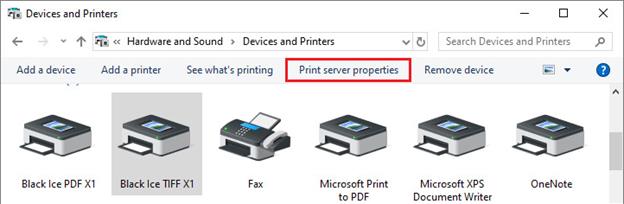
2. In Devices and Printers, click on any printer and click on Print Server Properties at the top of the Devices and Printers window.
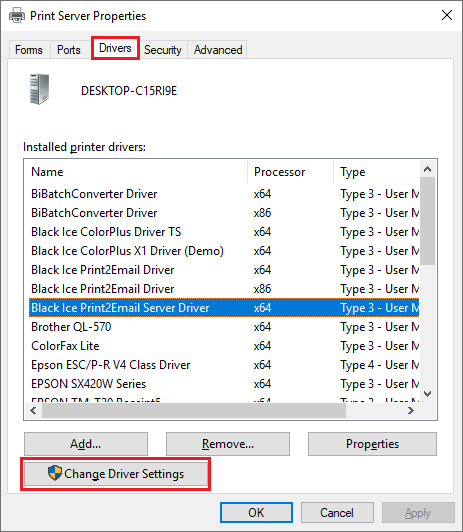
3. Select the Drivers tab and click Change Driver Settings.
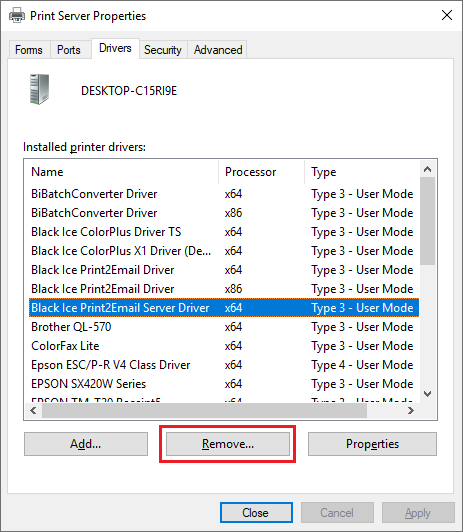
4. Locate the added Black Ice Printer Driver and click Remove.
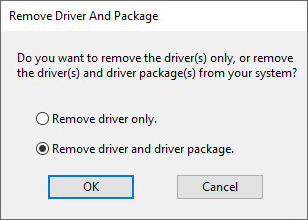
5. On the ‘Remove Driver and Package’ dialog select ‘Remove driver and driver package’ option and click on the OK button.
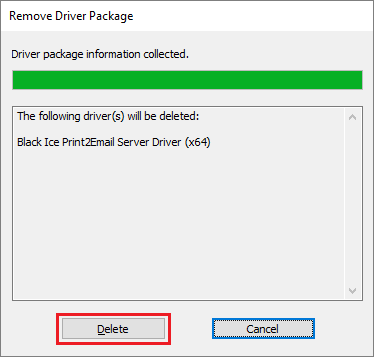
6. On the Remove Driver Package window click on the Delete button.
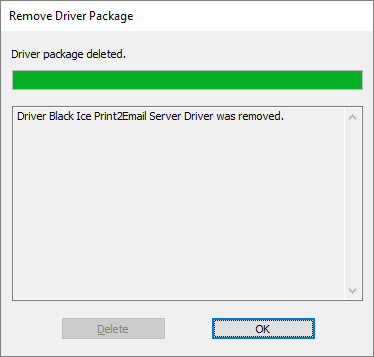
7. When finished, the following message appears:
In case the printer driver files are locked, the following error message appears:
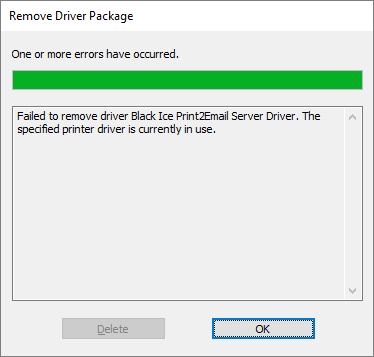
· Restart the computer or restart the spooler service by opening a command line (cmd.exe) as Administrator, and type the following commands:
net stop spooler
net start spooler
· Try to remove the driver again in the Print Server Properties window by following the instructions above from Step 2.