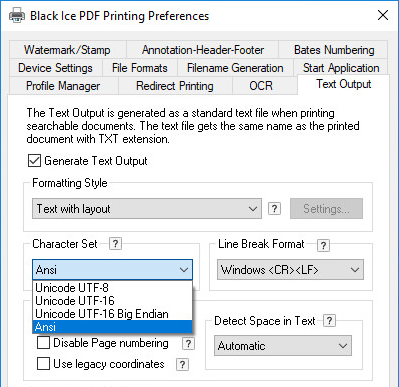
The Black Ice Printer Driver offers an Advanced Text Output feature that enables users to extract text along with exact formatting and positioning details.
To retrieve formatting and exact coordinates of the text from the printed document, navigate to the Text Output tab, enable the Generate Text Output feature and select Add font information, position and style from the Formatting Style dropdown list.
When the Add font information, position and style option is selected, the Printer Driver includes additional formatting details in the text file—such as the font name, font size, font style (Bold, Italic, Underline), and the pixel coordinates of each line of text.
The text output is stored using the following format: [[X1,Y1,X2,Y2][P][B,U,I][FontName]]Extracted Text.
Each entry begins and ends with double brackets, which can be used to parse the file programmatically. The format contains the following components:
X1= The left text coordinate.
Y1= The top text coordinate.
X2= The right text coordinate.
Y2= The bottom text coordinate.
P= The font size in points.
B= The font in the text is bold.
U= The font in the text is underlined.
I= The font in the text is italic.
The coordinates are relative to the upper-left corner of the image. The first two values represent the X1 and Y1 coordinates of the starting point of the text (top-left corner), while the third and fourth values (X2, Y2) indicate the position of the end of the text (bottom-right corner).
If the text includes Bold, Underline, or Italic formatting, the style is recorded using the letters B, U, and I within the [B,U,I] section. For example, [B,,I] indicates that the text is both Bold and Italic. Empty positions represent styles that are not applied.
For example, when printing a text file containing basic contact information, the generated text output may look like the following:
[[295,294,448,353][12][,,][Arial]]Name:
[[295,361,519,422][12][,,][Arial]]John Smith
[[295,432,509,491][12][,,][Arial]]Position:
[[295,498,591,559][12][,,][Arial]]Sales Manager
[[295,569,428,628][12][,,][Arial]]Email:
[[295,635,828,696][12][,,][Arial]]john.smith@example.com
[[295,706,464,765][12][,,][Arial]]Phone:
[[295,773,488,834][12][,,][Arial]](555) 123-4567
[[295,842,539,901][12][,,][Arial]]Company:
[[295,909,633,970][12][,,][Arial]]ABC Corporation
[[295,980,512,1039][12][,,][Arial]]Address:
[[295,1046,916,1107][12][,,][Arial]]123 Main Street, New York, NY
To process open brackets characters ([) in the printed text, the printer driver inserts a backslash character in front of the open brackets character (\[). The driver inserts two backslash characters in front of each backslash character.
For example, if one prints a text file with the single line: [ [[ \[ \[[
The formatted text output reads: [[1,2,3,4][10][,,][Courier New]]\[ \[\[ \\\[ \\\[\[
A backslash is used like in standard C programming language. If a double backslash is followed by a third backslash, it indicates that a single backslash is printed in the document.
Space after every text command
By default, the Black Ice Printer Driver adds an extra space after each text command is received to be able to differentiate text output from applications. For example, in Excel, an extra space inserted after each text command puts a space between each cell in print.

c. In the blue box, there is an extra space. This is added on purpose in order to separate the text and the square bracket ([) character.
d. In the green box, just before the vertical line, there are two spaces. The printed document contained one space and one padding space.
Removing Space after Every Text Command in the Generated Text File
When the Black Ice Printer Driver extracts text output from the input files, by default, it adds an extra space after each text command received. This is important when extracting text output from an excel spreadsheet to ensure that there is a space between each cell.
In some cases, these extra space characters are not necessary. To stop inserting a space character after every text command in the generated text file, add the following section to the printer driver .INI file.
[Text Output Settings]
Add Space=0 //
The default value is 1. To remove extra space, set it to 0.
Disable Page Numbering
One can disable the Page number delimiters in the text output by checking Disable Page Numbering option.
Use Legacy Coordinates
The coordinate calculation has changed in printer driver version 14.35.
When the Use Legacy Coordinates option is enabled, the Printer Driver generates coordinates based on previous version of text extraction.
The extracted text coordinates with Use Legacy Coordinates option will be the same as with Printer Driver version 14.35 and earlier.
This option could be useful if one updated to the latest Black Ice Printer Driver, but insists to use the same coordinates for commonly extracted documents.