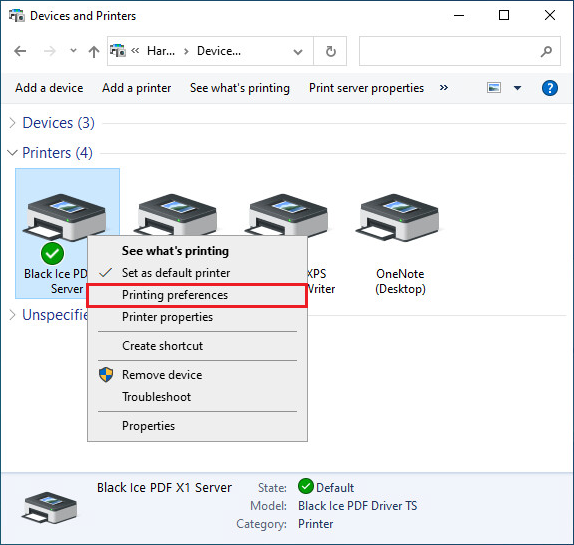
In most cases, this problem occurs when one tries to configure the printer settings in the printing application, instead of in the Devices and Printers > Printing Preferences.
Please note that if one changes the printer settings in the printing application, such as Word, the settings will only take effect on the print jobs printed from the given application, and the printing application stores the settings only while the application is running.
In order to configure the printer settings properly, please make sure that the printing application is closed, and go to:
On Windows 11, please navigate to Settings > Bluetooth & devices > Printers & scanners > Click on the printer > Printing Preferences.
On Windows 10, please navigate to Control Panel > Printers and Devices, right-click on the printer, and click on Printing Preferences.
On Windows 2016 or newer server systems, please navigate to Control Panel > Printers and Devices, right-click on the printer, and click on Printing Preferences.
On Windows 2012 and older systems, please navigate to Start > Control Panel > Hardware > Devices and Printers > Right-click on the Printer > select Printing Preferences.
Make the required changes in the printer settings and press Apply to save the changes.
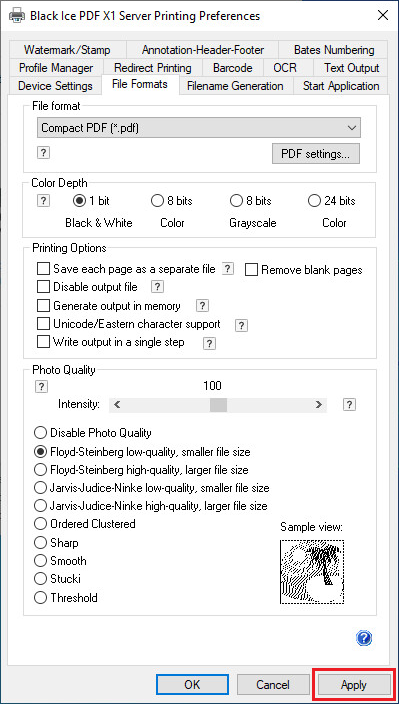
From now on, the configured printer settings will be applied to every printed document.