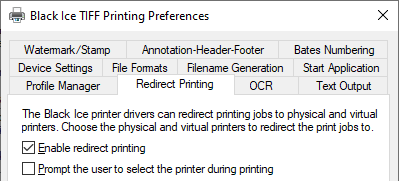
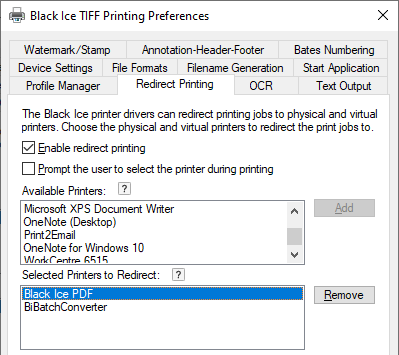
This page covers the different options about configuring Redirect Printing in the Black Ice Printer Driver.
The Enable redirect printing checkbox enables or disables the redirect printing feature to one or more printers.
Prompt the user to select the printer during printing
By checking the Prompt the user to select the printer during printing option, users can select a single or multiple printers for redirection during printing. If enabled, print jobs will not be redirected to the printers added to the "Selected Printers to Redirect" list.
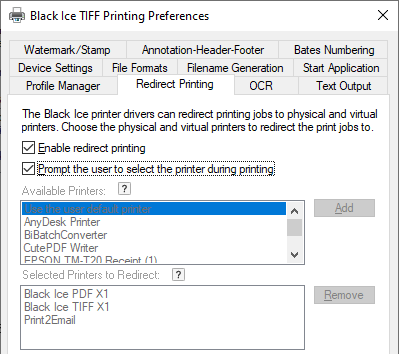
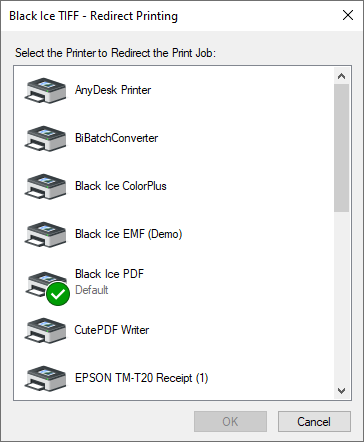
Next time when a user is printing to the Printer Driver, the “Redirect Printing” window will show up with the list of the printers. Select any printers and click on the OK button to redirect the print job. In the event, one wants to select more than one printer, please hold down the Ctrl or the Shift key and left-click on the desired printer.
The Available Printers list contains the printers that can be selected as redirect printers. These printers are the locally installed printers on the PC, and the shared printers through the network.
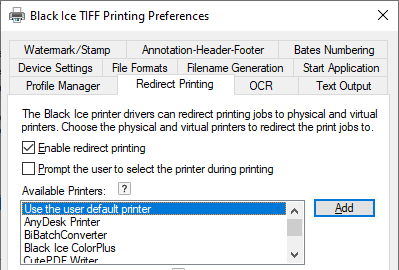
The Selected Printers to Redirect list contains the printers that have been selected as redirect printers. These printers aren’t listed in the Available Printers list. Label printers can also be specified as redirect printers. Black Ice printer drivers can handle certain special paper sizes required by label printers. For more information please refer to the Specifying paper sizes section.
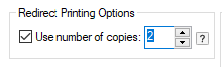
Use number of copies
If Use number of copies enabled, the Printer Driver will ignore the number of copies in the printing application and send the number of copies specified in the Printer Drivers settings under Redirect Printing tab to the specified redirect printers.
Collated/Uncollated
If Use number of copies enabled, the Printer Driver will ignore the Collated/Uncollated settings from the printing application, and use the setting specified in the Printer Driver.
Collated printing will print page documents after each other in proper order, while uncollated printing will print the first page copies, then the second page copies, and so on, as on the explanation diagram below.
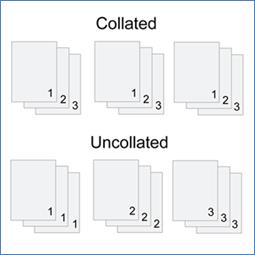
(The numbers on the diagram indicates the page number of the copy)
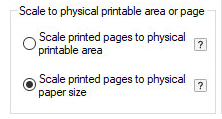
Scale to physical printable area or page
Scale to printable area: scales the printed page down by the size of the physical margin of the target printer, so content very close to the edge of the page can still be printed and nothing will be cut off. This is the default setting.
Scale to physical page size: scales the printed page to the physical size of the page, ignoring the target printer’s physical margins. This means the output will be the exact same size as when printing directly to the target printer. Content outside the physical margins of the target printer is cut off.
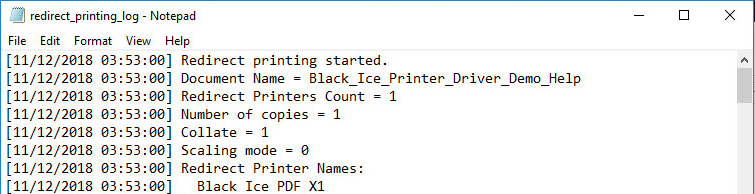
Enable redirect printing log - Enables or disables the log file generation specifically for redirect printing. Log filename and location can be specified. The redirect printing log file contains the following information:
· Redirect printing starting time
· Printed document name
· Redirect Printers Count (Number of printers configured to redirect)
· Number of copies
· Scaling mode
· Redirect Printer Names
· Printed pages
· Redirect printing finished time
· Collated/Uncollated
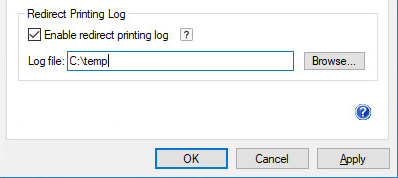
NOTE: Select a place for the logs where all printer driver users have permission to write.
NOTE: Environment variables can also be used to specify the directory.