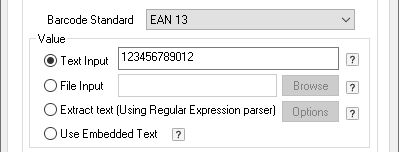
Under the Barcode tab ( Start > Control Panel > Printers and Devices > right click on the Black Ice Printer Drivers X1 then click on the Printing Preferences and click on the Barcode tab ) the user can configure the value of the printed barcode by adding the text directly, input a file which contains the desired barcode value or using text from the printed page.
There are three distinct ways to add a barcode to a printed document.
· Text Input: Using predefined static data to be converted to a Barcode and printed on every page.
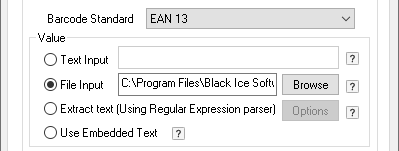
· File Input:Reading a text file during printing and converting the content of the file to Barcode. The Barcode is placed on the printed document. The content of the text file can be changed for every page or before/after printing using the printer driver API.
· Extract Text (Using Regular Expression parser): The content of the printed document page is converted to Barcode and the barcode is placed on the printed document. Using a regular expression to parse the content of the printed document, the content is converted to Barcode and the barcode is placed on the printed document. If there is no regular expression, the whole content of the Page will be converted to barcode.
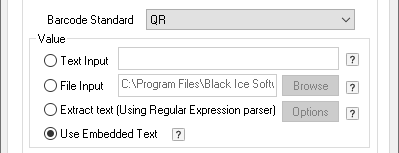
· Use Embedded Text: When the “Use Embedded Text” option is selected, the Printer Driver will recognize special character sequences which are starts with two ‘#’ characters on the printed document to extract specific information after the two ‘#’ characters and print it on the barcode. These special character sequences can be used to remove or alter specified texts and write it in the printed barcode (for example to write the Total price and Date on the barcode when printing an invoice).
NOTE: When using “Insert a page in front of the printed document with Barcode” or “Add barcode to first page only” option, then the Embedded Text must be on the first page of the printed document.
Text Input
If the User selects the Text Input and types the desired text, the barcode will be printed with this value.
Please note that every barcode standard supports different input values, and if the user types invalid characters, an error dialog will pop up when the user click on the OK button.
File Input
If the User selects the File Input and browses the desired text file, the X1 Printer Driver will use the content of the file as Value on the printed barcodes. The required type of the selected file depends on the barcode standard.
Extract Text (using Regular Expression parser)
If the User selects this option, the X1 Printer Driver will use the text from the printed page as the value of the barcode. However, to extract only specific data from the printed page to be used as the value of the Barcode, one needs to create a Regular Expression configuration file.
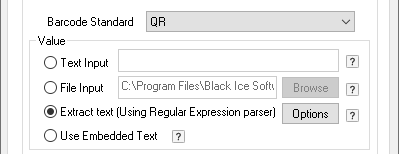
To extract only specific data from the printed page to be the barcode, one can use a Regular Expression. The Regular Expression is a specific pattern that provides flexible means to "match" (specify and recognize) strings of text, such as words, particular characters or patterns of characters. For more information about Extract text (using Regular Expressions parser) please see the Barcode Printing using regular expressions section.
Use Embedded Text
When the “Use Embedded Text” option is selected, the Printer Driver will recognize special character sequences which are starts with two ‘#’ characters on the printed document to extract specific information after the two ‘#’ characters and print it on the barcode. These special character sequences can be used to remove or alter specified texts and write it in the printed barcode (for example to write the Total price and Date on the barcode when printing an invoice).
The recognized command sequences are as follows:
|
Command sequence |
Description |
|
##~~ |
Lines starting with these four characters and ending with ~~ are not printed on the output document, but written on the printed barcode.
For example, if the document contains the following line:
##~~ Phone number=6031234321~~
The Phone number=6031234321 will be removed from the output document, and the Phone number=6031234321 text will be written on the printed barcode. |
|
##** |
Lines starting with these four characters and ending with ** are partially printed and also written to the merged output file. If the string enclosed by the ** marks contains an equation mark, only the characters after the equation mark are printed on the document and on the barcode.
Otherwise, if the character sequence not contains equation mark, the whole string between the asterisks is printed on the document and on the barcode.
For example, if the following string is printed with the driver:
##** Addressee=Company Name**
The following line is printed into the output document and barcode:
Company Name |
For Example;
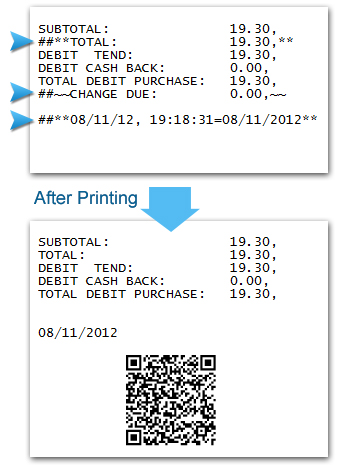
(The barcode; TOTAL: 19.30, CHANGE DUE: 0.00, 08/11/2012)