Description:
The printer driver can generate a ‘group file’ when the printing is finished. The group file contains information about the printed document, including the image or document format (TIFF, PDF, JPEG, etc.), color depth, number of pages, and the name and full path of the generated files.
An application can read the group file and process the output documents (copy, move, rename, etc.).
The OutputFileName sample will show how to get the name of the output documents from the group file.
Trying the Sample:
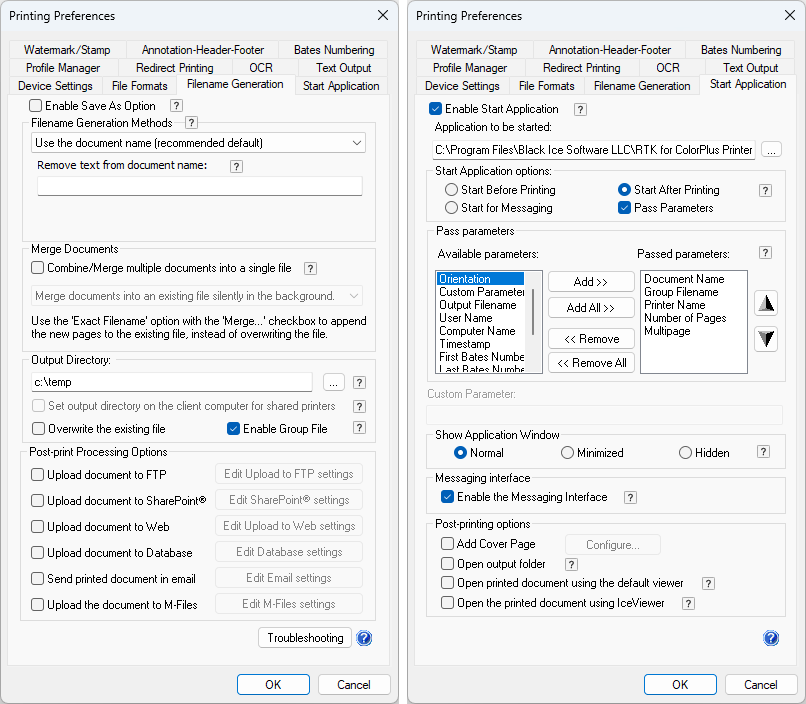
Open the Black Ice printer driver’s Printing Preferences window and make sure the Enable Group File option is checked under the Filename Generation tab.
On the Start Application tab, check Enable Start Application and choose Output Filename C++ Sample.exe from the Samples folder. Select Start After Printing and check Pass Parameters. Pass the parameters in the following order:
The “Do not show this window again.” checkbox is just a convenient way of turning off the Enable Start Application option in the printing preferences.
Sample Source Code Folder Location:
<RTK Installation Folder>\<RTK 32/64 bit>\Samples\Sample Source Codes\C++\Output File Name C++ Sample
Solution files |
Compilers |
Output File Name C++ Sample_VS2015.sln |
Visual Studio 2015 |
Output File Name C++ Sample _VS2017.sln |
Visual Studio 2017 |
Output File Name C++ Sample _VS2019.sln |
Visual Studio 2019 |
Output File Name C++ Sample _VS2022.sln |
Visual Studio 2022 |
Note: Please make sure that you use the appropriate Resource ToolKit, there are two different RTKs.
- API/RTK for 32/64 bit Windows 11, 10, 8.1, 7
- API/RTK for 32/64 bit Windows Server 2025/2022/2019/2016/2012