Go to Print2Email > Advanced Tab.
Enable Enable Content-Based Email Sending.
Optionally, enable Send each page as separate email if you want each page to generate a separate file.
Print2Email allows you to specify the output file name of an email attachment using the Content-Based Email Sending feature. By embedding a special Filename tag in the document, the generated file name can be set dynamically based on the document’s content (e.g., invoice number, purchase order number, customer name).
Example of Filename Tag:
##~~Filename=Invoice Number~~
Setup Instructions:
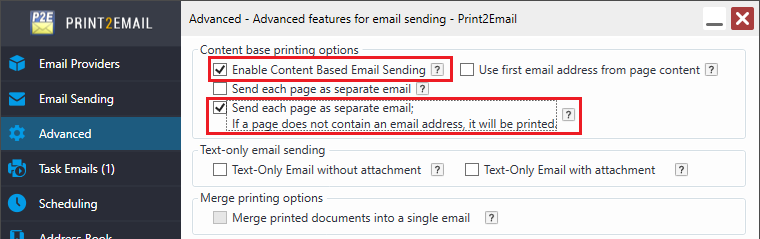
Go to Print2Email > Advanced Tab.
Enable Enable Content-Based Email Sending.
Optionally, enable Send each page as separate email if you want each page to generate a separate file.
Important Notes:
The Filename tag must be on the first page of the printed document.
If Send each page as separate email is enabled, the Filename and EmailTo tags must appear on every page.
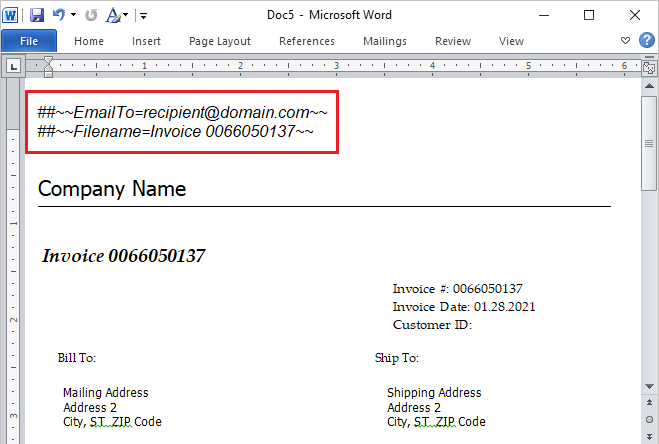
For Example:
##~~EmailTo=recipient@domain.com~~
##~~Filename=Invoice 0066050137~~
If a page is missing an EmailTo tag, it will be merged with the previous page until the next EmailTo tag or the end of the document.
The special character sequences are removed from the document and do not appear in the output.
This feature allows each page of a multipage document to be emailed as a separate attachment with a unique filename, fully automated based on the document’s content.
When printing to the Print2Email, the document will be attached with the generated filename:
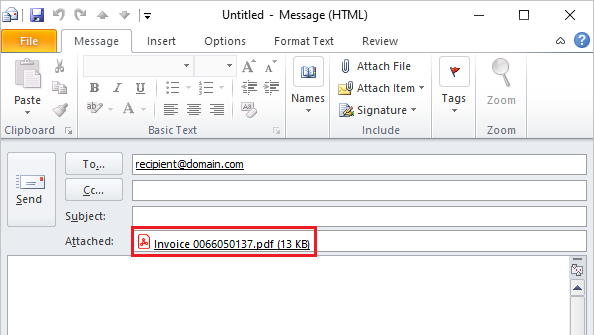
(Printed document with the generated filename)
To read more about content-based filename tags, please refer to the Content Based Email Configuration section of the manual.
Sending email in Silently/in-Batch or interactive mode:
One is printing/emailing a 5-page document, and the user selects the “Enable content base email sending”, user selects “Send each page a separate email”.
|
1. Setting(s): |
|
|
|
|
There is an “EmailTo=” and a “Filename=invoice number” tag on every page. |
|
|
Results: |
|
|
|
|
Each page is attached to a separate email. The attached file’s name is “invoice number” in every email. |
|
|
2. Setting(s): |
|
|
|
|
There is an “EmailTo=” and a “Filename=invoice number” tag on page 1 and page 3. |
|
|
Results: |
|
|
|
|
Page 1-2 is attached to an email: the attached file’s name is “invoice number”. Page 3-5 is attached to a different email: the attached file’s name is also “invoice number”. |
|
|
3. Setting(s): |
|
|
|
|
There is an “EmailTo=” and a “Filename=invoice number” tag on page 3 and page 4. “Send all emails automatically (silently) to the same address” is turned on. |
|
|
Results: |
|
|
|
|
Page 1 and Page 2 are not sent out. Page 3 is sent out as an email; the attached file’s name is “invoice number”. Page 4-5 is sent out as another email: the attached file’s name is also “invoice number”. |
|
|
4. Setting(s): |
|
|
|
|
There is an “EmailTo=” and a “Filename=invoice number” tag on page 3 and page 5. “Send all emails automatically (silently) to the same address” is turned on. “Save each page as a separate file” is turned on under Printing Preferences/File Formats. |
|
|
Results: |
|
|
|
|
Page 1, Page 2 and Page 4 are not sent out. Page 3 is sent out as an email; the attached file’s name is “invoice number”. Page 5 is sent out as another email: the attached file’s name is also “invoice number”. |
|
|
5. Setting(s): |
|
|
|
|
There is an “EmailTo=” tag on every page. There is a “Filename=invoice number” tag on page 3 and page 5. “Send all emails automatically (silently) to the same address” is turned on. “Save each page as a separate file” is turned on under Printer Settings/File Formats. |
|
|
Results: |
|
|
|
|
Page 1 is attached to the first email as <original document’s name>000001. Page 2 is attached to the second email as <original document’s name>000002. Page 3 is attached to the third email with file name is the “invoice number”. Page 4 is attached to the fourth email as <original document’s name>000004. Page 5 is attached to the fifth email with file name is the “invoice number”. |
|