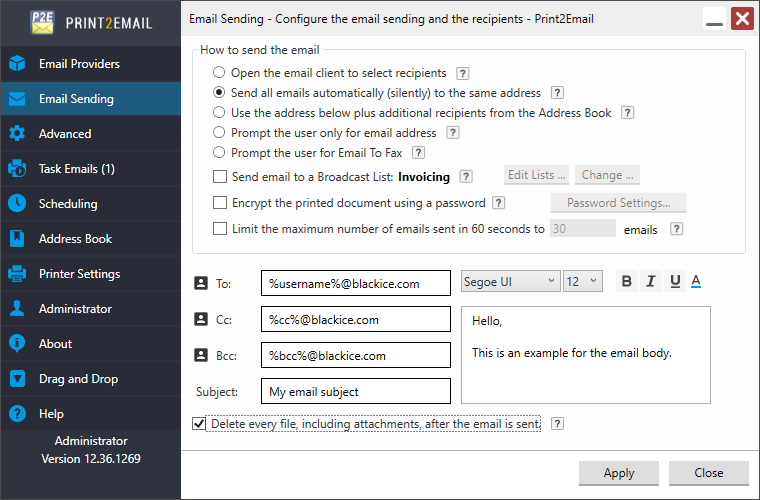
Print2Email allows users to add an email signature to every outgoing email. Users can choose to apply the default signature of the Outlook client, create a custom signature within Print2Email, or select any existing signature configured in the Outlook client.
To configure a signature, enable the Add Signature to Emails option on the Email Sending tab, then choose the preferred method for adding a signature from the Select Signature dropdown list.
The following options are available:
Use the default signature
If the Use the default signature option is selected, Print2Email applies the default signature configured in the Outlook client.
Using a custom signature
To use a custom signature created in Print2Email, select the Use a custom signature option, then click the Edit Signature… button to create a new custom signature or modify the existing one.
The Edit Signature window opens, where the custom signature can be edited.
The custom signature editor supports formatted text, hyperlinks, and images. For advanced formatting or custom layouts, HTML code can be inserted by clicking the HTML Editor button in the top-right corner of the editor window.
Once finished, click the Save button to save the custom signature.
Using Outlook Client Signatures
Every signature that is already configured in the Outlook client is also available. To use an existing signature configured in Outlook, select the signature directly from the Select Signature list.
Email Provider Compatibility
The signature feature is supported for every email provider available in Print2Email.
Signatures can be used with the Outlook (MAPI) client, Gmail, Outlook.com, and custom SMTP servers, regardless of the selected provider.