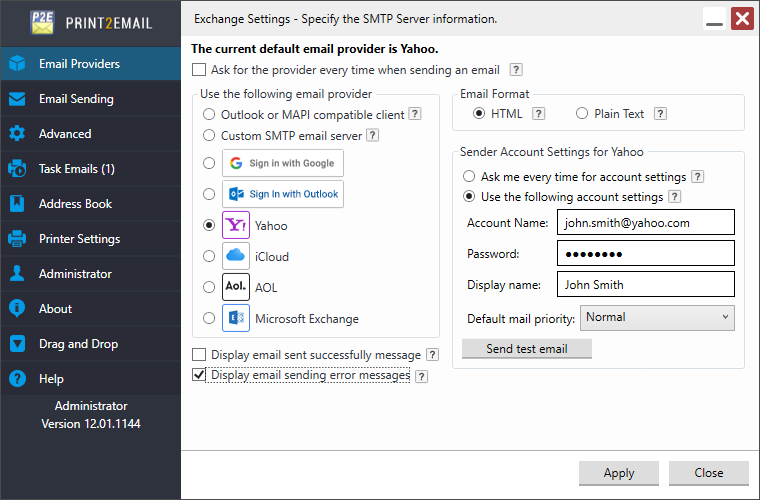
To configure the Print2Email Server to use a Microsoft Exchange for sending emails every time when Print2Email converting a document, go to Print2Email > Email Providers tab > Select the Microsoft Exchange option and uncheck the Ask for the provider every time when sending an email checkbox.
Please enter the Exchange Server properties and the email account:
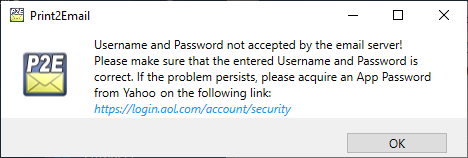
If Display email sent successfully message is enabled, Print2Email will show a confirmation message after an email is sent.
If Display email sending error messages is enabled, any SMTP-related errors are shown when an email fails to send.
Email Format
HTML – Format message as HTML. HTML message can contain formatting and are compatible with most e-mail readers.
Plain Text – Format message as plain text. Plain text can be read by everyone but contains no formatting.
SMTP Settings
SMTP Server - Enter the Exchange server address.
Port - Enter the correct port of the mail server, used for sending emails.
Using SSL/TLS - Enable this checkbox if SSL/TLS authentication is required by the mail server.
Email Sender – This must be a valid email address with the defined domain. Email sender is the actual email address from where the message is sent.
Authentication
Account settings might be required for authentication by the Exchange Server. Please select the Authentication method from the Authentication dropdown menu.
Select Ask me every time for login information option, to enter the account name and password every time when sending an email.
If the server does not require authentication, the Send email without SMTP user name and password option can be selected to use Anonymous logon for the connection. This feature can be used for services that use IP address restrictions instead of user authentication.
Select the Use the following login information option to enter the account name and password. The Print2Email will use these settings automatically every time when sending an email.
Under Authentication settings Print2Email users can also set how recipients will see the message in their email clients (for example, Outlook). The following options are available:
· Display name field does not need to be a valid email address. Display name can be any text or name of the individual or the company.
· Priority defines the importance of the email message. If the email is important, one can configure High priority for the email, and the email will be displayed as important email for the recipient.
When finished, click on the Apply button to save the changes. From now on, every document printed to the Print2Email printer driver will be opened in the Print2Email Email Sender to let users send the printed documents in email quickly and easily using the configured Exchange Server.
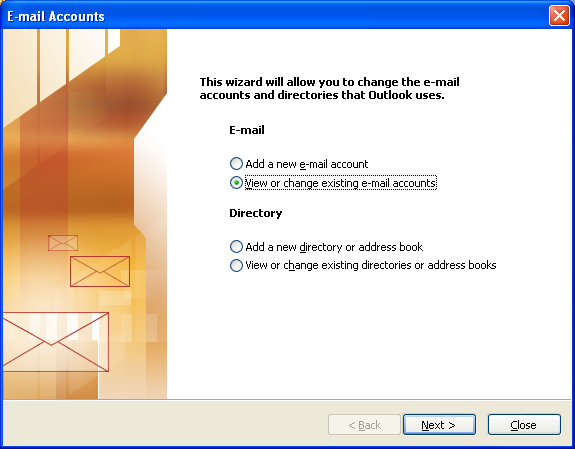
If you are trying to use the Office 365 SMTP server and receive an error message “The SMTP server requires a secure connection or the client was not authenticated”, please see the following section of this manual.