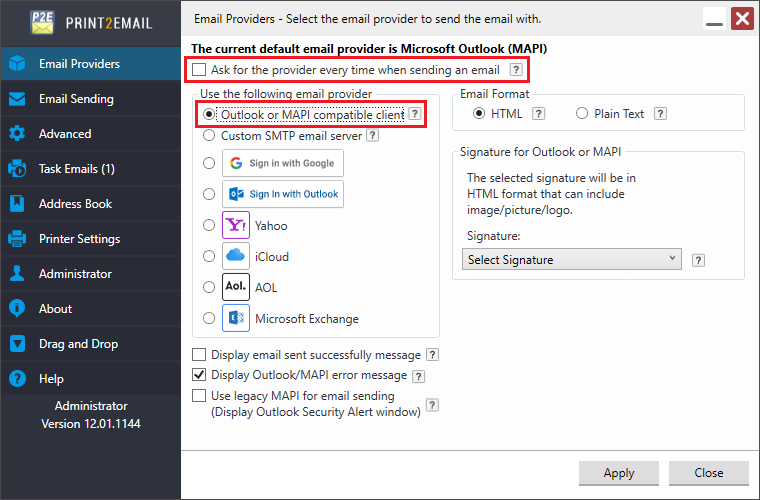
To configure the Print2Email Server to use Microsoft Outlook or other MAPI compatible clients for sending emails every time when the Print2Email converts a document, please navigate to Print2Email > Email Providers tab > select the Outlook or MAPI compatible client, and uncheck Ask for the provider every time when sending an email checkbox.
If Display email sent successfully message is enabled, Print2Email will show a confirmation message after an email is sent.
If Display Outlook/MAPI error message is enabled, any MAPI-related errors are shown when an email fails to send.
If Use legacy MAPI for email sending (Display Outlook Security Alert Window) is enabled, Outlook’s Security Alert Window will appear. This Outlook prompt prevents third-party applications from sending emails automatically without notifying the user.
Email Format
HTML – Format message as HTML. HTML message can contain formatting and are compatible with most e-mail readers.
Plain Text – Format message as plain text. Plain text can be read by everyone but contains no formatting.
Using signature with Print2Email
The Print2Email is able to utilize the predefined signatures from Microsoft Outlook Client, and use the signature on every sent email.
The predefined signatures are listed under Email Providers tab, at the Signature dropdown list.
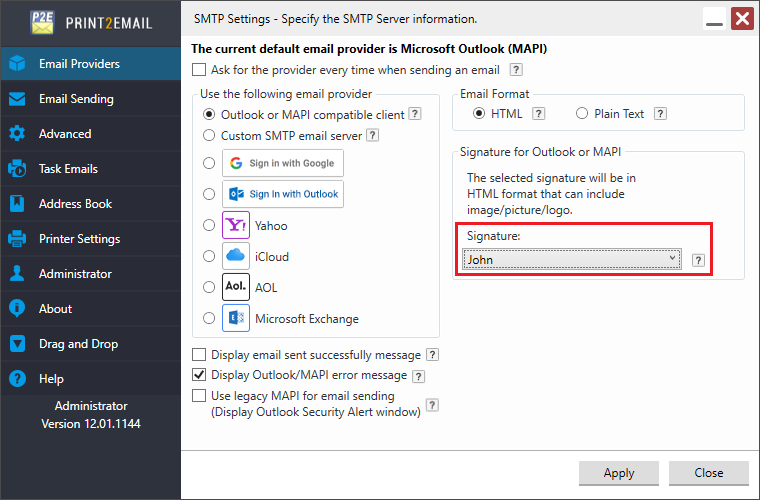
In order to use one signature in the outgoing emails, select the appropriate signature from the dropdown list, and press Apply to save the changes.
Use legacy MAPI for email sending
With the option "Use legacy MAPI for email sending (Display Outlook Security Alert Window)" is enabled, Print2Email launches the Outlook client, and only Plain Text signatures can be used, no images or HTML links can be used in the signature.
With the option "Use legacy MAPI for email sending (Display Outlook Security Alert Window)" is disabled, you one can use HTML and Image in the signatures.
Signature format
If the HTML is selected, signature will be in HTML format that can include image, picture or logo.
If the Plain Text is selected, signature will be in Plain Text format without image, picture or logo.
From now on, the selected signature will be added to the bottom of every outgoing email from Print2Email.
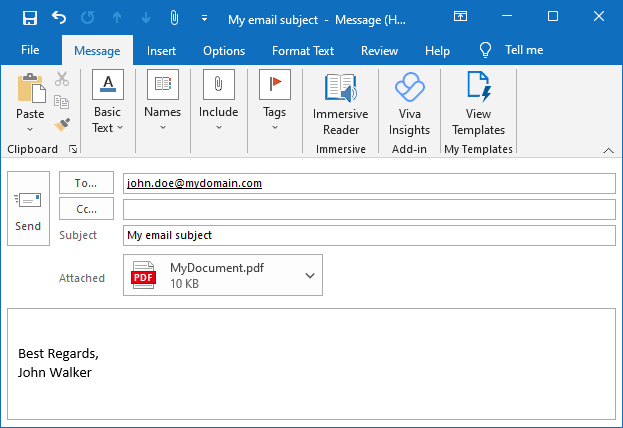
NOTE: Signatures only supported in MAPI compatible clients, such as Microsoft Outlook, or Thunderbird.
NOTE: If a third-party application launches Outlook client, Outlook will not use the signature.
When finished configuring the Print2Email, press Apply to save the changes. From now on, every document printed to the Print2Email printer driver will be opened in Microsoft Outlook to let users send the printed documents in email quickly and easily.
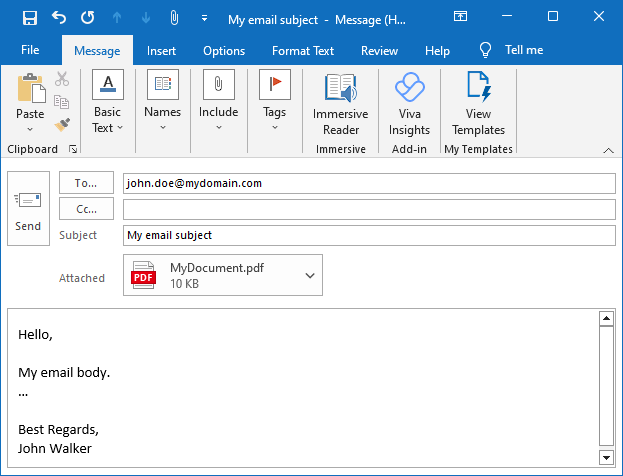
Configuring SMTP in Microsoft Outlook:
Outlook 2019 SMTP configuration
Outlook 2016 and 2013 SMTP configuration