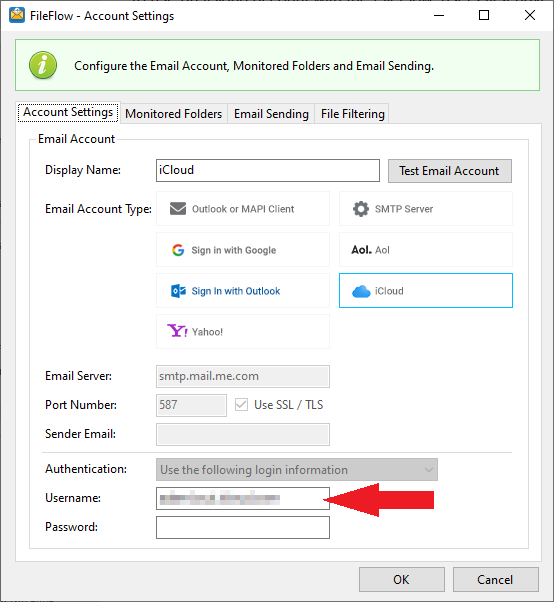
To configure the FileFlow to use an iCloud account for email sending, please select the iCloud option on the Acount Settings window and enter the desired email address to use in the Username / Email field.
To use an iCloud account with the FileFlow, users first have to generate an app-specific password which will be used in the FileFlow for authentication.
Generating an App-Specific Password
To generate an app-specific password, please login to iCloud > click on the profile picture on the top right corner > Select the Manage Apple ID option (or click on the link below after login).
https://appleid.apple.com/account/manage
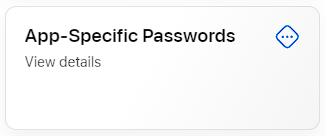
Please click on the App-Specific Password option.
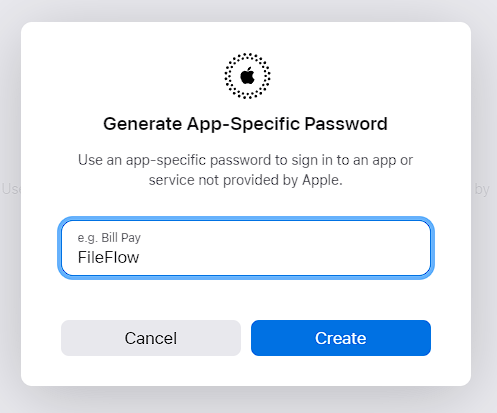
On the next window, please enter the name of the application and click on the Create button.
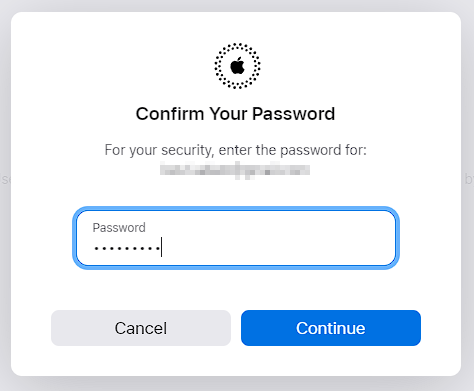
Enter the password for your Apple ID and click on the Continue button.
On the next window, the generated app password will be shown:
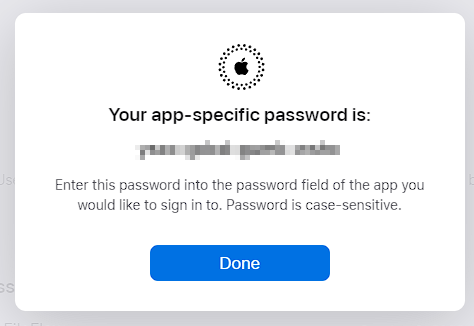
Please copy and paste the app-specific password to the Password field in the FileFlow:
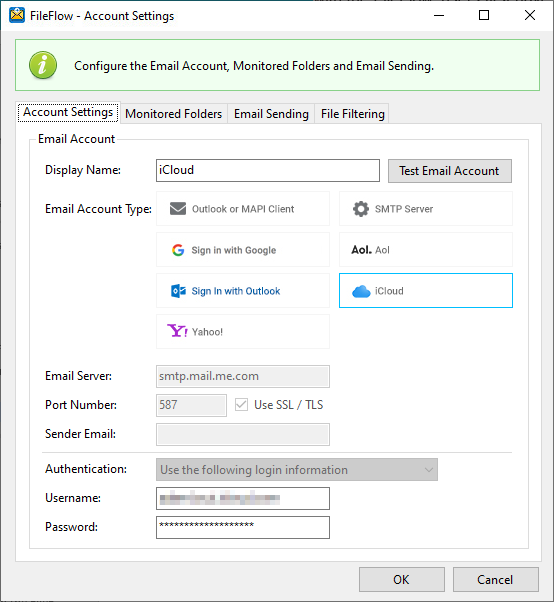
Now the FileFlow is configured to send emails with the configured iCloud account. To test the email sending, click on the Test Email Account button and see if the configured email account receives a test email.