The Conversion History feature provides a complete record of all files processed by the Black Ice BiBatchConverter conversion service. Each file conversion—whether successful or failed—is automatically logged into the Conversion History.
This enables administrators and users to easily track converted files, review error details, and analyze conversion trends over time.
How to Enable Conversion History
1. Open Service Manager.
2. Go to General Settings > Conversion History Settings.
3. Check the option Enable Conversion History.
4. (Optional) Specify the location where the Conversion History file will be saved.
5. Configure the “Keep conversions in history for X days” option to remove older entries automatically.
Once enabled, the service will begin recording all conversion events immediately.
How to View and Filter the Conversion History
In the Service Manager user interface, click either:
Show Errors, or
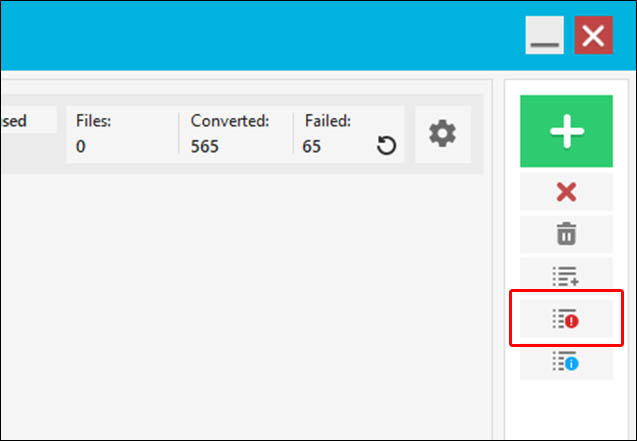
Show Conversion History

The Conversion History window will open, showing the occurred errors (When clicked on Show Errors), otherwise the entire conversion history.
In this window, you can:
Review the list of converted files
Check their status (success or error)
View error details (if any)
Filter entries by date and conversion result for easier navigation
This allows quick inspection of conversion activity and helps isolate any problems in the workflow.