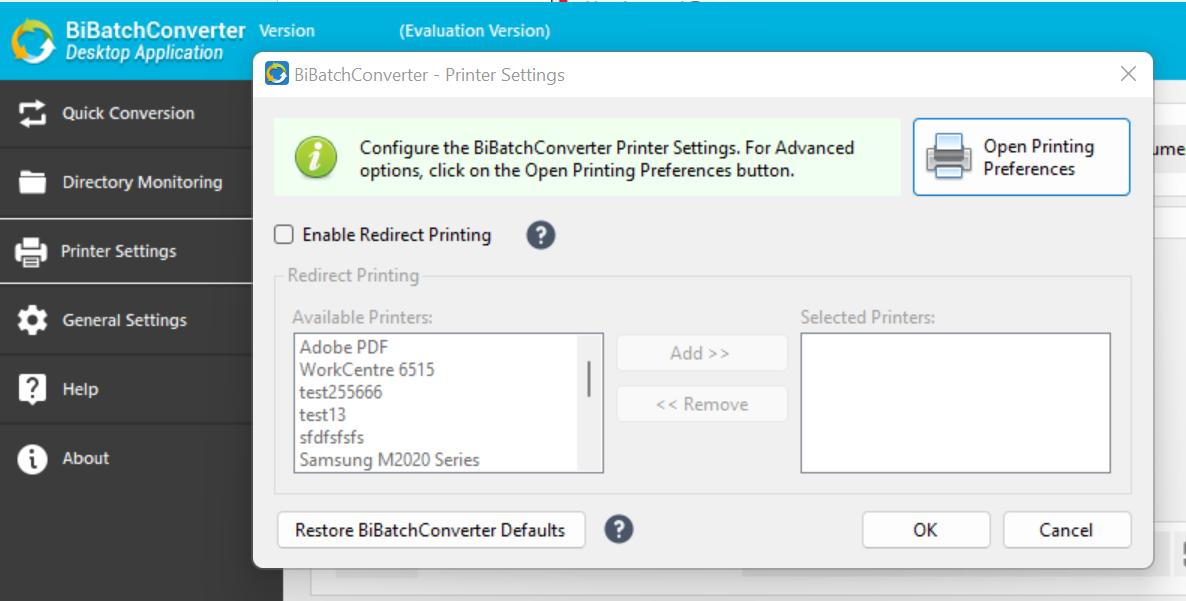
The Black Ice Printer Drivers, besides printing a document, is also capable of extracting the text information from the printed document.
The text extracted from the document is saved as a standard text file, which can then be processed as necessary. The text file gets the same name as the image, but with the .txt extension.
Enable the Text Extraction in BiBatchConverter Desktop Application
Open the BiBatchConverter Desktop Application, and then go to Printer Settings > Open Printing Preferences.
Navigate to the Profile Manager tab and select the Text Output - Extract text from documents profile.
If the profile does not exist, navigate to Control Panel > Devices and Printers > right click on the Black Ice Printer Driver > Printing Preferences > navigate to the Text Output tab, and check the Generate Text Output option.
Enable the Text Extraction in BiBatchConverter Service Manager
Open the Service Manager, and then click on the Configuration (Gear icon), next to the conversion task you would like to extract the text from documents.
Navigate to the Conversion tab, and select the Text Output - Extract text from documents profile.
Click on the OK button to save the settings, and then you can start the conversion.
For extracting text from PDF documents, please refer to the PDF Converter Settings section.
For more information about the Text Output feature, please refer to the Text Output section.