
The Black Ice Printer Drivers have a built-in feature to upload printed documents to the designated SharePoint servers instantly. In the Printer Manager, each available Printer Driver and Agent Printer can be assigned to a separate SharePoint directory. The SharePoint upload feature is available from version 12.00 (2010.03.19) in every Printer Driver.
To configure the Printer Driver to upload the printed documents directly to SharePoint, please open the Printer Manager, navigate to the SharePoint tab, and enable the Upload to SharePoint Server option. To read about how to configure SharePoint settings in Printing Preferences or during saving, please see the Upload document to SharePoint and the Upload to SharePoint using the Save As dialog sections.
SharePoint Settings
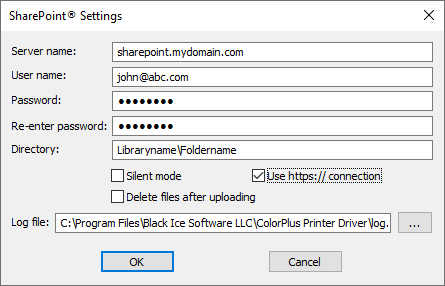
Server name
The complete URL of the server, without http:// or https://.
For example:
mydomain.sharepoint.com/sites/sitename
Authentication
The user can select the authentication method from the Authentication dropdown menu. The Username and Password method is used by older SharePoint servers, while the more secure Microsoft Account (OAUTH2.0) authentication can be used with SharePoint 365 Servers.
- Username and Password
The username and password of the domain user has to be provided.
- Microsoft Account (OAUTH2.0)
The user will be prompted to select the Microsoft account for uploading files to SharePoint. To read more about how to use the Microsoft Account (OAUTH2.0) authentication method, please see Using Microsoft Account (OAUTH 2.0) authentication to upload documents to SharePoint.
Please make sure the that the provided user account has the Add Items/List Permission, or a Contributor Permission level to the given library or directory; otherwise, the files cannot be uploaded.
Directory
The full path of the upload directory. The upload directory needs to be determined correctly before uploading files.
A complete SharePoint website URL is usually looks similar as the following example: https://servername/sites/sitename/libraryname/foldername/
The Directory field should be filled with the libraryname/foldername part of the URL above. The directory cannot start with a forward slash (/) character.
For example:
Using OneDrive for Business with Office365 SharePoint:
https://mycompany.sharepoint.com/sites/sitename
For example, the Directory can be Sales/Invoices/September.
If the SharePoint server does not contain a site, the Directory must be libraryname/foldername.
|
Determining the Directory to upload documents
The upload directory can be determined with a previously manually uploaded document.
Login to the SharePoint page and locate the file. Right click on the filename or the file icon, and select Open > Open in browser. Copy and paste the URL from the address bar to the Directory field. Delete the unnecessary parts of the Path, such as server name and filename.
|
Please make sure to test that the file uploads are working correctly after setting or changing the Directory.
NOTE: The Shared Documents directory of the Office 365 SharePoint online directory is the same as the Documents directory in the SharePoint.
For example:
Directory on the SharePoint 365 online: Shared Documents\Test
Directory on the SharePoint Uploader: Documents\Test
NOTE: If other users cannot see the uploaded file, it needs to be checked in and published to other users.
NOTE: The support for Office 365 SharePoint online requires .Net Framework 4.0 or higher.
Enable Silent uploading
If the Enable Silent uploading option is checked, the Printer Driver uploads every file to the SharePoint server in the background. The upload window and error messages will not be displayed; however, the error messages are still recorded in the log file.
Use https:// connection (SSL)
SSL (Secure Sockets Layer) is a protocol that provides communication security over the Internet. Selecting the Use https:// connection option, the Printer Driver will use secure https protocol to upload every file to the SharePoint server.
Delete files after uploading
If the Delete files after uploading option is enabled, the Printer Driver automatically deletes the files after the upload has finished.
Upload through memory
If the Upload through memory option is enabled, the Printer Driver will upload the printed document to the SharePoint Server through memory, without writing the file to the local disk.
If the Upload through memory option is enabled, the Printer Driver will not generate a group file during printing. To generate a group file while using the Upload through memory option, please enable the Enable Group File option on the Printing Preferences > Filename Generation tab. The group file will be generated in the specified output directory.

Enable Filling out SharePoint Document Columns
If the Enable Filling out SharePoint Document Columns option is checked, the Document Properties window will appear each time a document is printed to the Printer Driver, where the user can edit the columns (property values) of the uploaded document.
Editing document properties during upload
On the Document Properties window, the metadata associated with the uploaded document can be edited. To use this feature, please make sure that the Enable Filling out SharePoint Document Columns option is enabled.
To edit a property value, please double-click the property. Required properties are highlighted in yellow and must be filled. Please note that the properties displayed in the Document Properties window can be configured in SharePoint.
NOTE: If silent uploading is enabled the Document Property window will not be displayed for the user.
On the Edit window, the value of the selected property can be modified. Editing options may vary depending on the property type and configurations in SharePoint (e.g., text, date and time, number, currency, etc.).
The SharePoint uploader supports the following column data types:
· Single line of text
· Multiple lines of text
· Number
· Yes/No
· Person or Group
· Date and time
· Choice
· Hyperlink
· Currency
The SharePoint uploader does not support the following column data types:
· Location
· Image
· Managed metadata
· Lookup
Click Continue to complete the upload of the printed document to SharePoint.
Test Connection
To make sure the SharePoint upload has been configured successfully, please click on the Test Connection button. If the connection is established successfully, the following window appears.

Logging
If the Enable Logging option is checked, every SharePoint related message is recorded in the specified log file.
By default, the log file is available in the following directory:
C:\ProgramData\Black Ice Software LLC\[Black Ice Printer Driver]\Logs\BiUploadToSharePoint.log
The log file contains information about:
- Upload start date
- Source file
- URL
- User
- Silent mode
- Upload finish date, and result.
NOTE: Environment variables can also be used to specify the directory.
NOTE: Select a place for the logs where all printer driver users have permission to write.
Limitations
- The Disable output file option must be disabled on the Printing Preferences > File Formats tab to use the Upload document to SharePoint feature. To upload the document without saving the file on the computer, please make sure the Delete files after uploading option is enabled in the SharePoint Settings.
- The Upload document to SharePoint feature requires .NET Framework version 4.7.2 or higher.