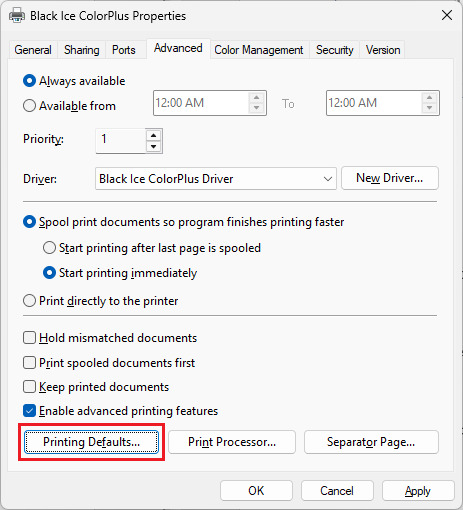
The default settings for the System account can be set manually after the installation.
On Windows 11, please navigate to Settings > Bluetooth & devices > Printers & scanners > click on the printer > Printer properties > Advanced >click the Printing Defaults button.
On Windows 10, please navigate to Control Panel > Printers and Devices > right-click on the printer > and click on Printer Properties > Advanced > click thePrinting Defaults button.
On Windows 2016 or newer server systems, please navigate to Control Panel > Printers and Devices, right-click on the printer > and click on Printer Properties >Advanced > click the Printing Defaults button.
On Windows 2012 and older systems, please navigate to Start > Control Panel > Hardware > Devices and Printers > right-click on the printer > Printer Properties >Advanced > click the Printing Defaults button.
Configure the Printer Preferences.
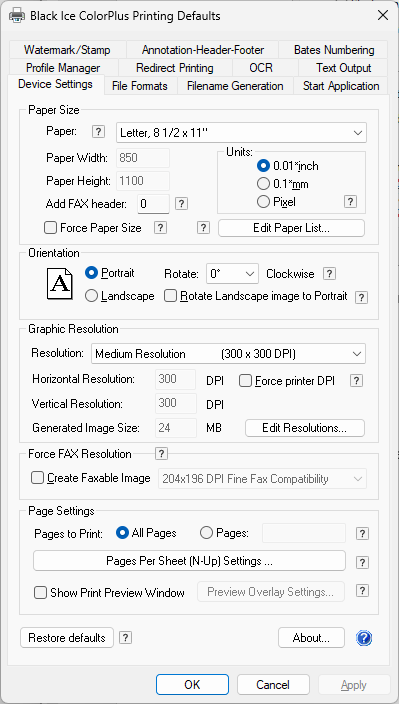
Click the Apply button.
Every setting specified in the Printing Defaults window is set for the System Account.