
If during the demo period the Print2RDP is uninstalled, and re-installed within 15 days, the following screen comes up:
If a registered copy of Print2RDP is uninstalled within the demo period, a demo registration number is given during the uninstallation process.
NOTE: This saved Demo Registration Number will be required to re-register.
Paste the code to the Your demo license number field and press OK.
Alternatively, contact Black Ice Software via impact@blackice.com or impactsupport@blackice.com or via telephone.
Registering as Release (requires serial number provided during purchase)
Having purchased a copy of Print2RDP, a serial number is provided. In this case, there is no need to register Print2RDP as a Demo. Choose the Register the Product as: Activate full version option:

Enter the serial number in the text field and press OK. The serial number is in the body of the email containing download instructions for Print2RDP.
NOTE: An active internet connection is required in order to license the software.
The serial number contains dashes that are part of the number.
If the serial number was mistyped or the serial number is incorrect, the following message appears. Click Yes to enter the serial number again:
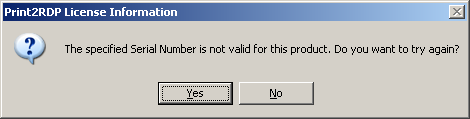
When the serial number is entered, press OK. The software registers over the Internet connection via Port 80 (the web browser’s port) to query the Black Ice license server and verify that a valid serial number was entered. Upon successful licensing, the following message appears:

If the release registration fails, refer to the Manually registering the Release Version of Print2RDP section.