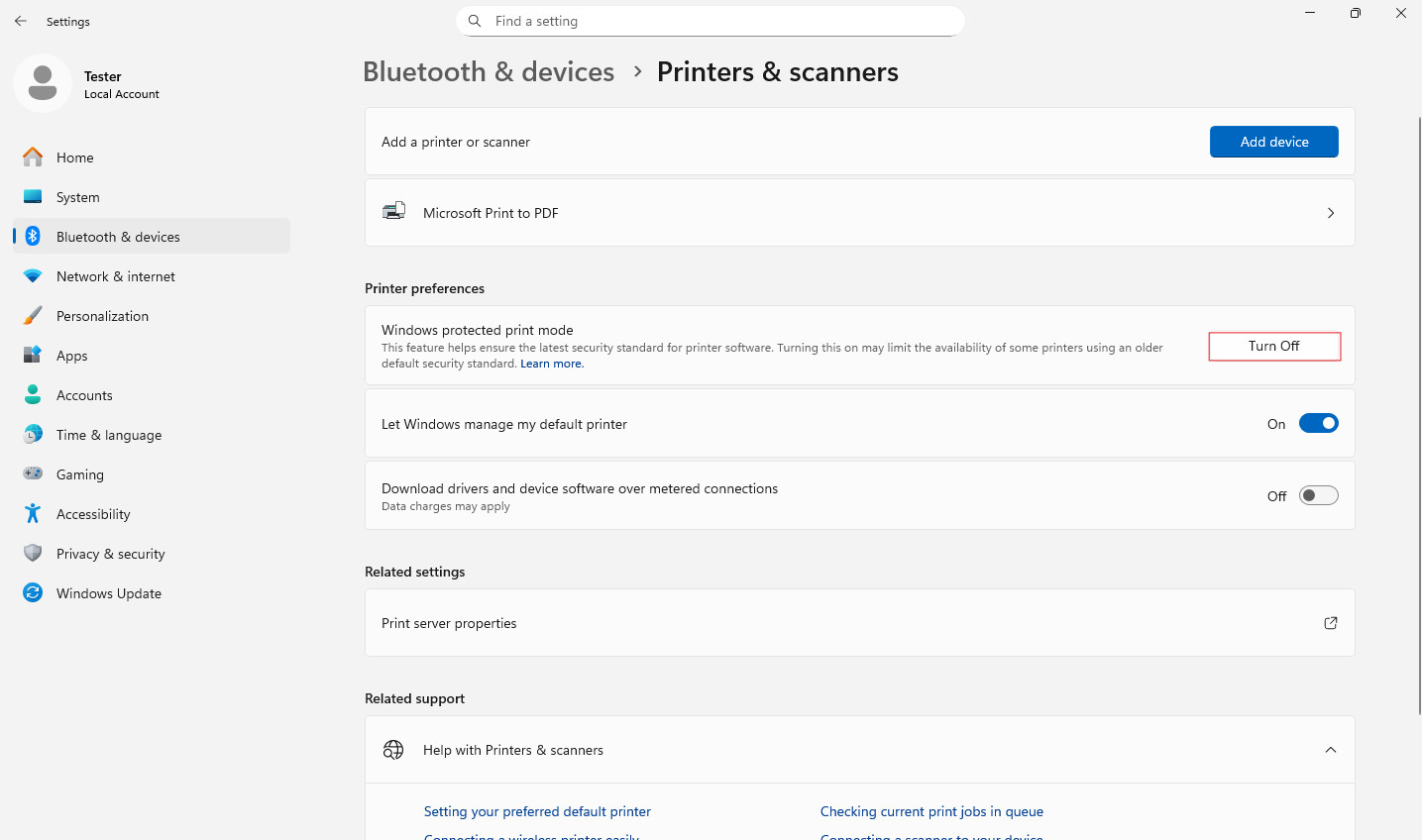
How to turn off Windows Protected Print Mode


To disable the Windows Protected Print Mode, follow the steps below.


On Windows 11 and Windows 2025 Server systems:


  1. Navigate to:
    Settings > Bluetooth & devices > Printers & scanners

  2. Scroll down to the “Printer preferences” section.

  3. Locate “Windows Protected Print Mode”.

  4. Click the “Turn Off” button.


  5. In the dialog that appears, click “Yes” to confirm turning off the Windows Protected Print Mode.


After following these steps, the Windows Protected Print Mode will be disabled.