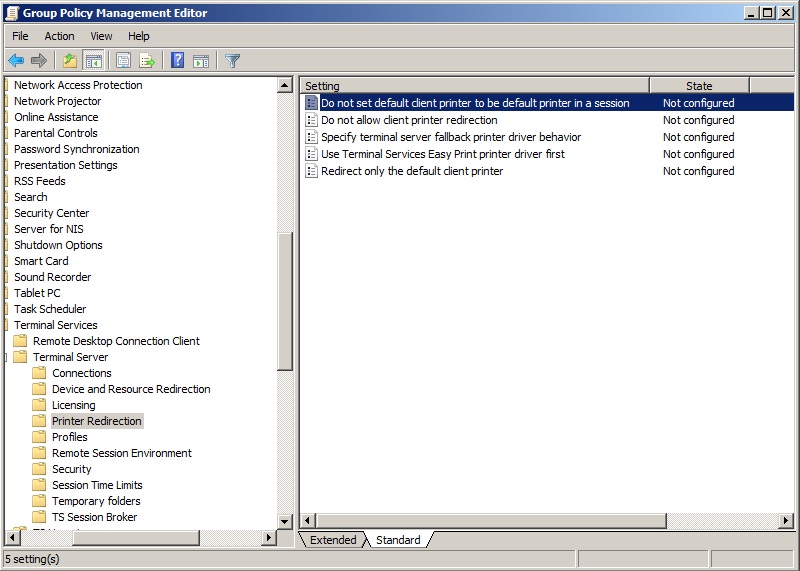
Configure the Print2RDP client printer to become the default printer on the server.
To change “Do not set the client printer to be default in a session” in the Group Policy Management, perform the following the steps:
1. Go to Start > Administrative Tools >Group policy management.
2. Create a new GPO or modify the existing one that has Group Policy setting for the server.
3. Open the Group Policy Management Editor window.
4. Navigate to Computer Configuration > Policies > Administrative templates > Windows Components > Terminal Services >Terminal server > Printer Redirection.
5. Double click on "Do not set default client printer to be default printer in a session" and set the value to Disable to authorize the default client printer to be the default printer on the server.

Click Apply to activate the settings.