
To enter a registration number once Print2RDP has been purchased, open the Print2RDP Server properties. The Print2RDP Server settings can be reached from the Start Menu > Programs > Print2RDP Server > Print2RDP Server Settings.
Note: Please make sure the Print2RDP Server application is running as administrator.
If you do not see the license information tab, or registration button is grayed out, it indicates the application is not running as an administrator. Please close the application, right click on the application and select Run as administrator.
Navigate to the License Information tab:
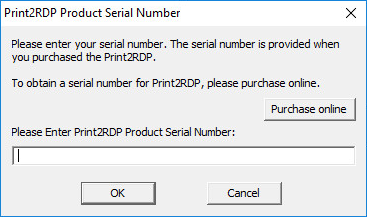
Press the Register button and a dialog appears, allowing the entry of the registration number:
Currently two types of licenses are available for Print2RDP:
· Static license
· Transferable license
What is the difference between the transferable license, and regular (static) licenses?
The regular (static) Print2RDP license is tied to a computer, therefore even if you bought a new computer you will not be able to reinstall and register Print2RDP on this new computer, since your license is already used up.
On the other hand the transferable license validates the license periodically, and it is not tied to a computer, therefore if you would like to move your already registered Print2RDP to a new computer, you can do it very easily by following the steps described in the Moving transferable license to another computer section.
For more information about the transferable licenses, please refer to the Registering the Print2RDP with transferable license section.
After entering the Print2RDP serial number and pressing OK, the following screen appears:

If registration failed, refer to the Manually registering the Release Version of Print2RDP.