Administrator privileges are required to install and register BiLPDManager. Antivirus software may block certain functions of the BiLPDManager.
Please add BiLPDManager to the Safe list. Please check the documentation of your antivirus and/or firewall software how to add BiLPDManager to the Safe or Allowed list.
NOTE: BiLPDManager requires .NET 4.0 installed on the computer.
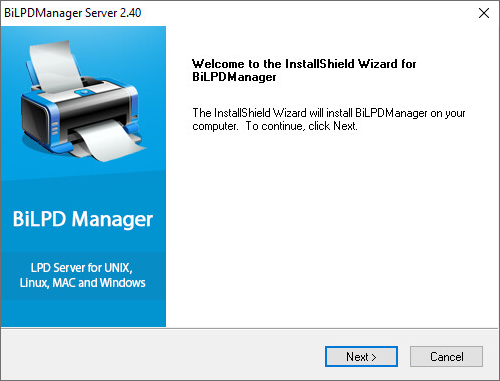
1. To begin installation, double click on the BiLPDManager.exe file. The following screen will be displayed:
The InstallShield Wizard will start. Click Next.
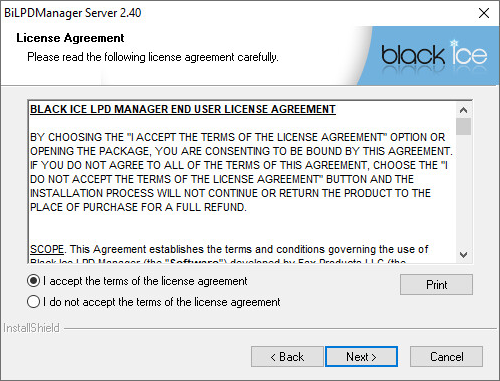
Read and accept the License Agreement and Click Next.
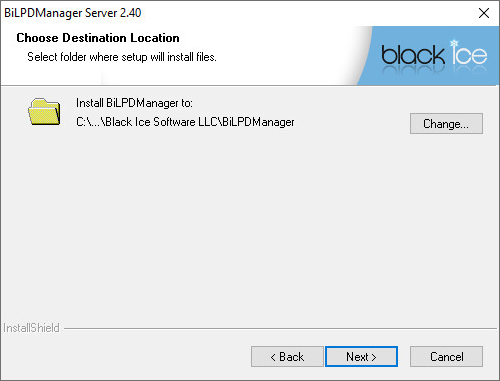
The installation location dialog will appear. Choose a directory to install BiLPDManager by clicking the Change… button and selecting a directory OR use the default location. Click Next.
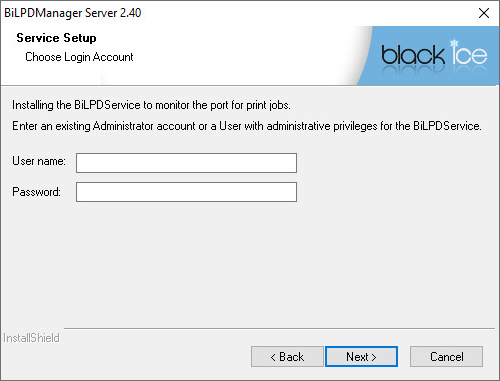
4. The BiLPDManager will install the BiLPDService. User must be an Administrator to install and run BiLPDService.
5. BiLPDManager will install the files and register the BiLPDManager as Demo automatically. If the registration fails, please refer to the Manually registering the BiLPDManager Demo during installation section of the manual. When the installation is complete, the Wizard Complete dialog will appear. Press Finish to complete the installation.
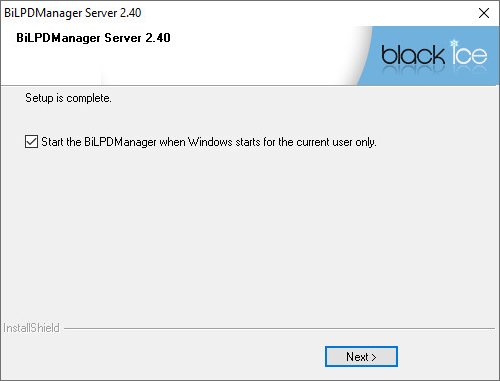
The BiLPDManager was installed successfully. Check the option to start the BiLPDManager minimized automatically when the Windows starts.
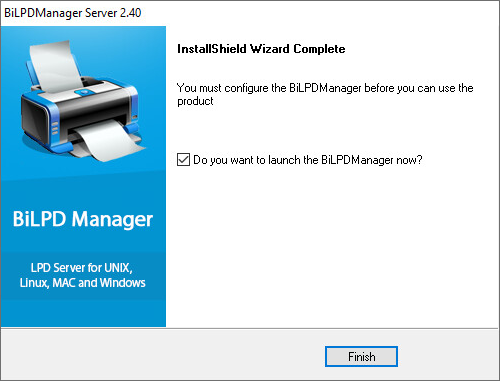
The BiLPDManager was installed successfully.